
Effective desk organization starts with a simple principle: every object needs a clear purpose and a permanent place. Remove what you do not use, organize the remaining items around your workflow and keep cables, devices and accessories away from your main working area.
The goal is not to create an empty desk. It is to create a workspace where everything you need is easy to reach without competing for your attention.
In this guide, we explain the best desk organization methods and show you how to build a workspace that feels clear, functional and visually balanced.
Why Desk Organization Matters
A disorganized desk creates small obstacles throughout the day.
You search for a charging cable. Papers cover the area where you want to write. Your laptop, headphones and phone compete for space. Even when each interruption lasts only a few seconds, the workspace begins to feel inefficient.
A well-organized desk solves these problems by giving every essential a logical position.
Good desk organization can help you:
- Find important tools more quickly
- Create more usable desk space
- Reduce visual distractions
- Make everyday tasks feel smoother
- Keep cables and devices under control
- Build a workspace you enjoy using
The most effective organization system is not necessarily the one with the most storage. It is the one that supports the way you actually work.
Desk Organization at a Glance
| Method | Main benefit | Best for |
| Remove unnecessary items | Reduces visual clutter | Every workspace |
| Create functional zones | Supports a smoother workflow | Multi-purpose desks |
| Use vertical space | Frees the desk surface | Small desks |
| Give essentials a fixed place | Prevents recurring clutter | Everyday accessories |
| Hide occasional-use items | Keeps the setup visually calm | Minimal workspaces |
| Manage cables as a system | Reduces technical clutter | Device-heavy setups |
| Organize by frequency of use | Improves accessibility | Productivity workspaces |
| Complete a daily reset | Maintains order | Busy professionals |
| Review the setup regularly | Keeps the system relevant | Changing workflows |
1. Start With a Complete Desk Reset
The easiest way to organize a desk is to begin with an empty surface.
Remove everything from the desk, including accessories, documents, devices and decorative objects. Clean the surface before deciding what should return.
Next, divide the objects into four groups:
- Used every day
- Used occasionally
- Belongs somewhere else
- No longer needed
Only the first group should automatically return to your immediate working area.
Items you use occasionally can be stored in a drawer, tray or nearby cabinet. Objects that belong somewhere else should leave the workspace completely.
This process gives you a clearer starting point than moving the same clutter from one corner of the desk to another.
Ask One Question About Every Object
Before returning an item to your desk, ask: Does this object support a task I regularly complete here?
When the answer is no, the item probably does not need to occupy valuable desk space.
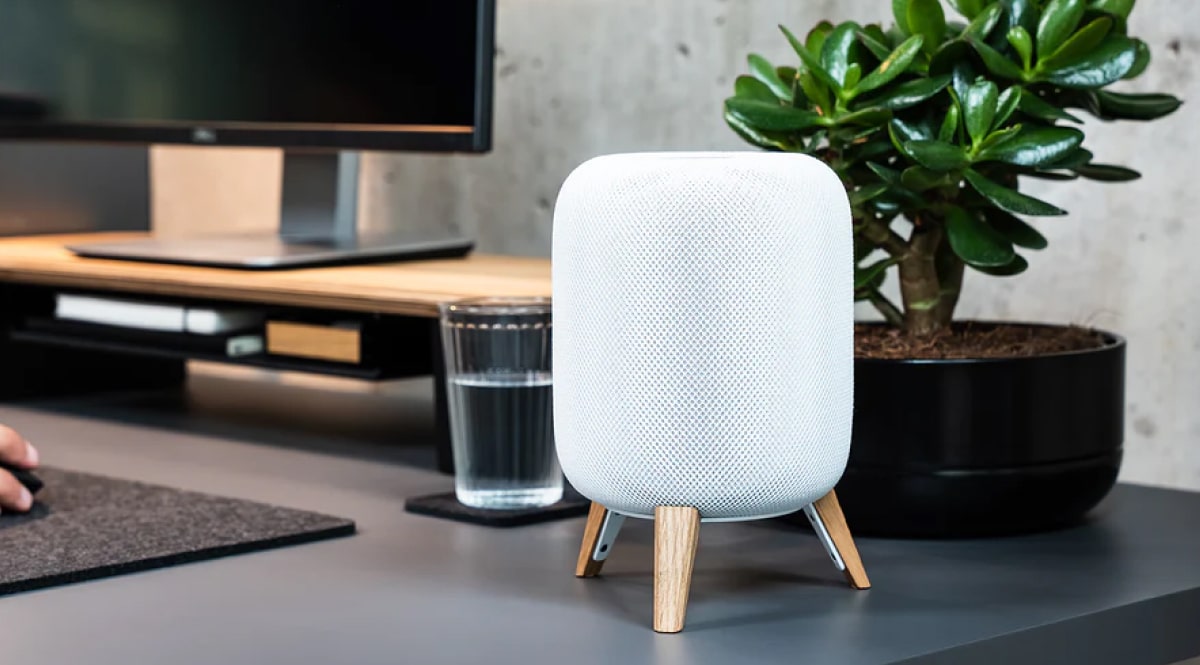
That does not mean your desk must have no personality. A plant, photograph or carefully chosen object can make the workspace feel more personal. But decoration should be intentional rather than accidental.
2. Divide Your Desk Into Functional Zones
Desk organization becomes easier when the workspace is divided into zones.
Each zone should support a particular activity or category of tools. The exact layout depends on your work, but most desks can be divided into three basic areas.
The Primary Work Zone
This is the central area directly in front of you. It usually contains:
- Keyboard
- Mouse or trackpad
- Notebook
- Current document
- Main input devices
Keep this zone as open as possible. You should be able to switch between typing, writing and reviewing documents without moving several unrelated objects first.
The Device Zone
This area contains your monitor, laptop, tablet, phone and charging equipment.
Try to group these devices rather than distributing them across the entire desk. A defined device zone makes cable management easier and prevents technology from taking over the workspace.
The Support Zone
The support zone holds objects you need regularly but not continuously. Examples include:
- Pens
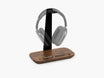
- Headphones
- External drives
- Chargers
- Reference materials
- Desk accessories
This zone can sit to the side, underneath a monitor stand or inside an accessible tray. A well-defined layout like this is exactly what our guide on desk accessories for better organization walks through in more detail.
A zoned layout reduces unnecessary movement because every item is positioned according to how it is used.
3. Use Vertical Space Instead of Expanding Sideways
Many desk organization problems are actually space problems.
When every object sits directly on the desk surface, the workspace quickly becomes crowded. Using vertical space creates additional levels without requiring a larger desk — our guide on creating more desk space without buying a bigger desk covers this idea in depth.
A monitor stand or desk shelf can create:
- Space underneath the monitor
- A defined position for the screen
- Storage for smaller accessories
- Separation between technical equipment and the main work area
- A visual centre for the setup

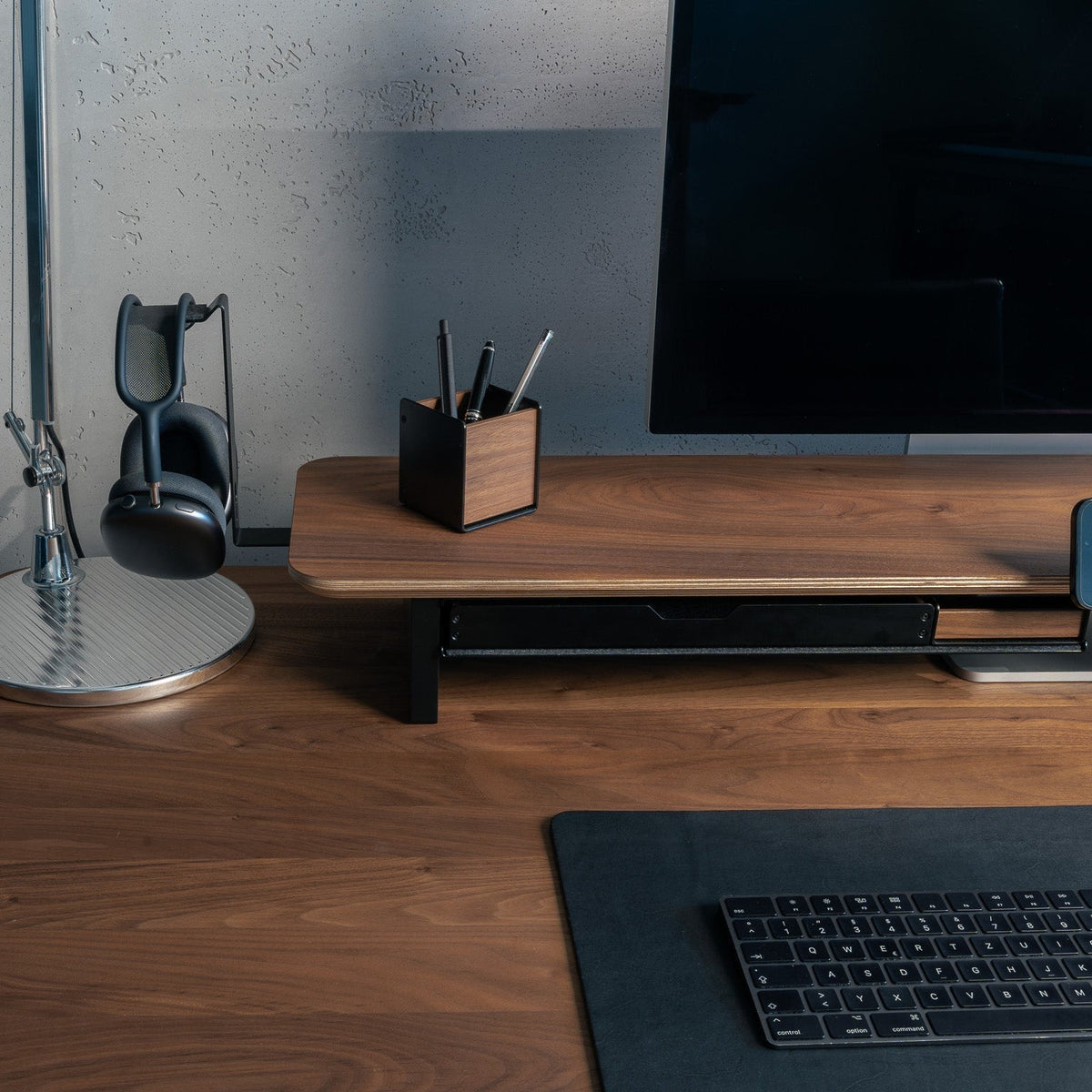
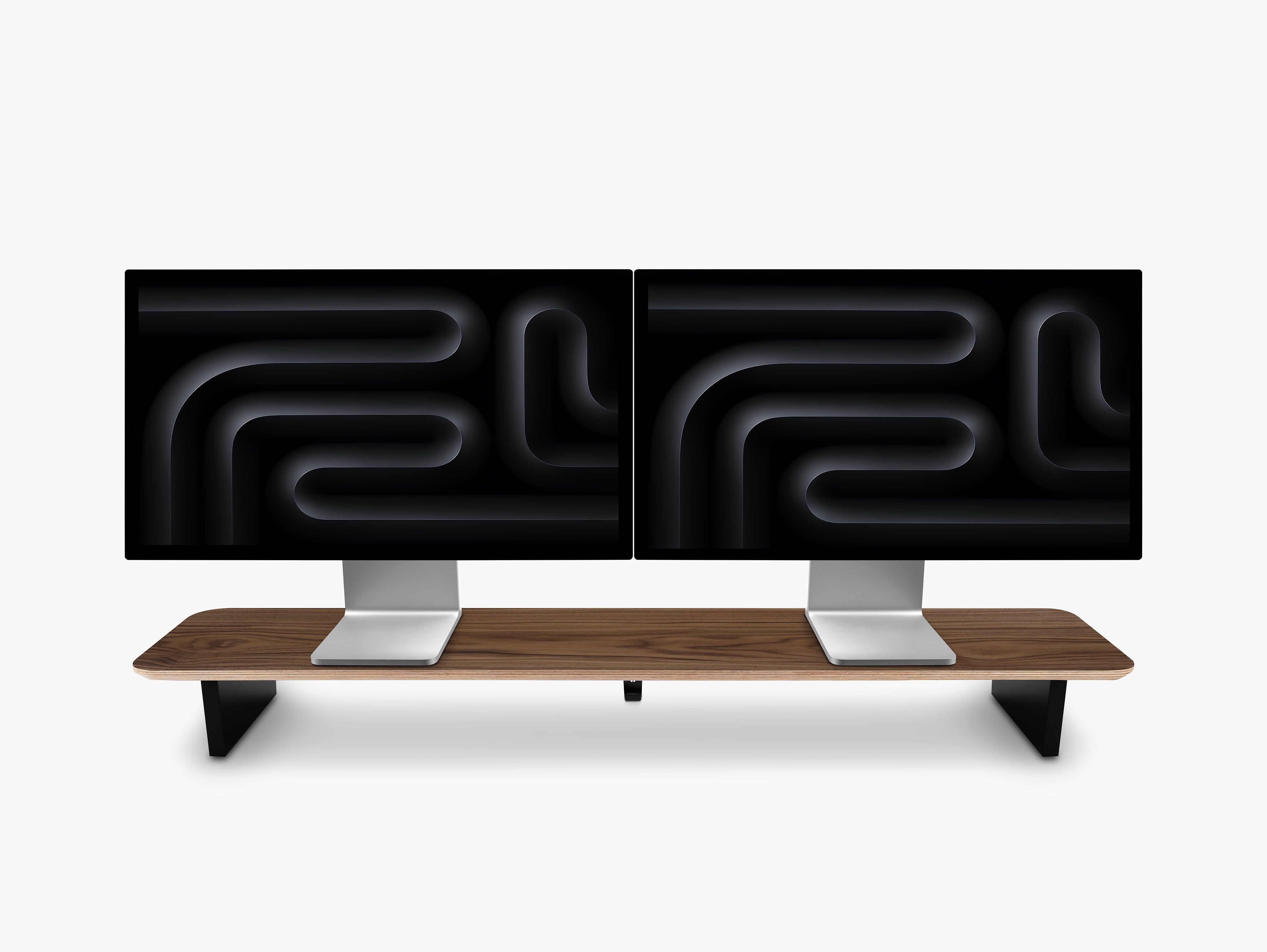
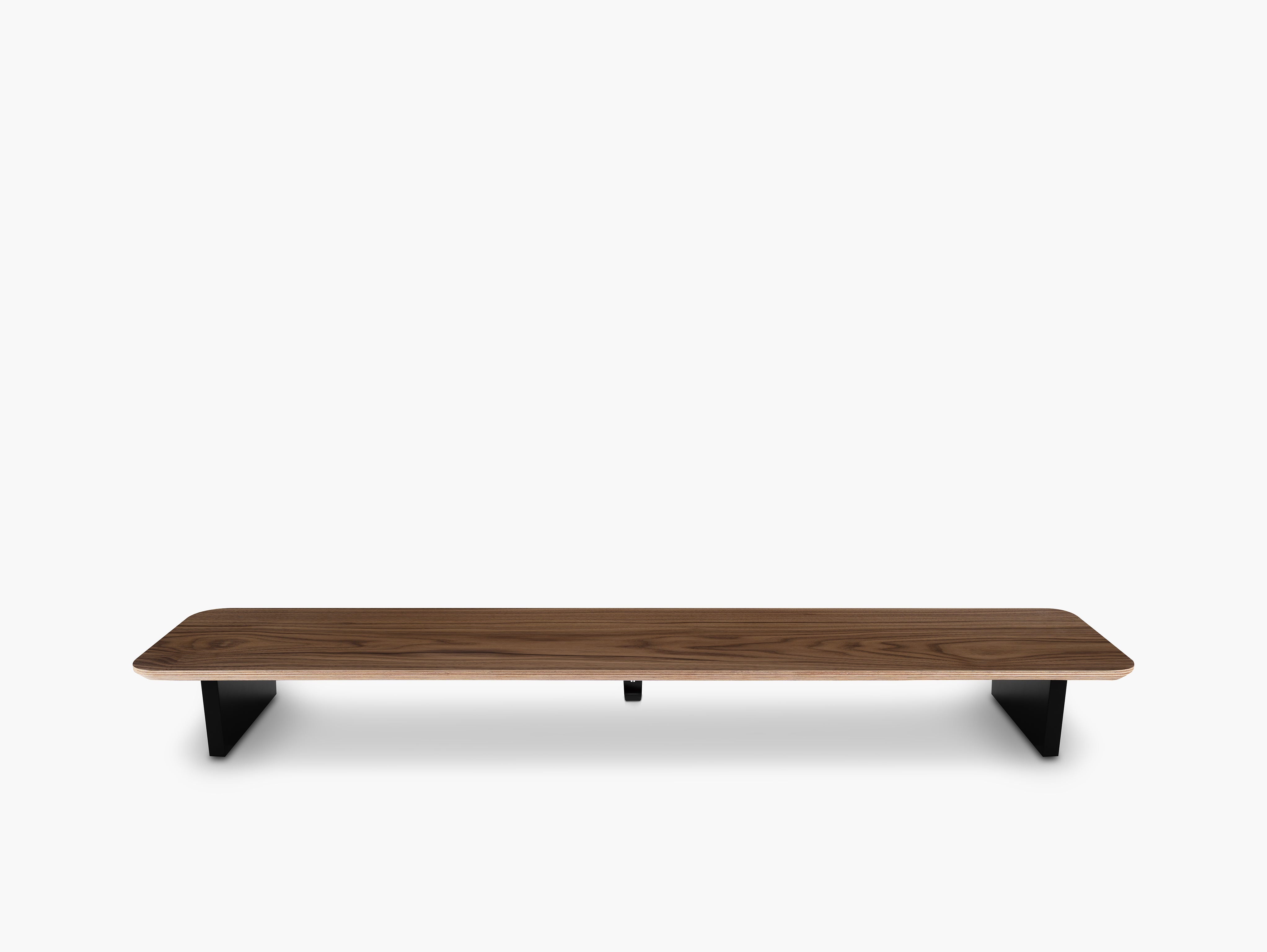
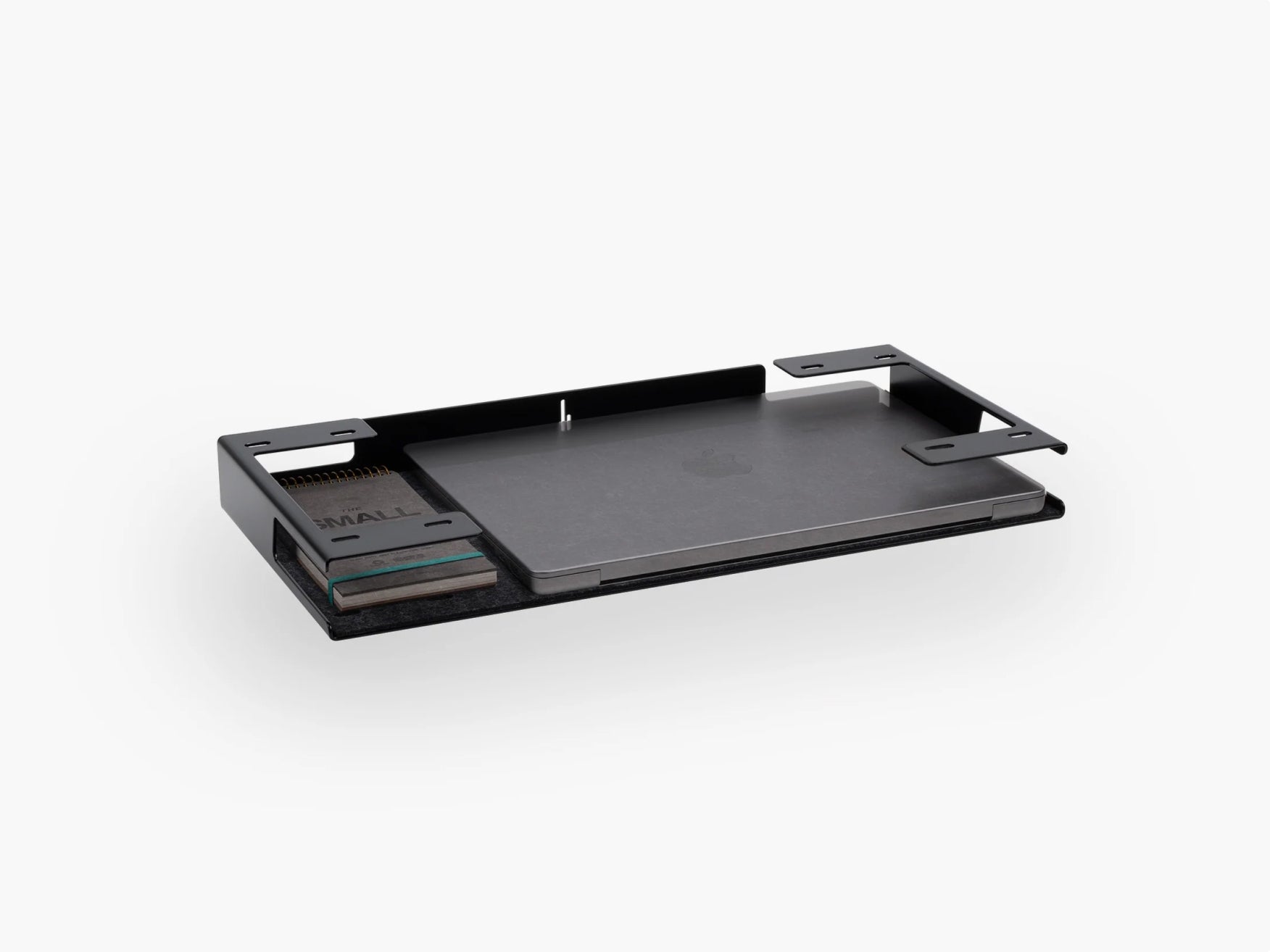
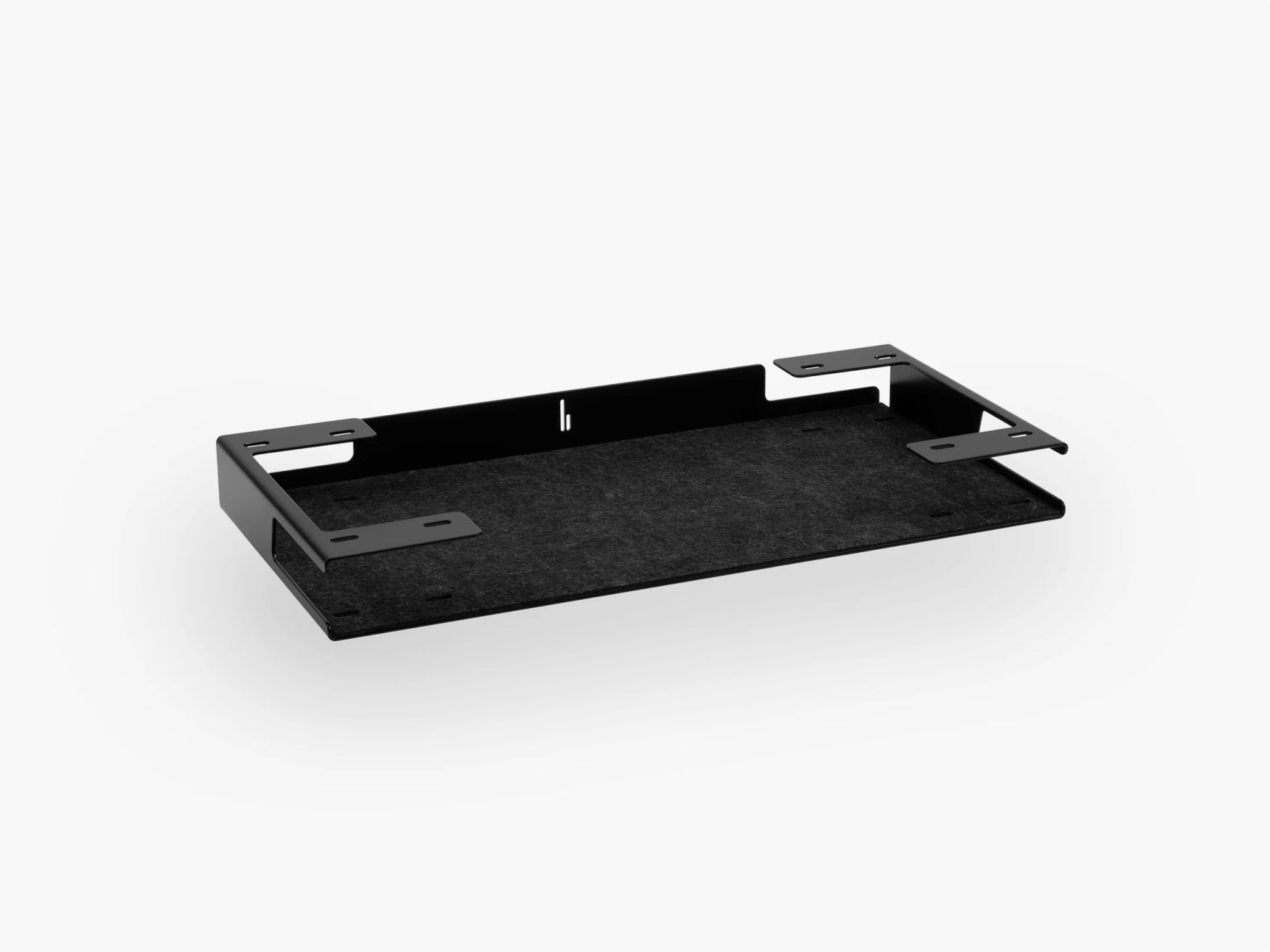
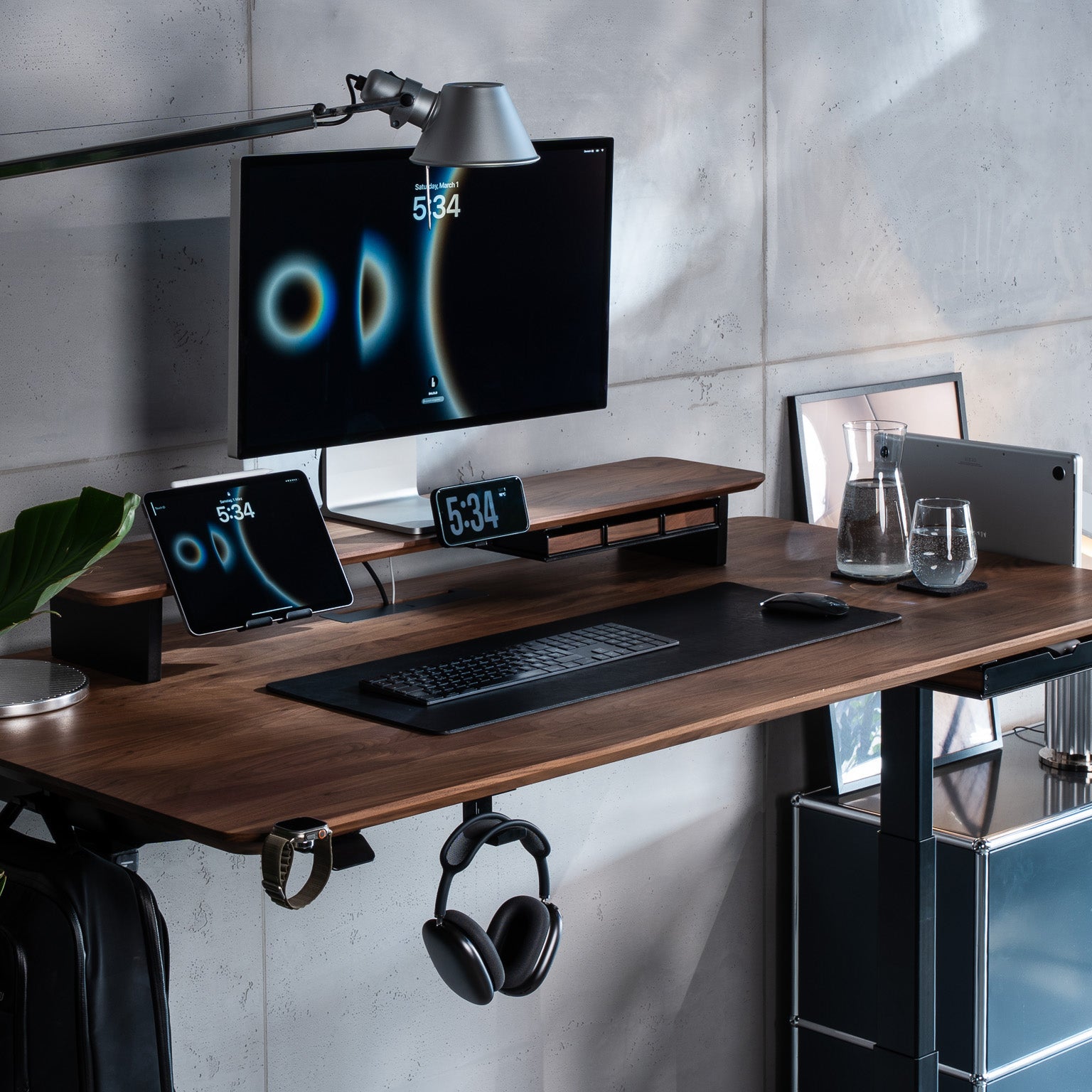
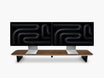
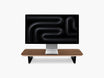
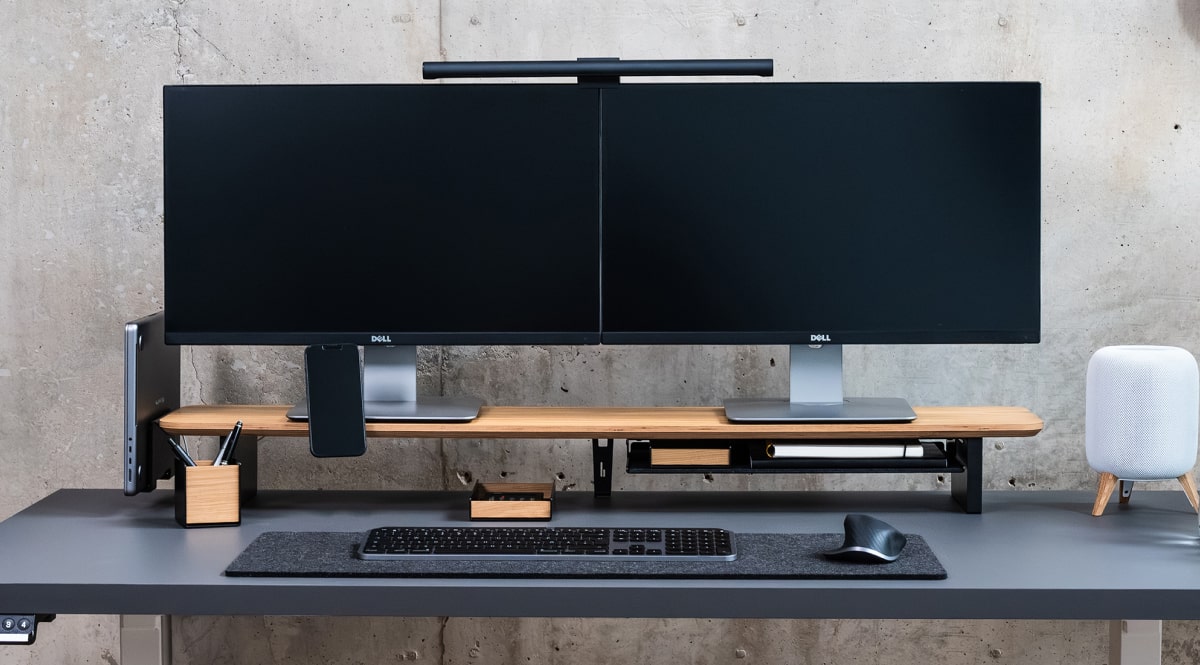
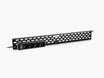
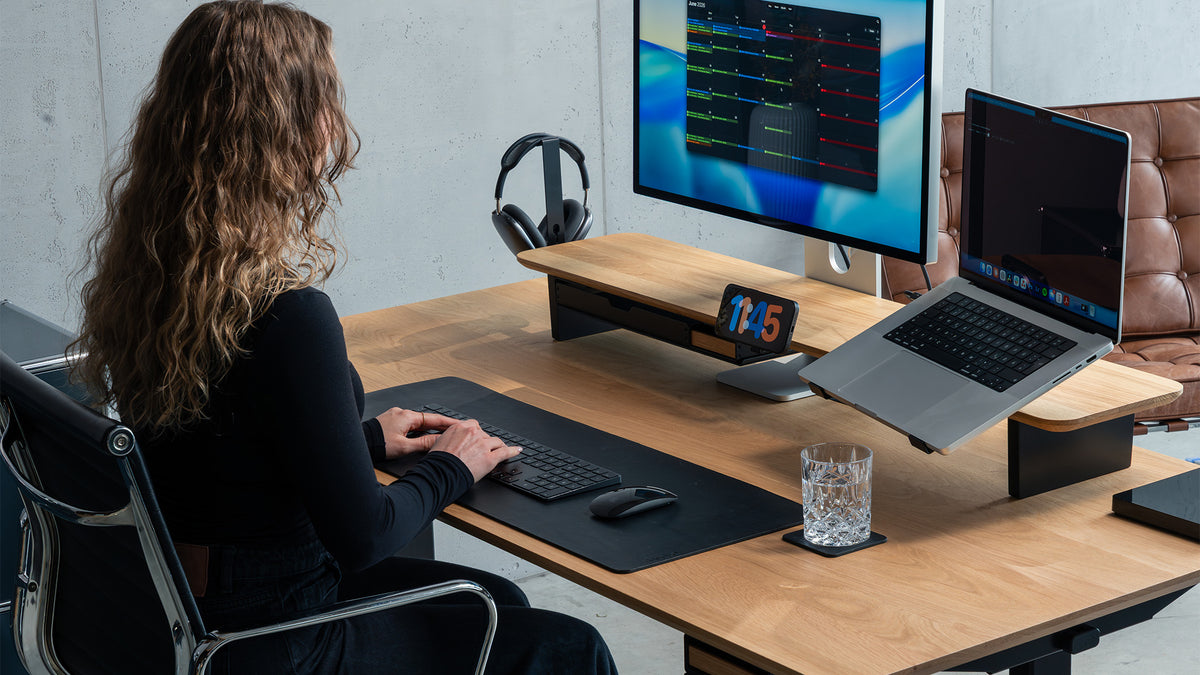
At BALOLO, we designed the Setup Cockpit around this principle. It raises the monitor while its mounting grid allows compatible accessories to be attached underneath the platform. This turns otherwise unused space into functional workspace infrastructure. The Setup Cockpit is manufactured in Germany and can be configured with modular trays, holders and storage accessories.
This approach is particularly useful for small desks. Instead of adding more containers to the surface, you create organization above and below it.
What Should Go Under a Monitor Stand?
The space underneath a monitor stand is ideal for objects that should remain accessible without being permanently visible.
Depending on the available space, this might include:
- A keyboard when it is not in use
- A notebook
- External drives
- Charging accessories
- Small stationery items
- A work laptop
- Documents needed for the current project

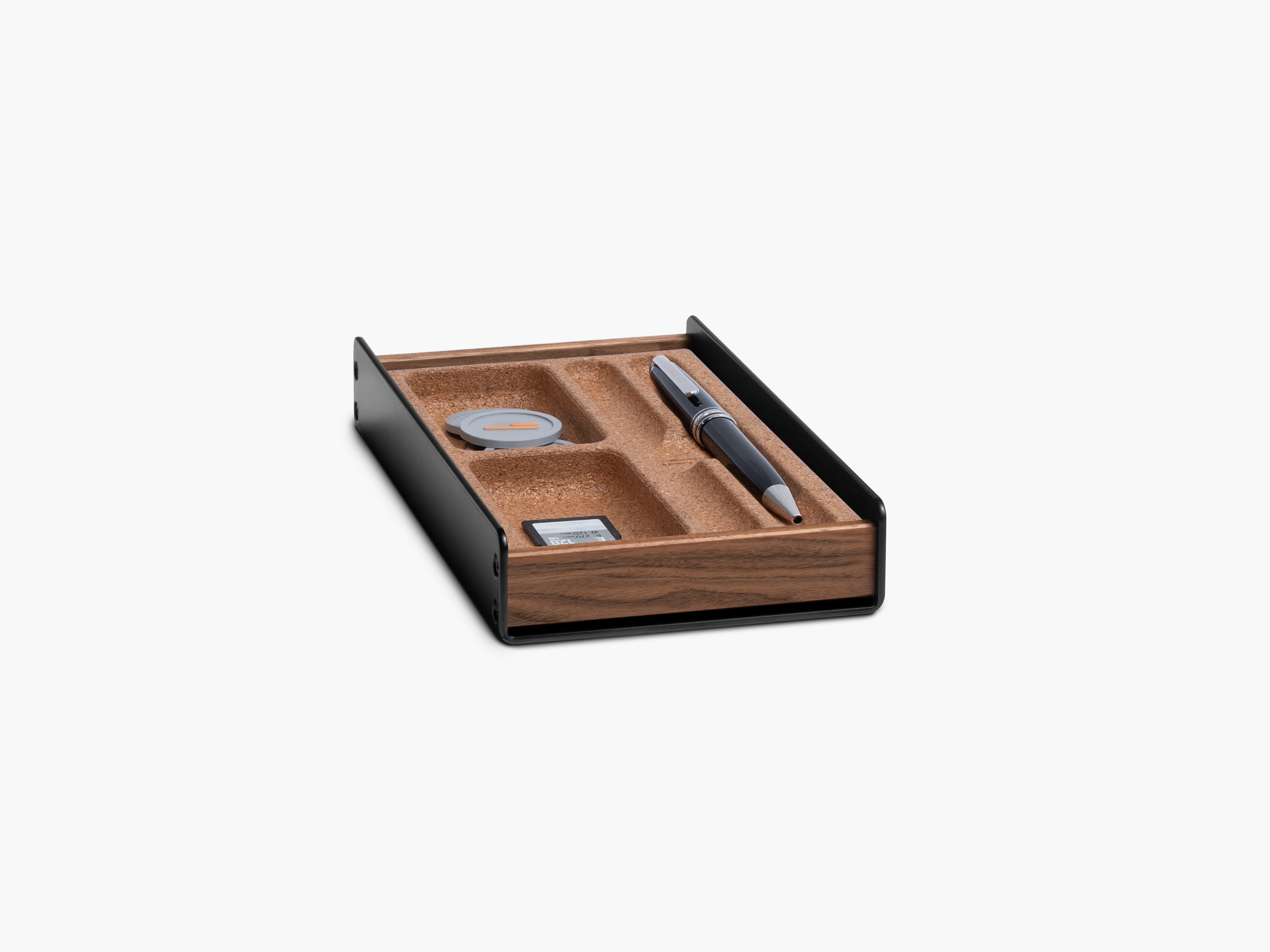
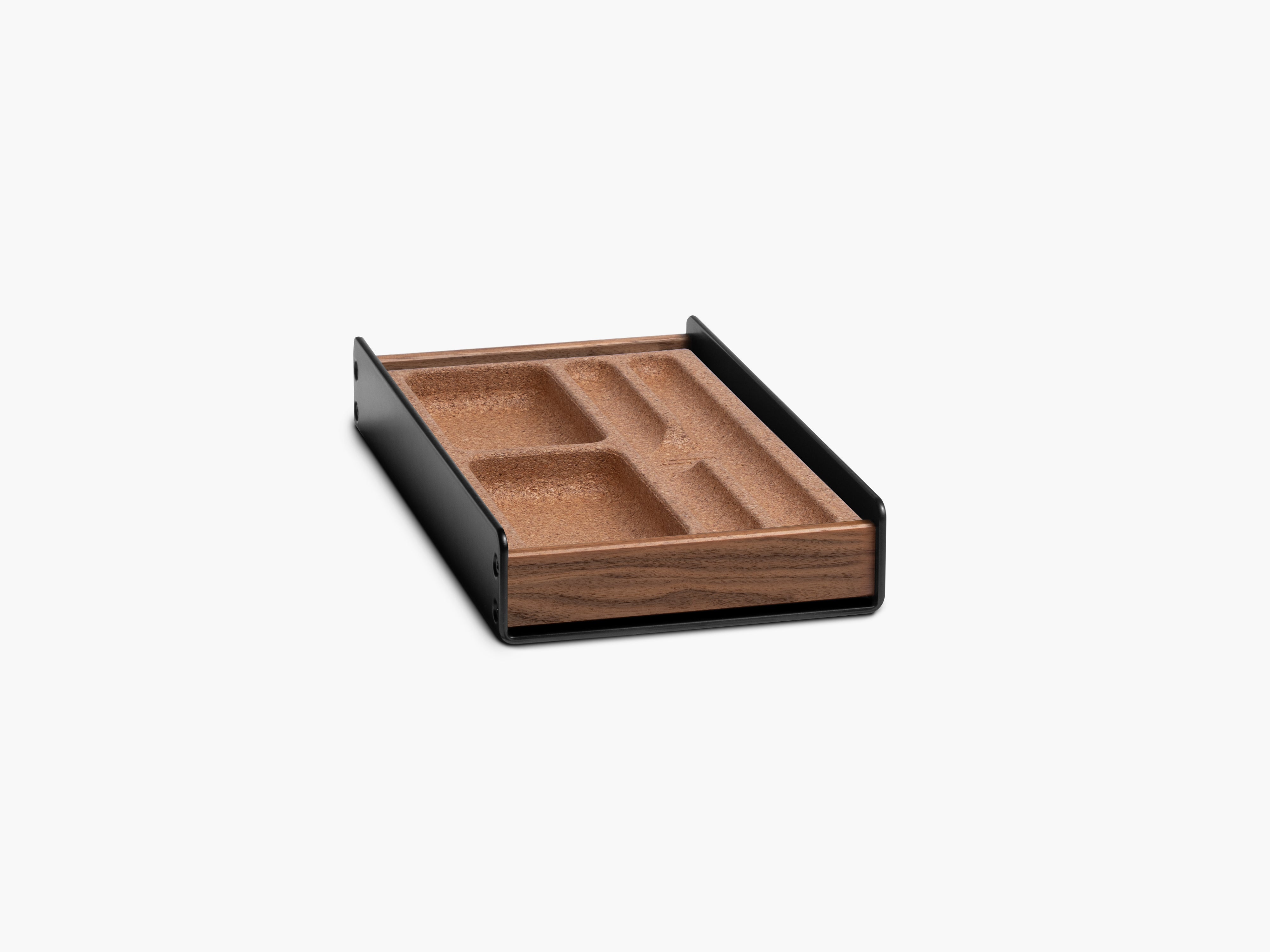
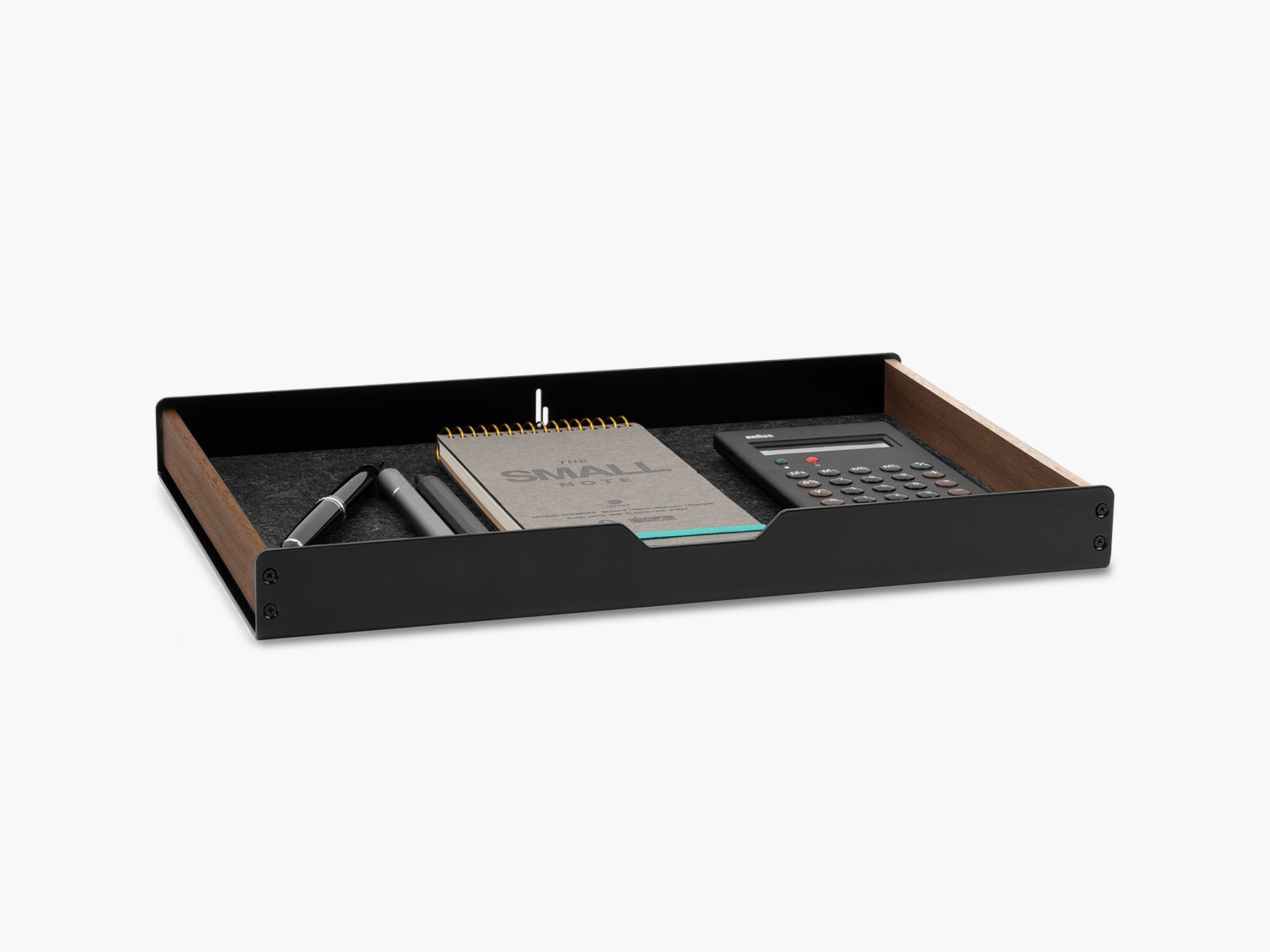
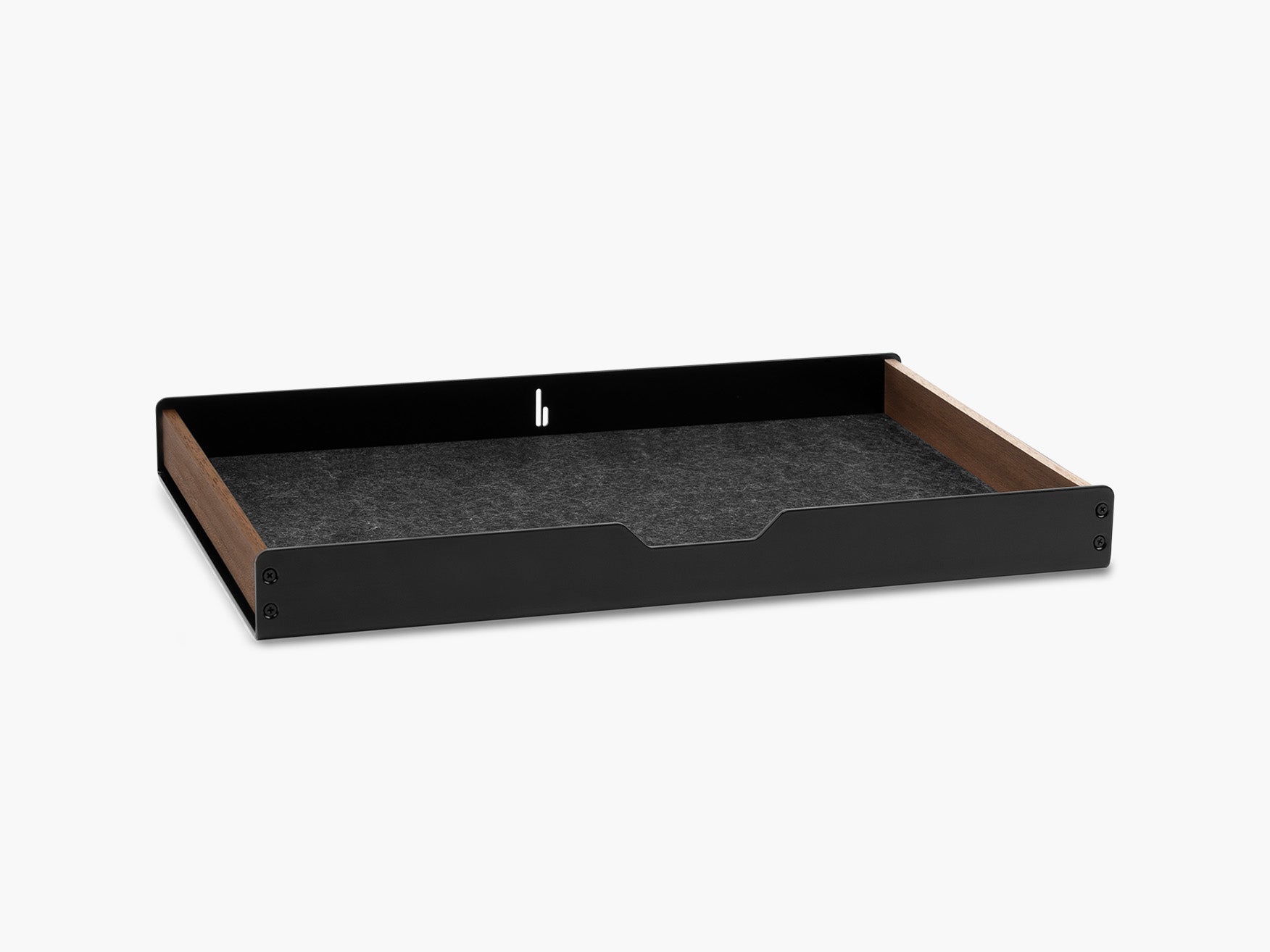
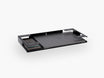
A tray attached underneath the Setup Cockpit is a practical way to give these smaller items a defined spot instead of letting them slide loosely under the shelf.
The important point is to avoid filling every available centimetre. Storage should create clarity, not become a new location for forgotten items.
4. Give Every Essential a Permanent Place
A desk stays organized when each regularly used object has a defined home.
Without fixed positions, accessories are placed wherever space is available. Over time, this creates random piles and makes the desk more difficult to reset.
Create a dedicated location for items such as:
- Smartphone
- Headphones
- Pens
- Charging cable
- Laptop
- Notebook
- Keys
- External storage
The position should reflect your natural workflow.
For example, place a notebook on the side of your dominant hand. Store headphones close enough to reach without keeping them in the central work zone. Position your phone where you can access it when needed without leaving it directly beside your keyboard.
Use Holders Instead of Loose Objects
A holder does more than store an item. It defines where the item belongs.
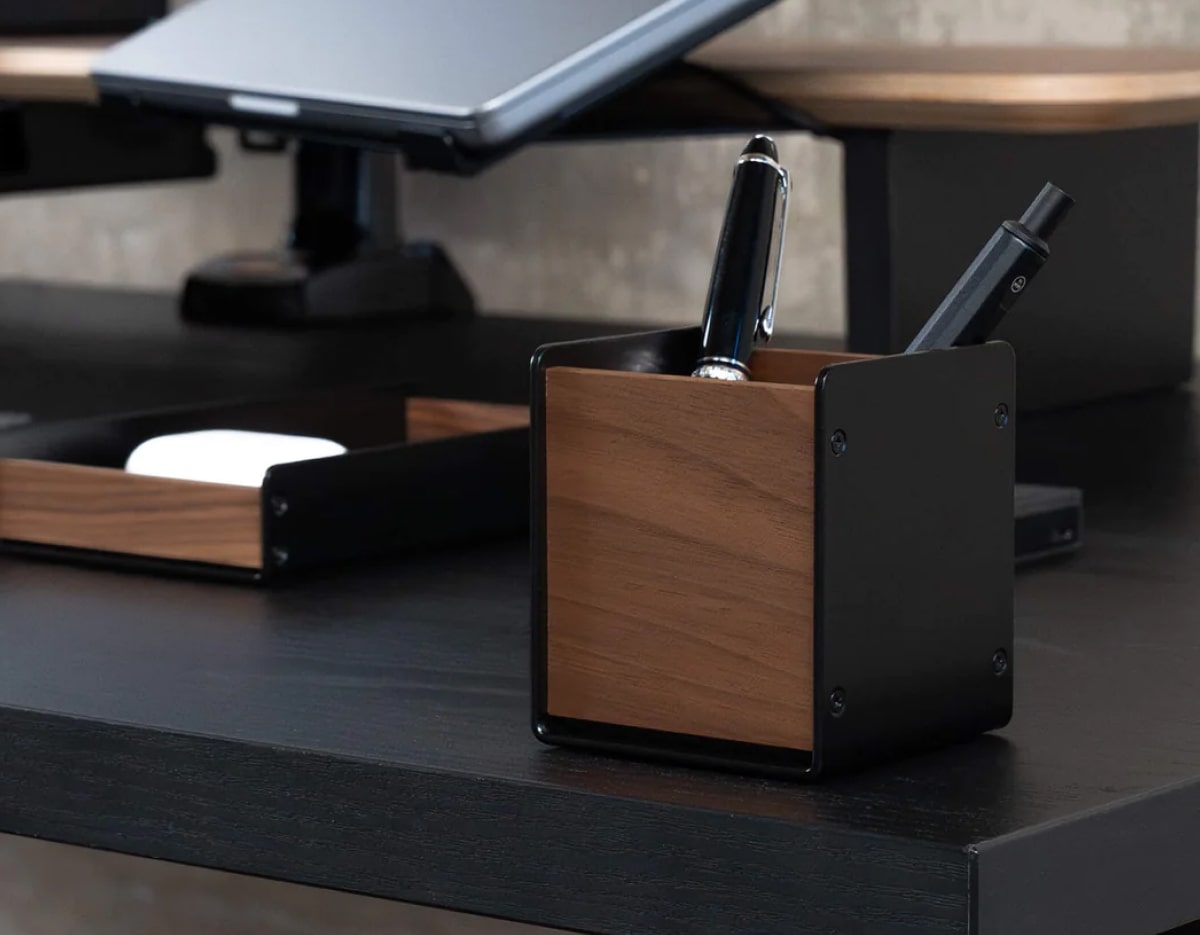
A phone holder, headphone holder or pen tray prevents frequently used objects from moving around the desk. This makes the workspace easier to understand visually and easier to restore at the end of the day.

With our modular Setup Cockpit accessories, items such as a phone, headphones, a tablet or a smartwatch can be assigned dedicated positions around the workspace rather than being placed loosely on the surface.
5. Store Items According to Frequency of Use
Not every useful object needs to be visible.
One of the most effective desk organization methods is to arrange items according to how often you use them.
Keep Daily Essentials Within Reach
Objects used several times a day should be accessible without standing up or opening multiple compartments. Examples include:
- Keyboard and mouse
- Notebook
- Favourite pen
- Headphones
- Phone charger
- Current project materials
Keep Weekly Items Nearby
Items used once or twice a week can be stored in a drawer, shelf or secondary tray. Examples include:
- Extra cables
- Adapters
- Measuring tools
- Spare batteries
- Cleaning supplies
- Reference documents
Remove Rarely Used Items
Equipment you use only a few times per year does not need to live at your desk.
Store it in a labelled box or cabinet elsewhere. Keeping occasional-use objects out of the workspace protects the space required for everyday work.
A useful rule is: the more often you use an object, the easier it should be to reach.
6. Treat Cable Management as Part of Desk Organization
A desk can be clear on the surface and still feel disorganized because of visible cables.
Monitor cables, charging wires, extension leads and power adapters create visual noise. They can also make devices harder to move and the desk more difficult to clean.
Good desk cable management follows the entire cable path.
Step 1: Remove Unused Cables
Disconnect cables that no longer serve an active device.
Old charging leads and duplicate adapters often remain under a desk simply because nobody has reviewed them.
Step 2: Group Cables by Destination
Run cables that travel in the same direction together.
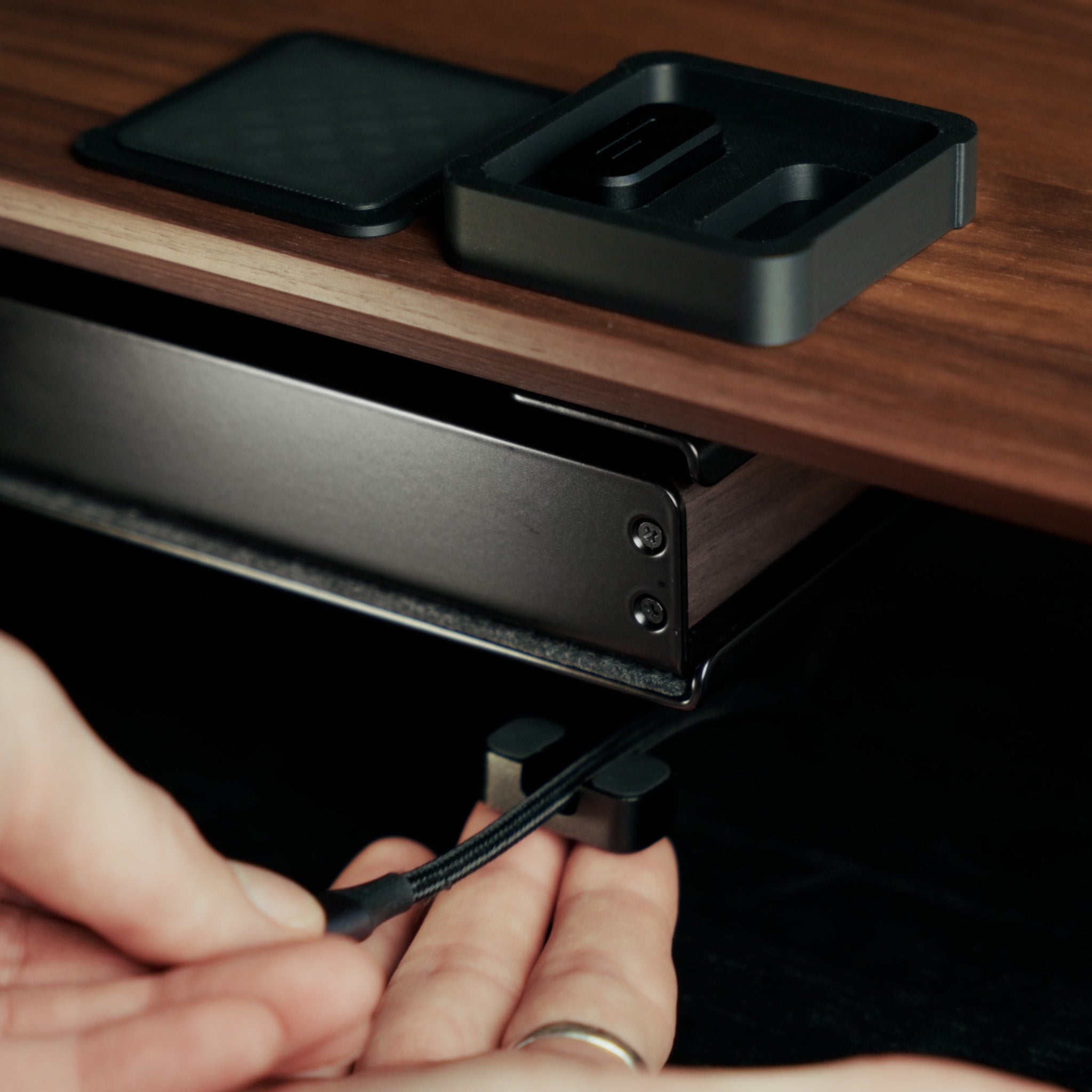
For example, monitor, computer and charging cables can follow one shared route toward the power source rather than crossing different parts of the desk. A Cable Organizer mounted underneath the Setup Cockpit is a simple way to guide device cables along one shared path.
Step 3: Move Excess Length Away From the Surface
Long cables should not be coiled beside the keyboard or allowed to hang randomly behind the monitor.
Store excess length underneath or behind the desk using a cable management system, organizer or reusable tie.
Step 4: Secure Frequently Used Charging Cables
A charging cable should remain easy to access without falling behind the desk whenever it is disconnected.
Cable magnets or small cable holders can keep the connector in a predictable position.
At BALOLO, our current workspace system includes solutions such as cable magnets, a Cable Organizer for the Setup Cockpit and a broader Cable Management System. These products are designed to route cables more deliberately and keep them away from the primary work surface.
Read more about cable management in our guide on desk cable management.
7. Move Large Devices Out of the Main Work Area
Laptops, tablets and headphones occupy a significant amount of desk space, even when they are not actively being used.
The solution is not necessarily to remove them from the setup. Instead, store them in a more efficient position.
A laptop connected to an external monitor can often be stored vertically. This reduces its footprint while keeping the device close to the workstation.

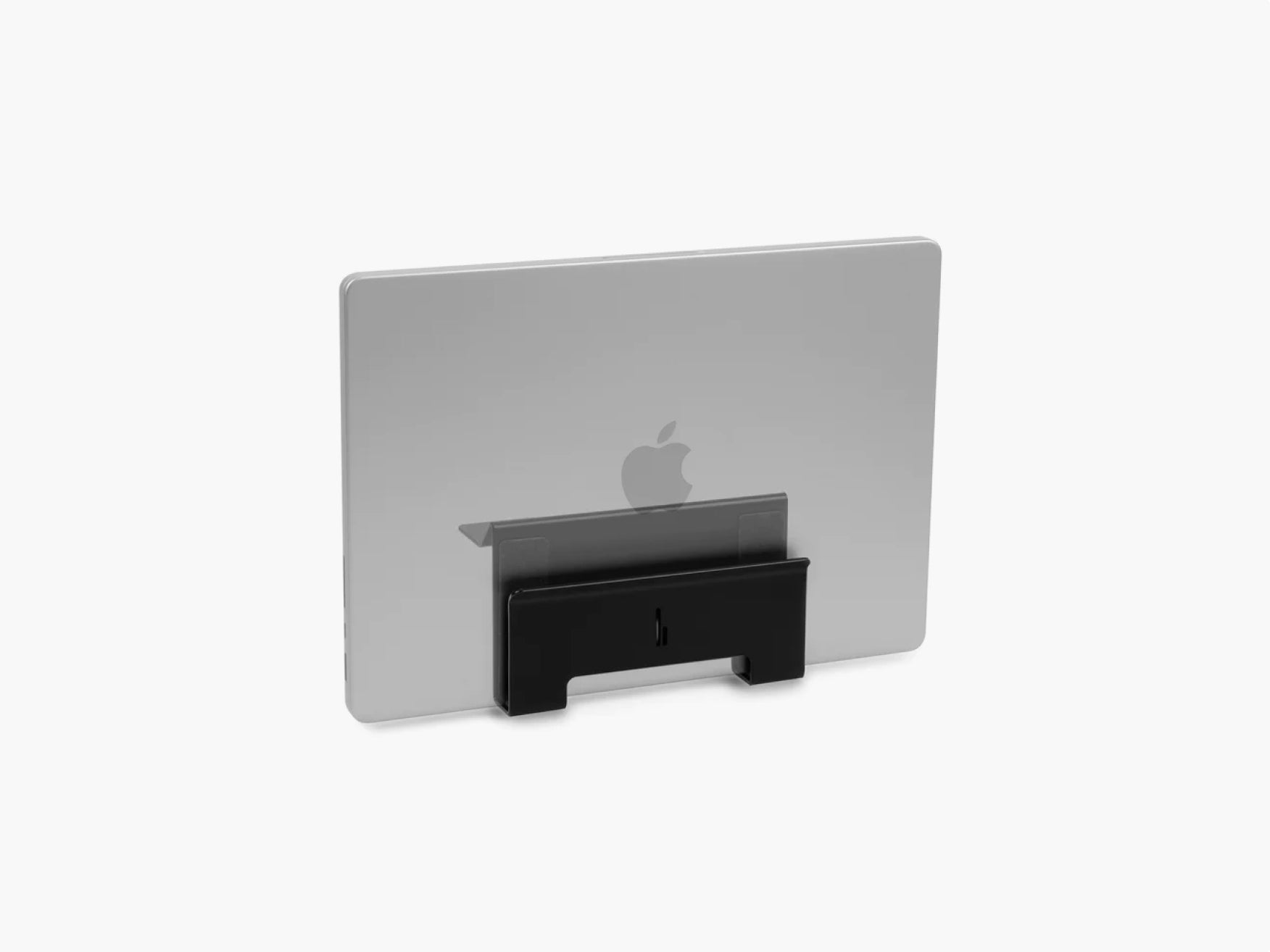
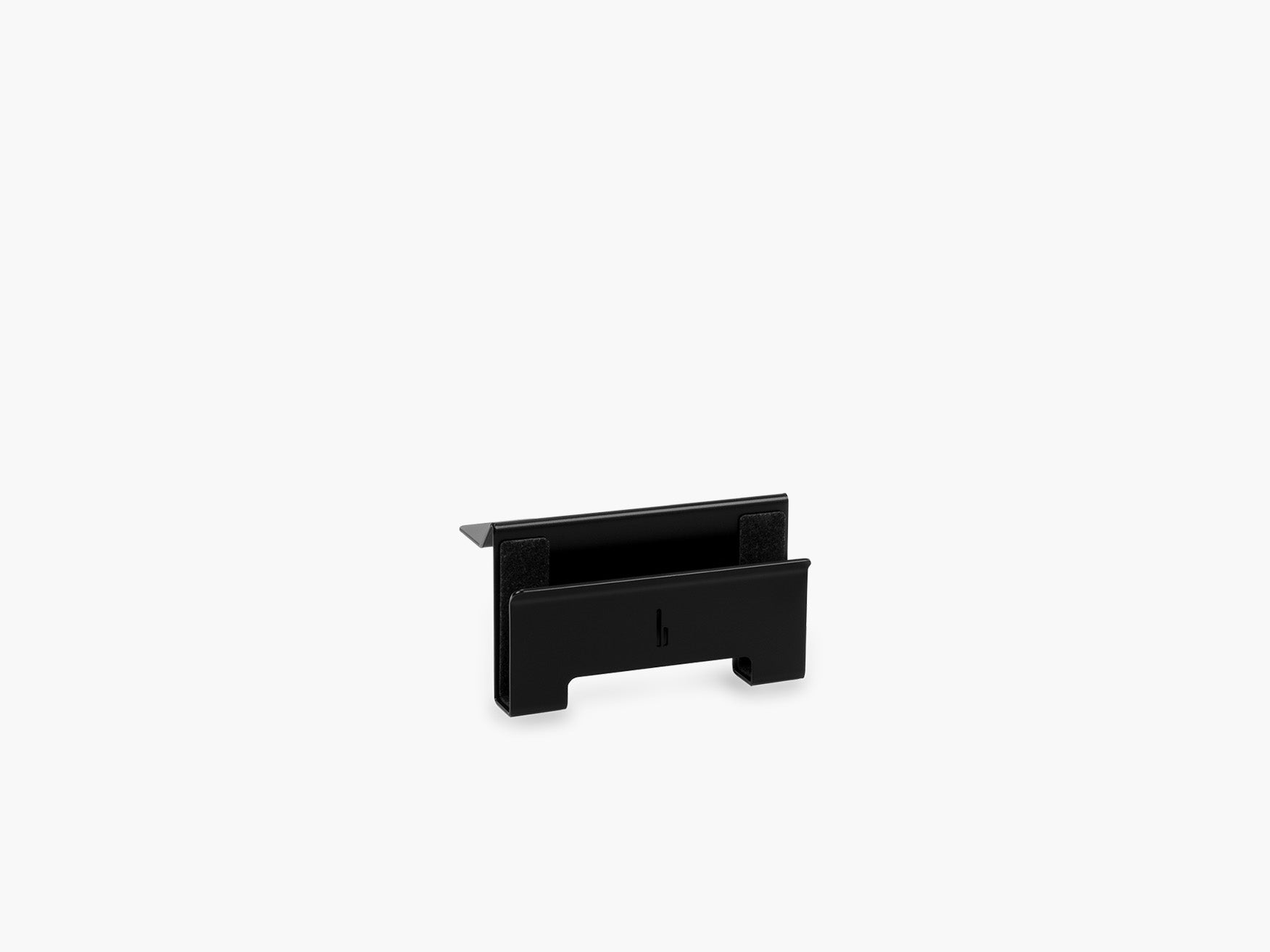
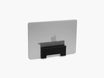
Our Laptop Dock mounts on the Setup Cockpit and stores a compatible laptop vertically. The padded slot includes ventilation and is designed to free more space on the desk while keeping the device within reach.
The same principle applies to other devices:
- Hang headphones on the desk shelf
- Position a tablet vertically when used as a second screen
- Store must-haves inside a tray
- Place external drives in a defined device area
- Keep charging stations together
Large objects should have deliberate positions rather than becoming movable obstacles.
8. Follow the One-Minute Daily Reset
A desk organization system only works when it is easy to maintain.
Before finishing work, spend one minute returning the workspace to its default condition.
Your reset might include:
- Place pens in their holder
- Remove cups and dishes
- Recycle unnecessary notes
- Return headphones to their holder
- Put the laptop in its dock
- Connect devices that need charging
- Clear the central work zone
This routine prevents small amounts of clutter from accumulating over several days.
The goal is not perfect presentation. The goal is to make tomorrow's first task easier.
Create a Visual Default
Take a photograph when your desk is organized exactly as you want it.
This image becomes a reference for the workspace's default state. When the desk begins to feel chaotic, you can quickly compare it with the original layout and identify what has changed.
9. Review Your Desk Organization System Regularly
Your workspace should adapt when your work changes.
A setup designed for writing may not work when you begin editing video, attending more calls or using a second monitor. New devices and responsibilities can make an old organization system less effective.
Review your desk every few months and ask:
- Which objects do I use most frequently now?
- Which accessories have become unnecessary?
- Where does clutter repeatedly appear?
- Are my charging cables easy to access?
- Does the layout support my current workflow?
- Could anything move above, below or beside the desk?
Recurring clutter is useful feedback.
When the same item is always left in the wrong place, its assigned location may be inconvenient. Instead of blaming the habit, improve the system.
A modular workspace makes this easier because individual components can be repositioned as requirements change. The mounting grid underneath the Setup Cockpit allows compatible add-ons to be moved to different mounting points rather than locking the workspace into one permanent layout.
Minimal Desk Organization: What Should Stay Visible?
A minimalist desk does not have to be empty. It should contain only what contributes to the workspace.
For many people, the visible essentials are:
- Monitor
- Keyboard
- Mouse or trackpad
- One notebook
- One pen
- Task lighting
- One intentional decorative object
Everything else can be stored underneath, beside or away from the desk.
This creates a useful distinction between active tools and stored tools.
Active tools support the task you are completing now. Stored tools remain available but do not need to occupy your visual field.
Common Desk Organization Mistakes
Buying Organizers Before Removing Clutter
More storage does not solve unnecessary ownership.
Declutter first. Then choose storage based on the objects that genuinely need a place.
Covering the Desk With Small Containers
Several small organizers can create almost as much visual clutter as the objects they contain.
Use fewer, better-defined storage areas.
Ignoring the Space Under the Desk
Power strips, adapters and cable bundles are part of the workspace even when they are not on the desk surface.
Include the area underneath the desk in your organization system.
Prioritizing Appearance Over Workflow
A setup may look clean in a photograph but feel frustrating during real work.
Place tools according to frequency and function, not symmetry alone.
Creating a System That Takes Too Long to Reset
Complicated storage creates friction.
Everyday essentials should be easy to remove and just as easy to return.
Build a System, Not Just a Clean Desk
Good desk organization is not about creating a perfect workspace for one photograph. It is about building a system that remains useful throughout the working day.
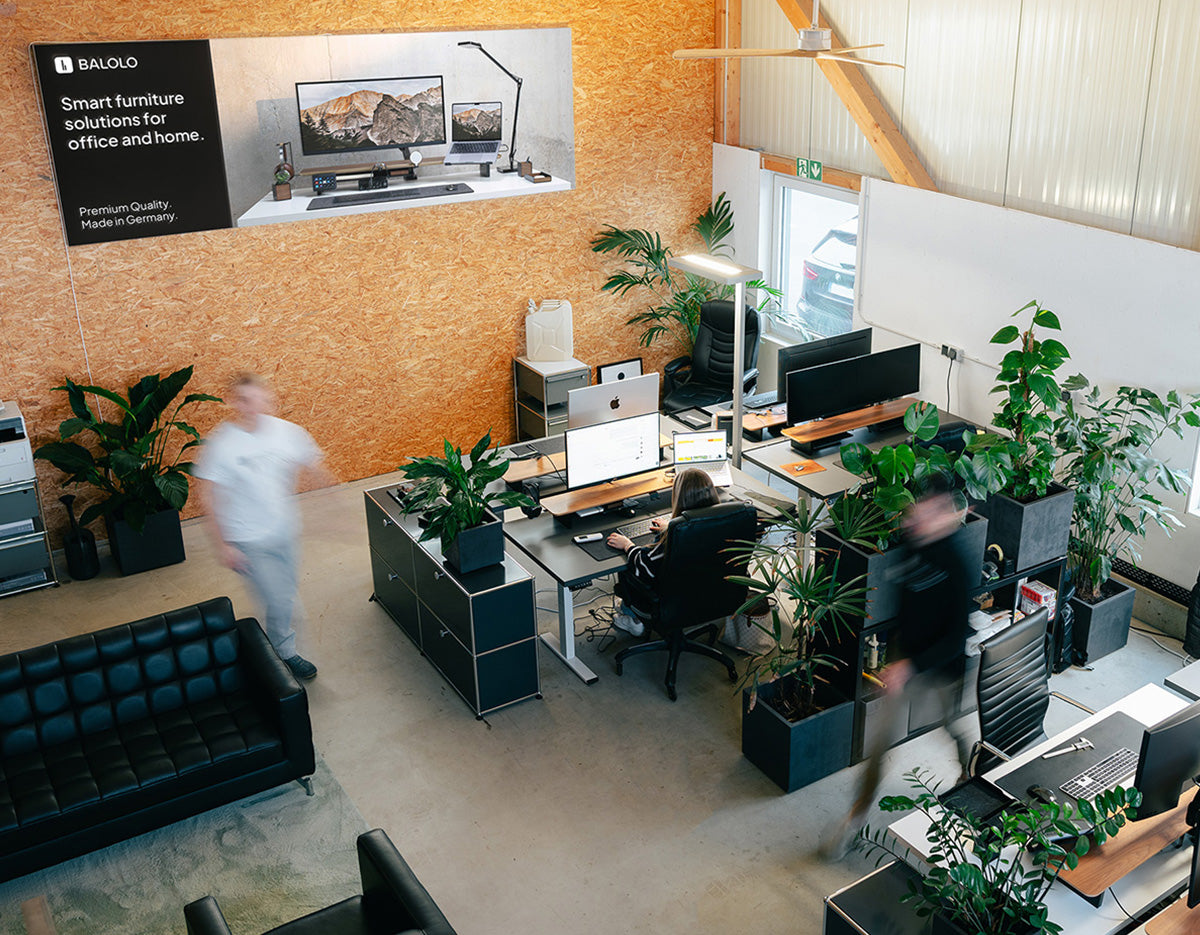
At BALOLO, we believe organization and design should work together. A functional workspace can feel calm, intentional and visually refined without sacrificing access to the tools you use every day.
The best desk organization system is the one that makes work feel easier and can grow with your needs.
Frequently Asked Questions About Desk Organization
What is the best way to organize a desk?
The best way to organize a desk is to remove unnecessary items, divide the surface into functional zones and give every essential a permanent position. Frequently used tools should remain accessible, while occasional-use items should be stored away from the primary work area.
How can I organize a desk without drawers?
Use vertical space, a monitor stand, modular trays, wall storage or holders attached underneath the desk. Keep only daily essentials on the surface and store less frequently used objects in a nearby cabinet or mobile container.
How do I organize a small desk?
Start by reducing the number of objects on the surface. Use a monitor stand to create an additional level, store a laptop vertically and move cables underneath the desk. Choose accessories that perform a specific function rather than decorative containers that consume more space.
How do I keep my desk organized every day?
Create a simple default layout and complete a five-minute reset at the end of each workday. Return every object to its assigned place, remove cups and paper and clear the area in front of the keyboard.
What should I keep on my desk?
Keep the tools required for your most frequent tasks. For many workspaces, this includes a monitor, keyboard, mouse, notebook, pen and light. Other devices and accessories can remain nearby without sitting directly in the primary work zone.
Are desk organizers worth using?
Desk organizers are useful when they give regularly used objects a defined location. They are less effective when they simply hide unnecessary items or add more containers to an already crowded surface.