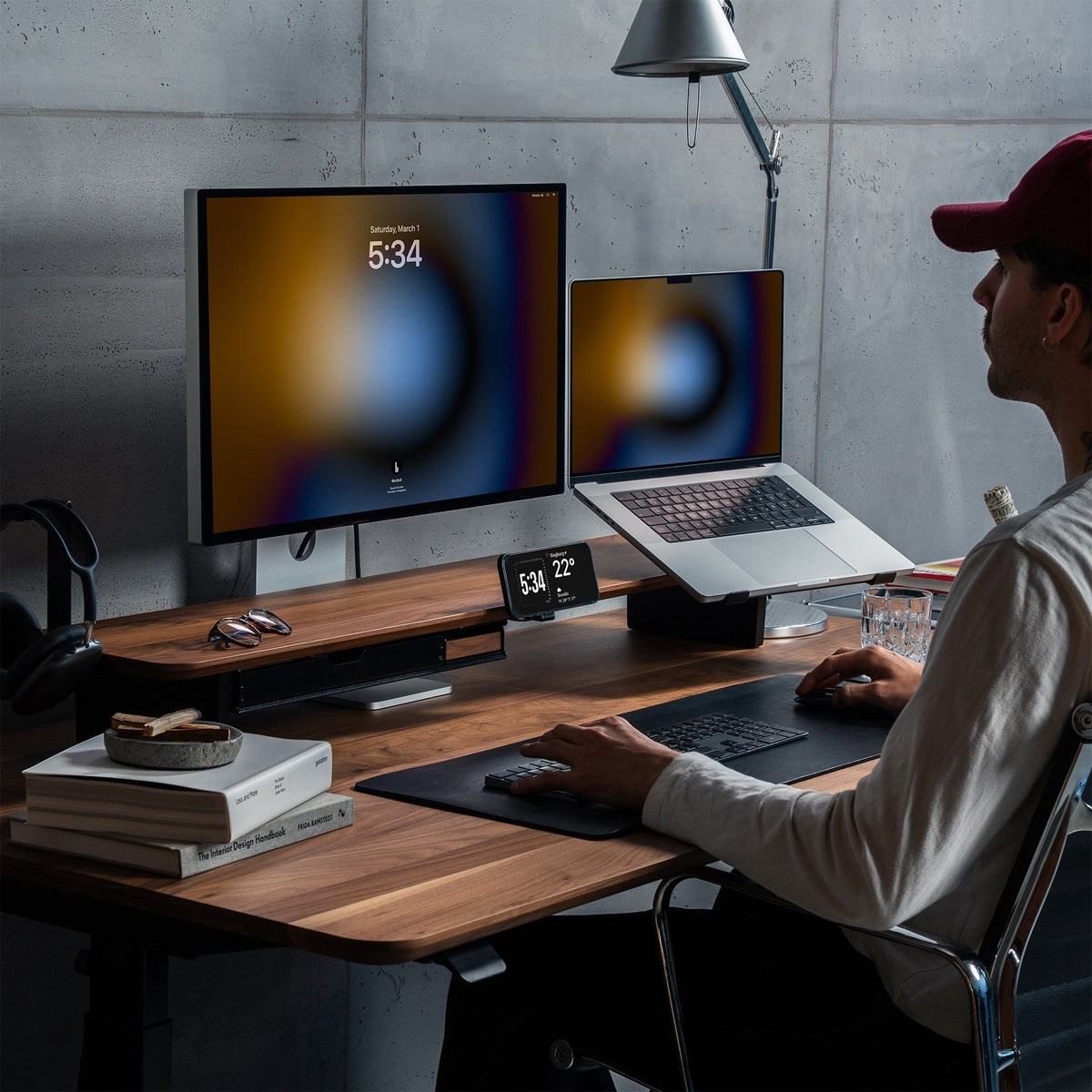



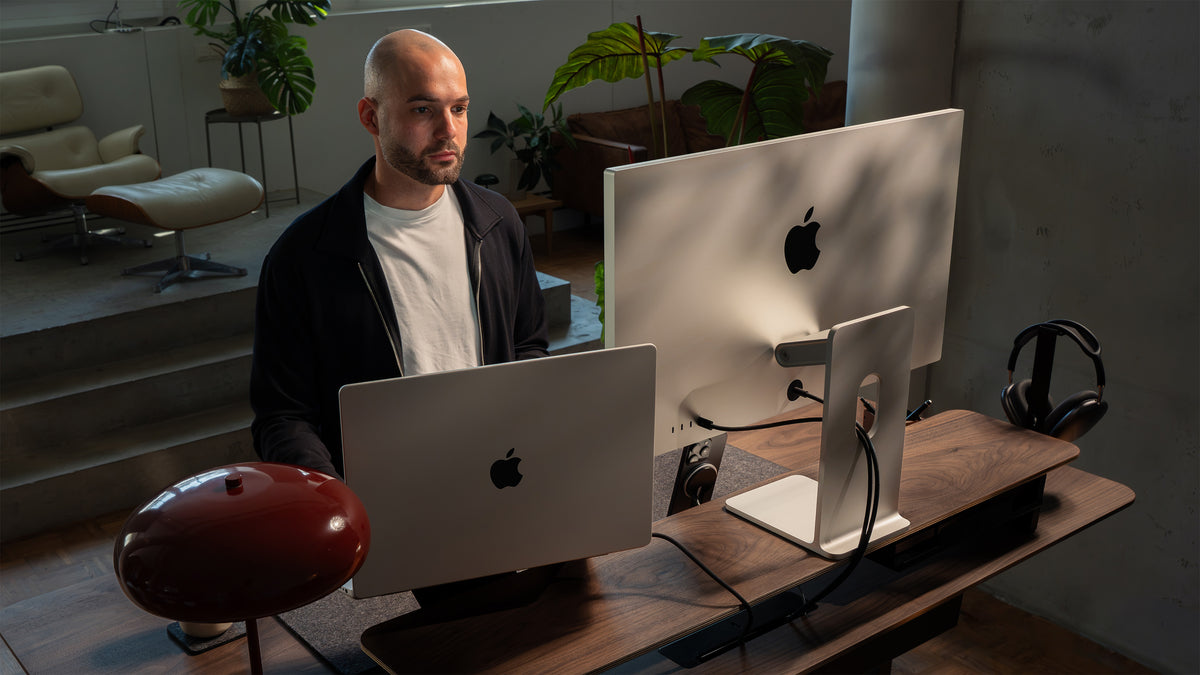
A good desk setup for developers should make long coding sessions more comfortable, keep essential tools within reach, reduce visual clutter and create enough screen space to work efficiently.
The goal is not to fill your desk with more technology. It is to create a workspace where your monitor, keyboard, laptop, cables, lighting and accessories work together as one clear system.
For developers who spend hours moving between an IDE, documentation, terminals, browsers, meetings and debugging tools, small improvements to the workspace can make a noticeable difference.
This guide shows you how to build a developer desk setup that balances functionality, ergonomics, organization and minimalist design.
What Does a Good Developer Desk Setup Need?
A productive coding workspace usually comes down to seven elements:
- Enough usable desk space
- A well positioned monitor setup
- A comfortable keyboard and pointing device
- Effective cable management
- Clear desk organization
- Practical lighting
- A system for storing devices and accessories
The exact hardware will depend on how you work.
A frontend developer using one large display may need a different setup from a backend engineer working across several terminals. A developer who works from a laptop also has different requirements from someone using a permanent desktop workstation.
But the principle remains the same: everything you use frequently should be easy to access. Everything you do not need right now should stay out of the way.
1. Start With the Desk, Not the Gear
It is tempting to start a new desk setup by choosing monitors, keyboards, speakers and accessories.
Start with the working surface instead.
Your desk needs enough depth to position the monitor comfortably while still leaving room for your keyboard and mouse. It should also provide enough width for the devices you genuinely use without turning the entire surface into storage.
For developers, desk depth is particularly important because larger monitors and multi monitor configurations can quickly consume valuable space.
Keep the Center of the Desk Clear
Think of the central section of your desk as the active coding zone. It should primarily contain:
- Keyboard
- Mouse or trackpad
- Monitor
- Notebook, if you regularly use one
Everything else can move to a secondary layer.
That distinction alone can turn a cluttered workstation into a much cleaner productivity desk setup.
2. Position Your Monitor for Long Coding Sessions
Developers spend an unusually large part of the working day looking at a screen.
Monitor positioning therefore deserves more attention than almost any decorative element of your setup.
The practical goal is simple: you should be able to read your code without repeatedly leaning toward the screen or tilting your head upward.
A Monitor Stand Can Create More Than Height
A well designed monitor stand desk setup can solve several problems at once. It can:
- Raise the display
- Create a second storage level
- Free up desk space
- Visually define the workspace
- Provide room for accessories
- Make cable routing easier
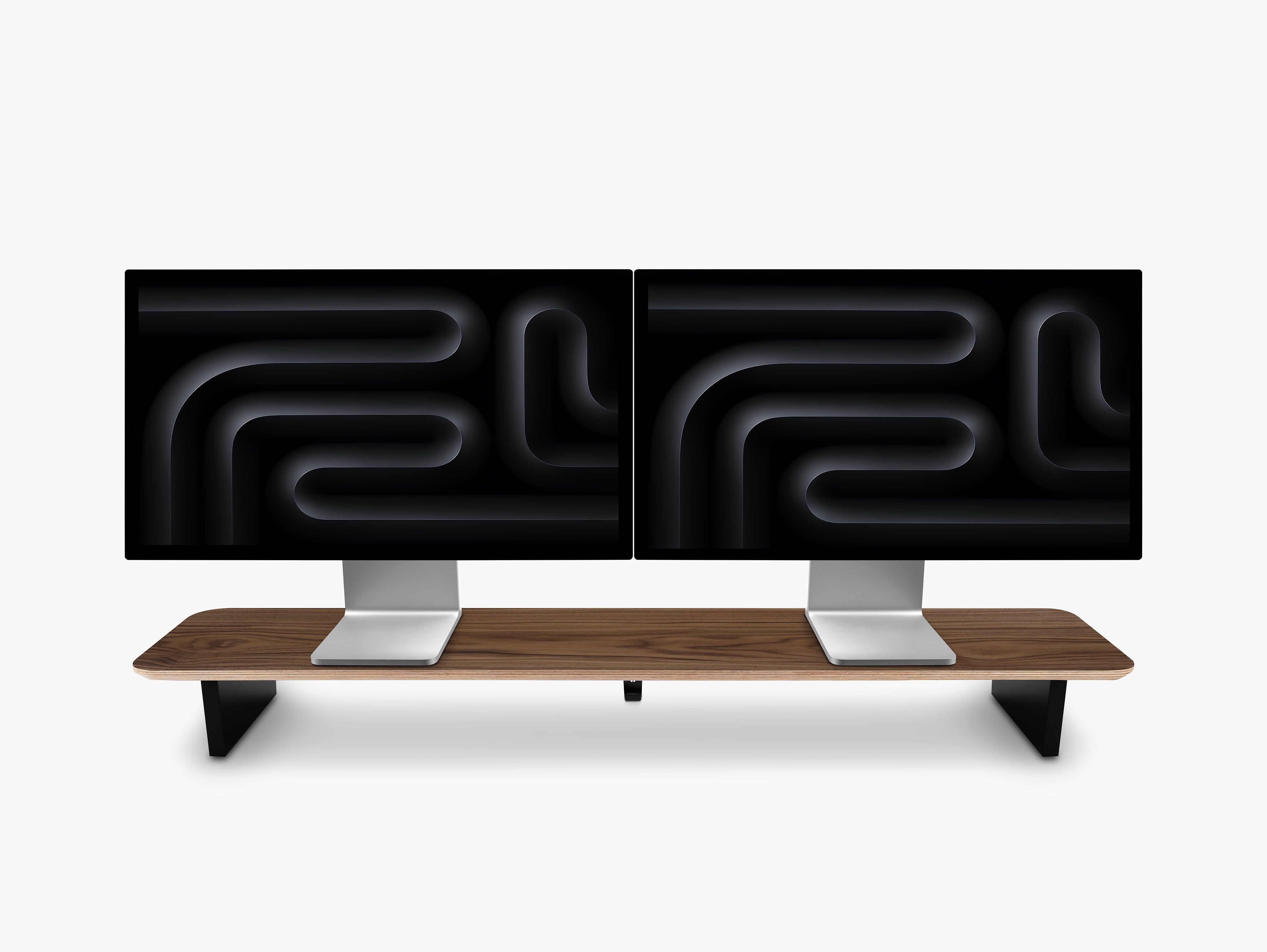
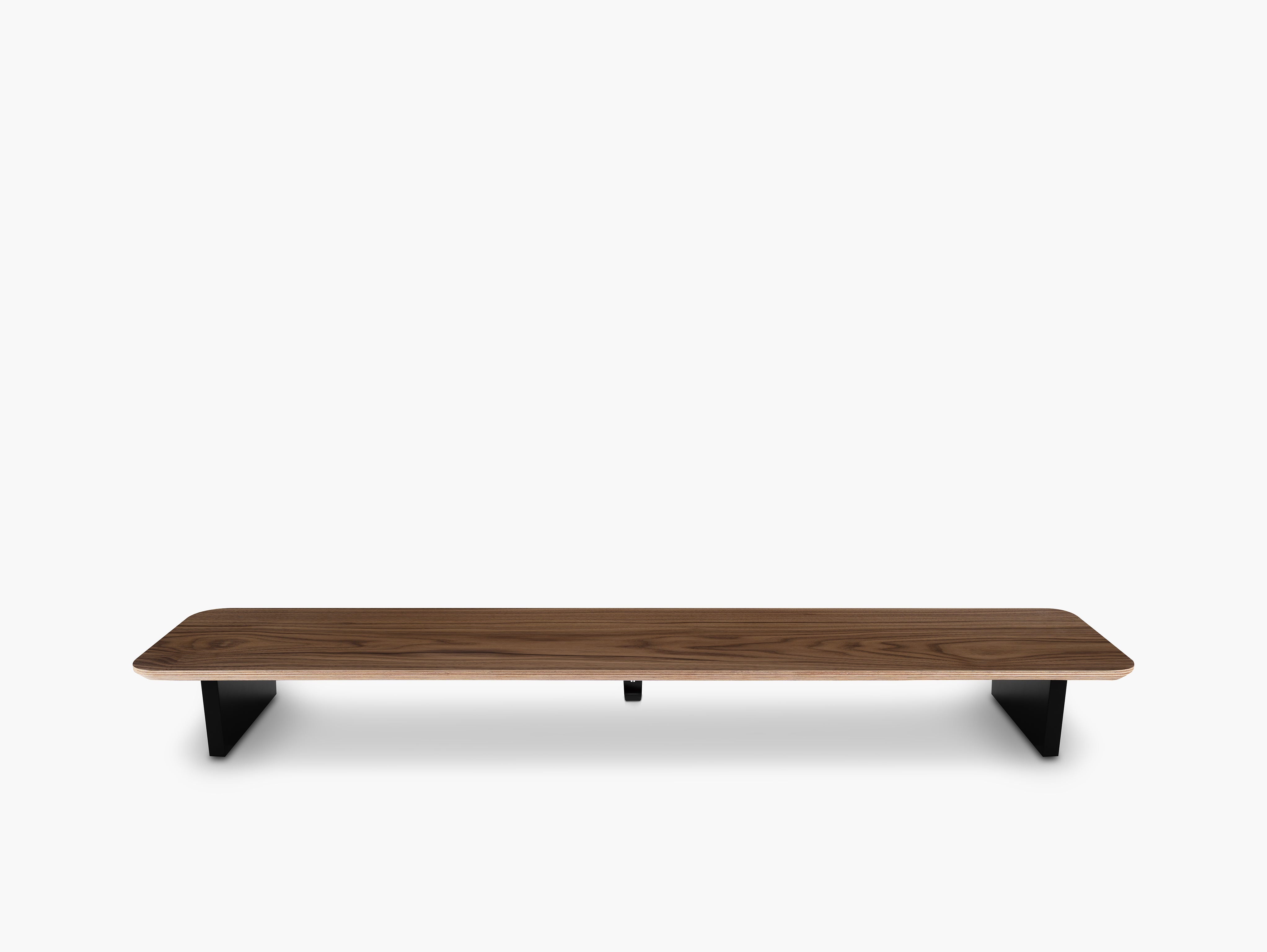
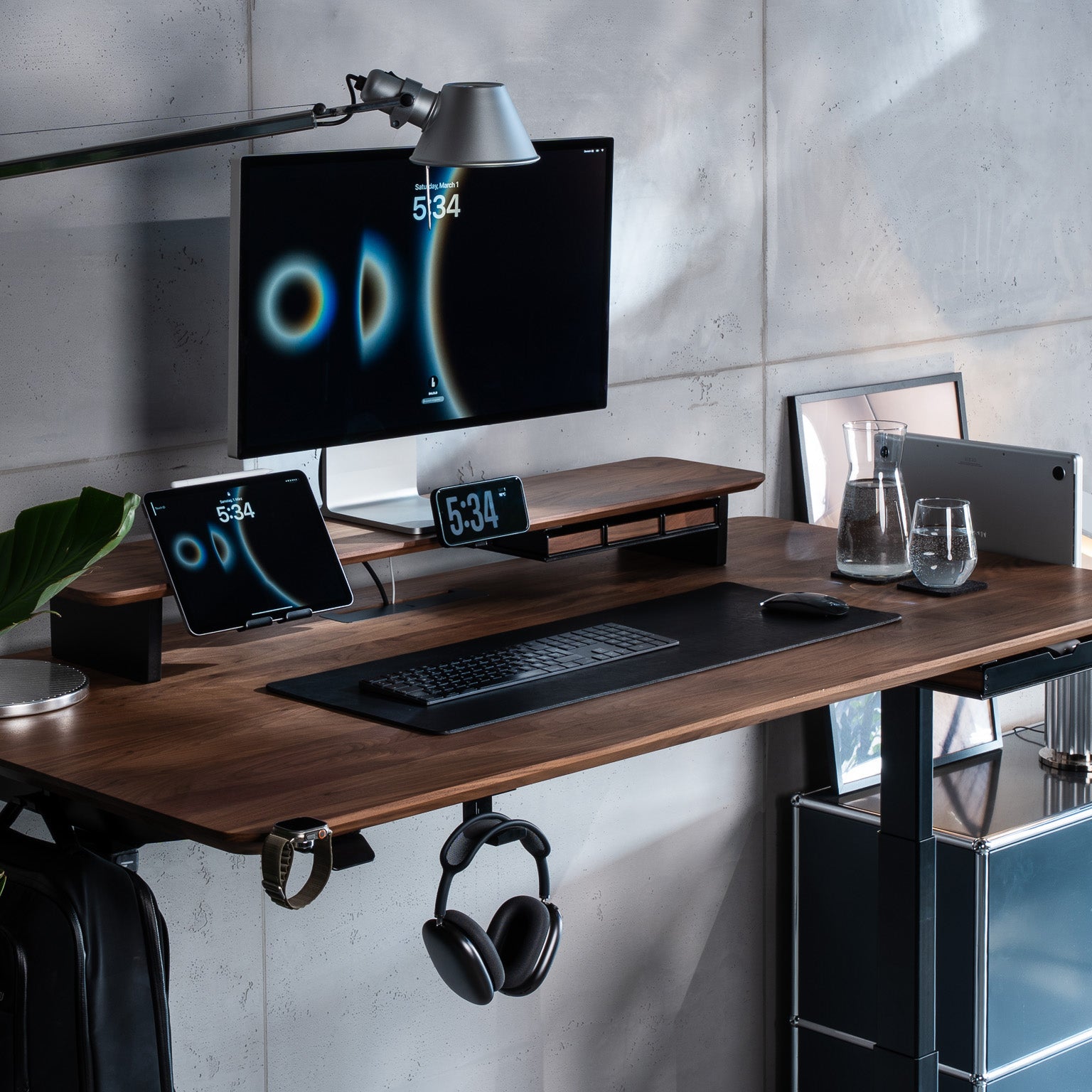
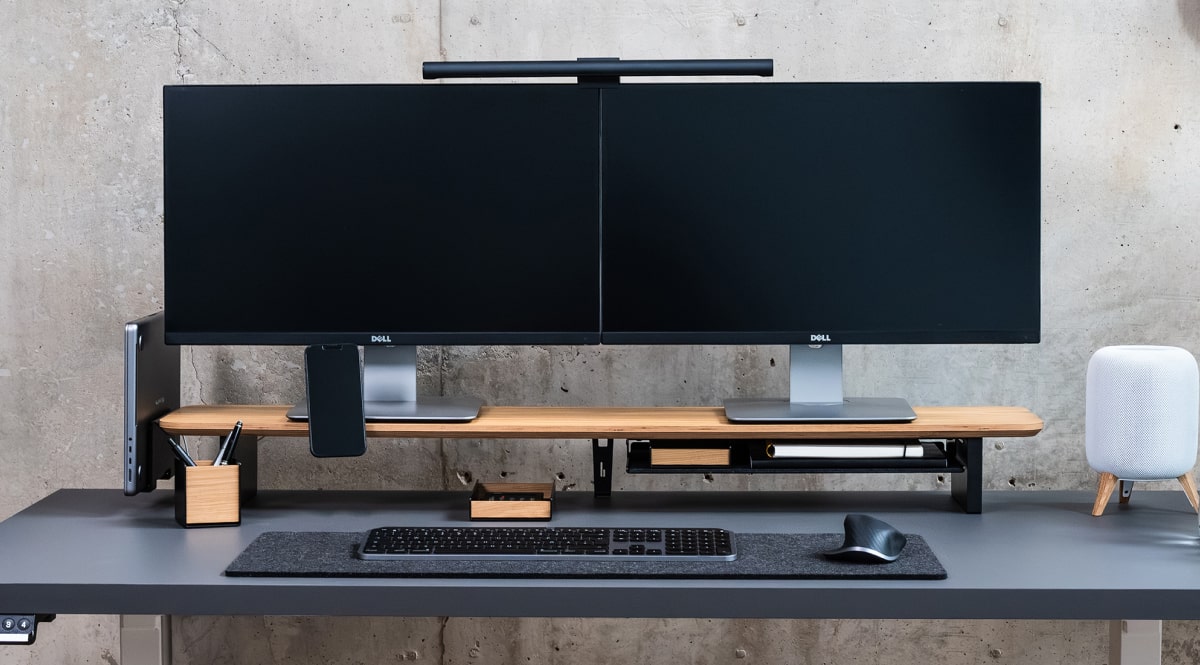
At BALOLO, our Setup Cockpit is designed around exactly this idea. Instead of treating a monitor stand as a single purpose object, we use it as the foundation of a modular workspace.
The Setup Cockpit raises the screen while adding a proprietary mounting grid underneath for compatible accessories. This makes it possible to move tools away from the main desk surface without losing access to them.

For a developer, that can be particularly useful because the number of devices tends to grow quickly.
Laptop. Dock. Headphones. Smartphone. Adapters. Charging cables. External drives.
Giving those objects defined locations helps keep the actual coding area clear.
3. Decide Between One Monitor and Multiple Monitors
There is no universally perfect monitor configuration for developers. The right choice depends on your workflow.
Single Large Monitor
A large single monitor creates a particularly clean minimal desk setup. It works well if you:
- Use virtual desktops
- Prefer fewer visual distractions
- Work mostly in one IDE
- Regularly switch applications using keyboard shortcuts
- Value a symmetrical workspace
An ultrawide can also give you enough horizontal space for an editor, browser, terminal and documentation without introducing a physical bezel in the center.
Dual Monitor Setup
Two monitors can make sense when you constantly reference information while coding. For example:
Primary monitor: IDE or code editor
Secondary monitor: documentation, browser, Slack, preview, logs or database tools
If one screen is used substantially more than the other, place the primary display directly in front of you rather than centering yourself on the gap between the monitors.
Laptop Plus External Monitor
This is one of the most flexible setups for remote developers.
During mobile work, you keep the portability of the laptop. At home, it becomes the computer powering the complete workstation.
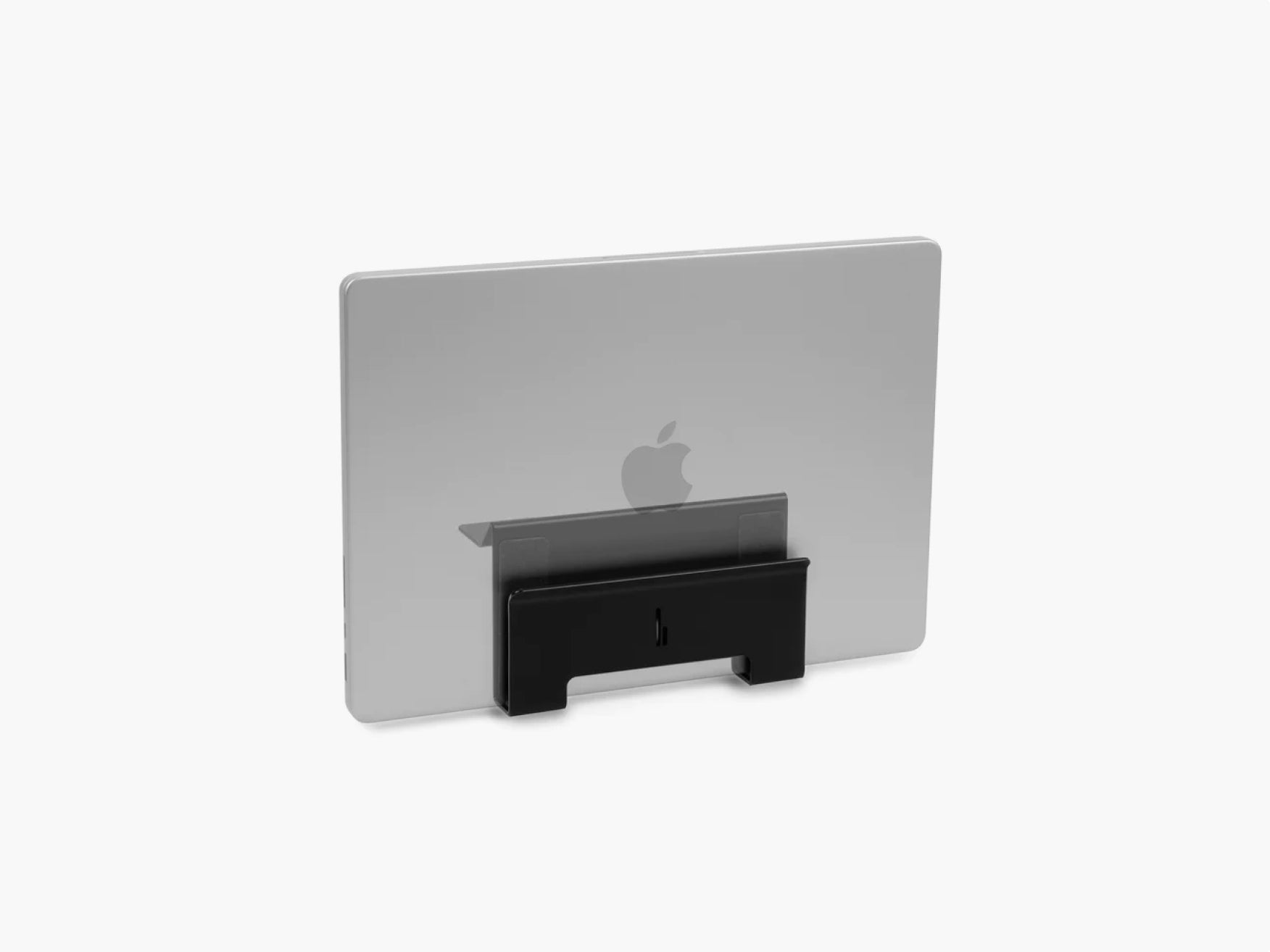
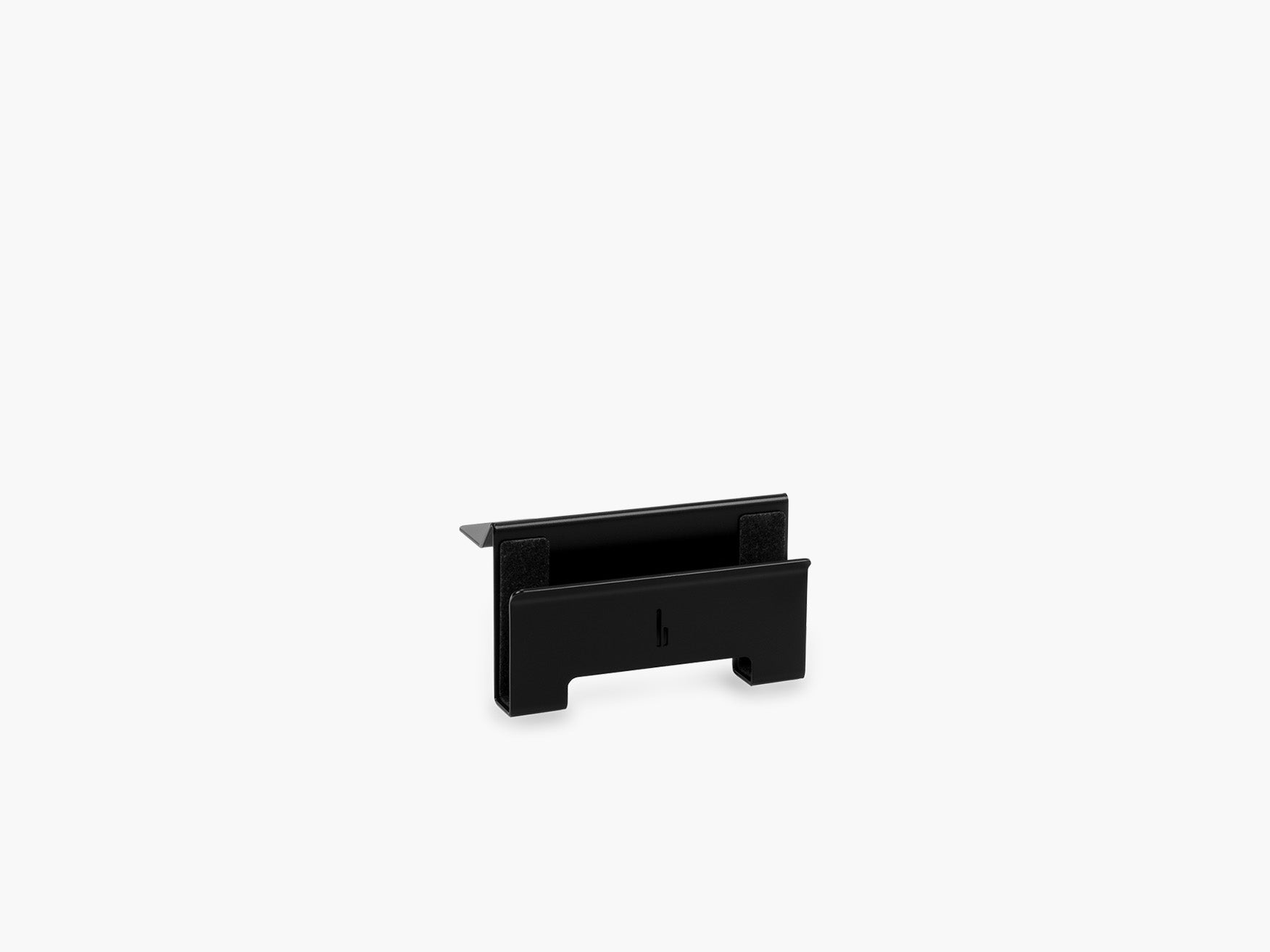
If you mainly use the external screen, storing the laptop vertically can create significantly more usable desk space.
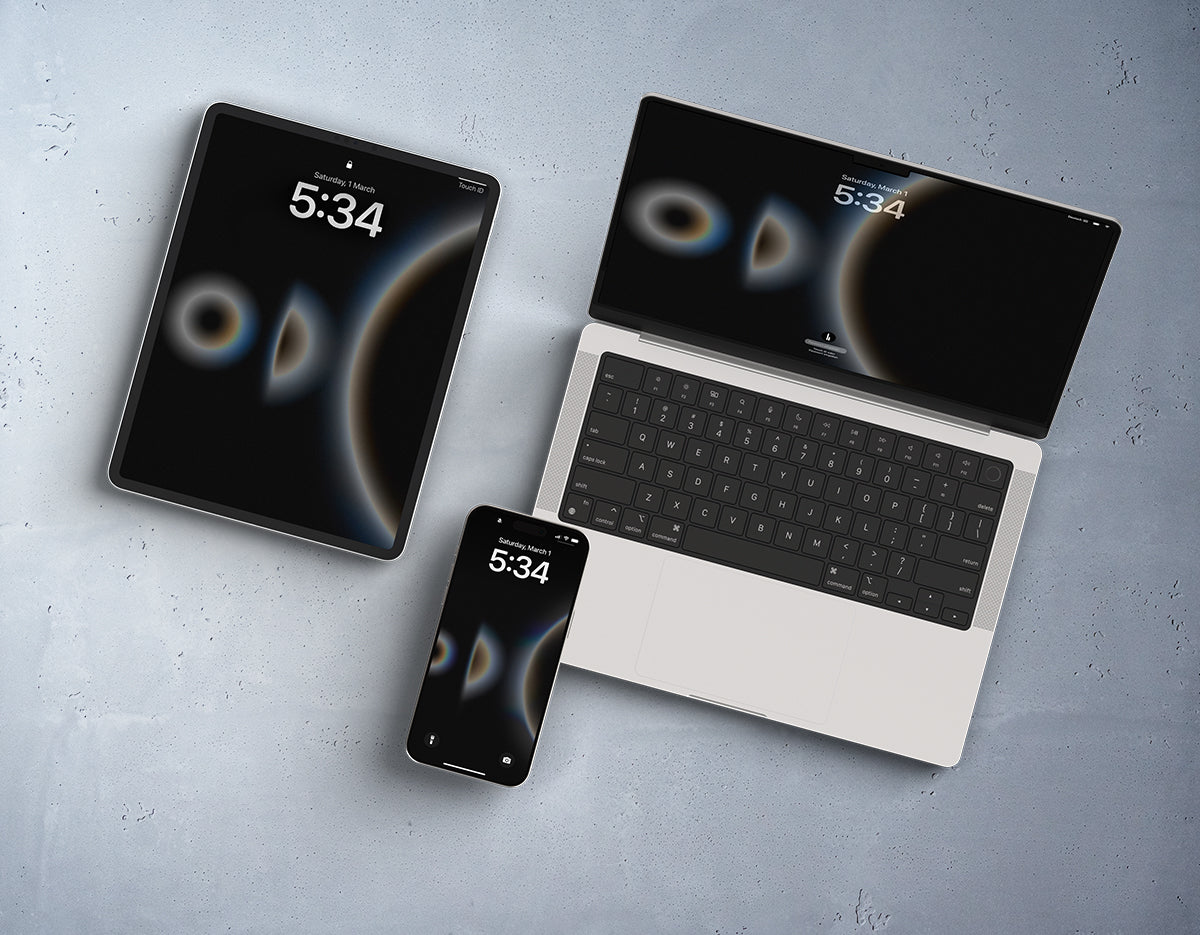
Our Laptop Dock for the Setup Cockpit mounts to either side of the Setup Cockpit and stores a connected laptop vertically, keeping it accessible without occupying the main working surface.

4. Keep the Keyboard and Mouse in Your Primary Work Zone
For developers, the keyboard is not simply another accessory. It is one of the tools you interact with most.
Your keyboard and mouse should therefore take priority over decorative objects.
Avoid creating a beautiful desk setup that forces you to reach around a plant, notebook, speaker or charging stand hundreds of times per day.
A good layout keeps both input devices:
- Directly in front of you
- Close enough to avoid reaching forward
- At a comfortable height
- Aligned with the monitor
Mechanical Keyboard or Low Profile Keyboard?
Both can work. Choose based on your preferences rather than what looks best in setup photos.
A mechanical keyboard may appeal if you value:
- Tactile feedback
- Customization
- Programmable layouts
- Replaceable switches
- Compact form factors
A low profile keyboard can be attractive if you prefer:
- Minimal key travel
- A lower overall profile
- Familiar laptop style typing
- A visually restrained setup
The best keyboard for developers is ultimately the one you can use comfortably and accurately for extended periods.
5. Take Desk Cable Management Seriously
Few things make a sophisticated workspace look unfinished faster than uncontrolled cables. And developer setups tend to have plenty of them.
You may have cables for: monitor power, monitor data, laptop charging, keyboard, mouse, headphones, speakers, smartphone charging, USB hubs, Ethernet and external storage.
Without a system, every new device adds another visible cable.
Build Cable Management in Layers
A clean approach to desk cable management uses several layers.
Layer 1: On the Desk — keep only the cables that actually need to reach a device. Avoid leaving unnecessary cable length on the desktop.
Layer 2: Behind or Under the Monitor — combine cables heading in the same direction. This prevents every device from creating its own visible line across the desk.
Layer 3: Under the Desk — store power strips, excess cable length, chargers and larger connections below the working surface whenever possible.
The result should be simple: from your normal sitting position, cables should attract as little attention as possible.
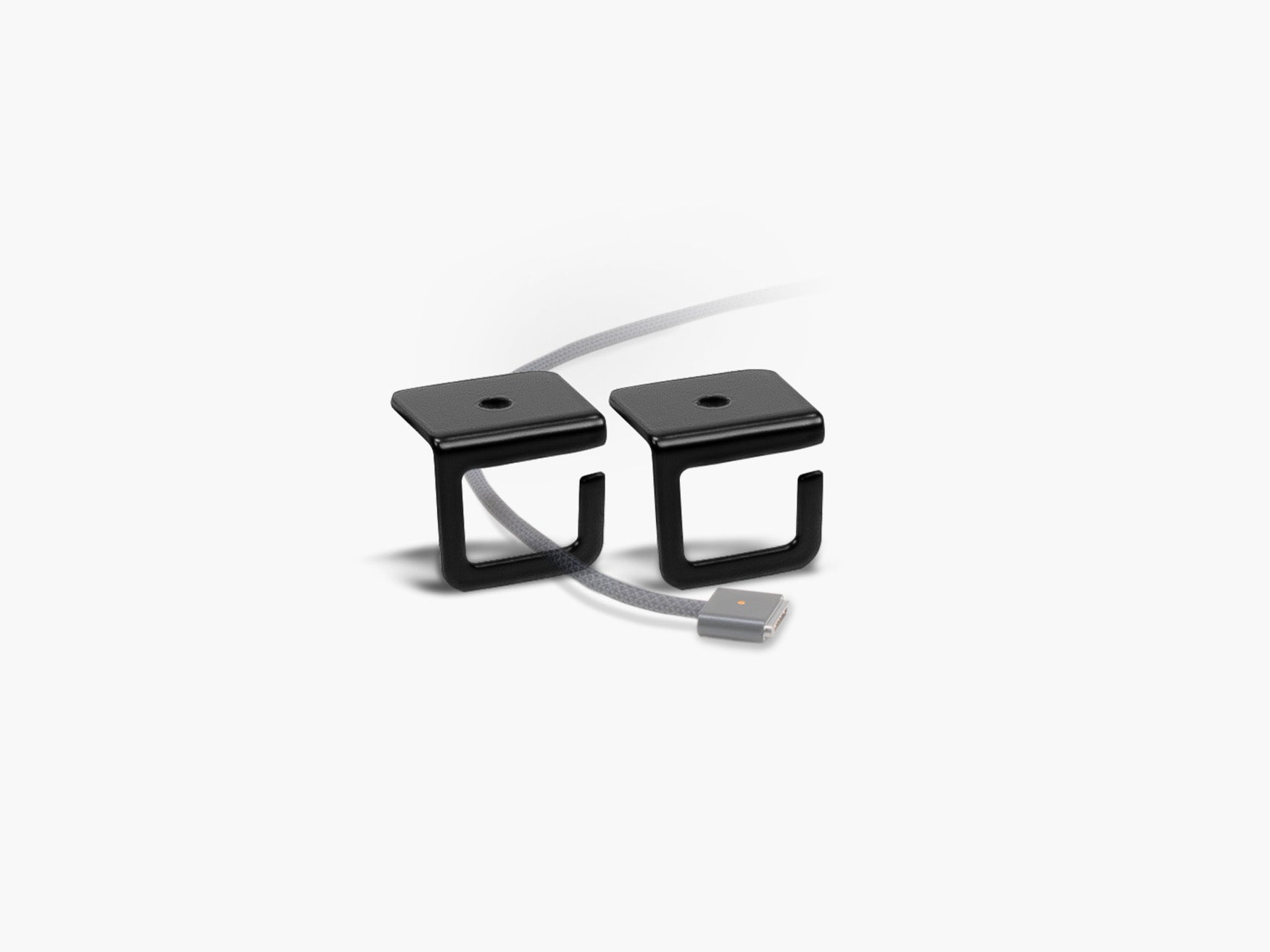
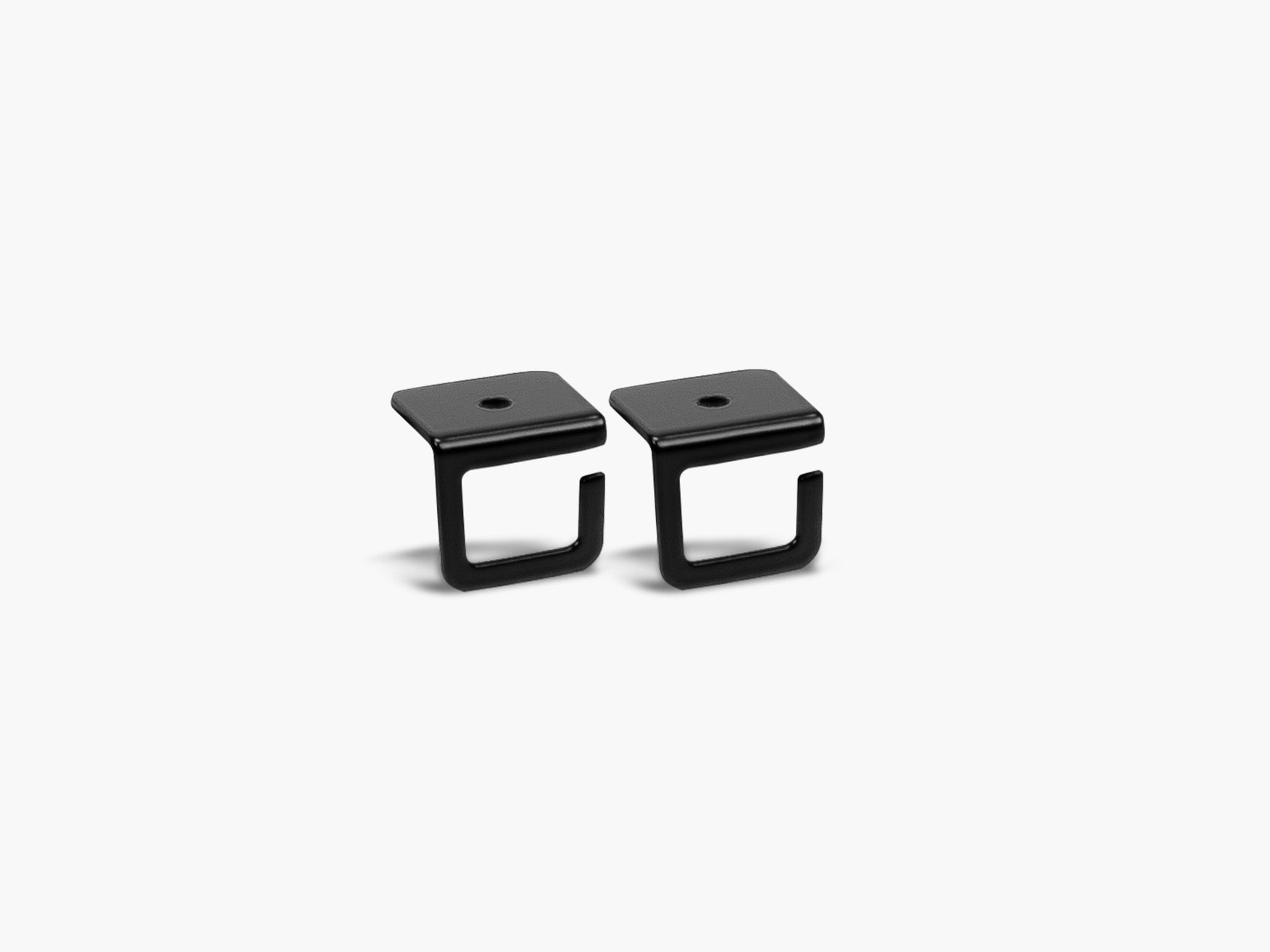
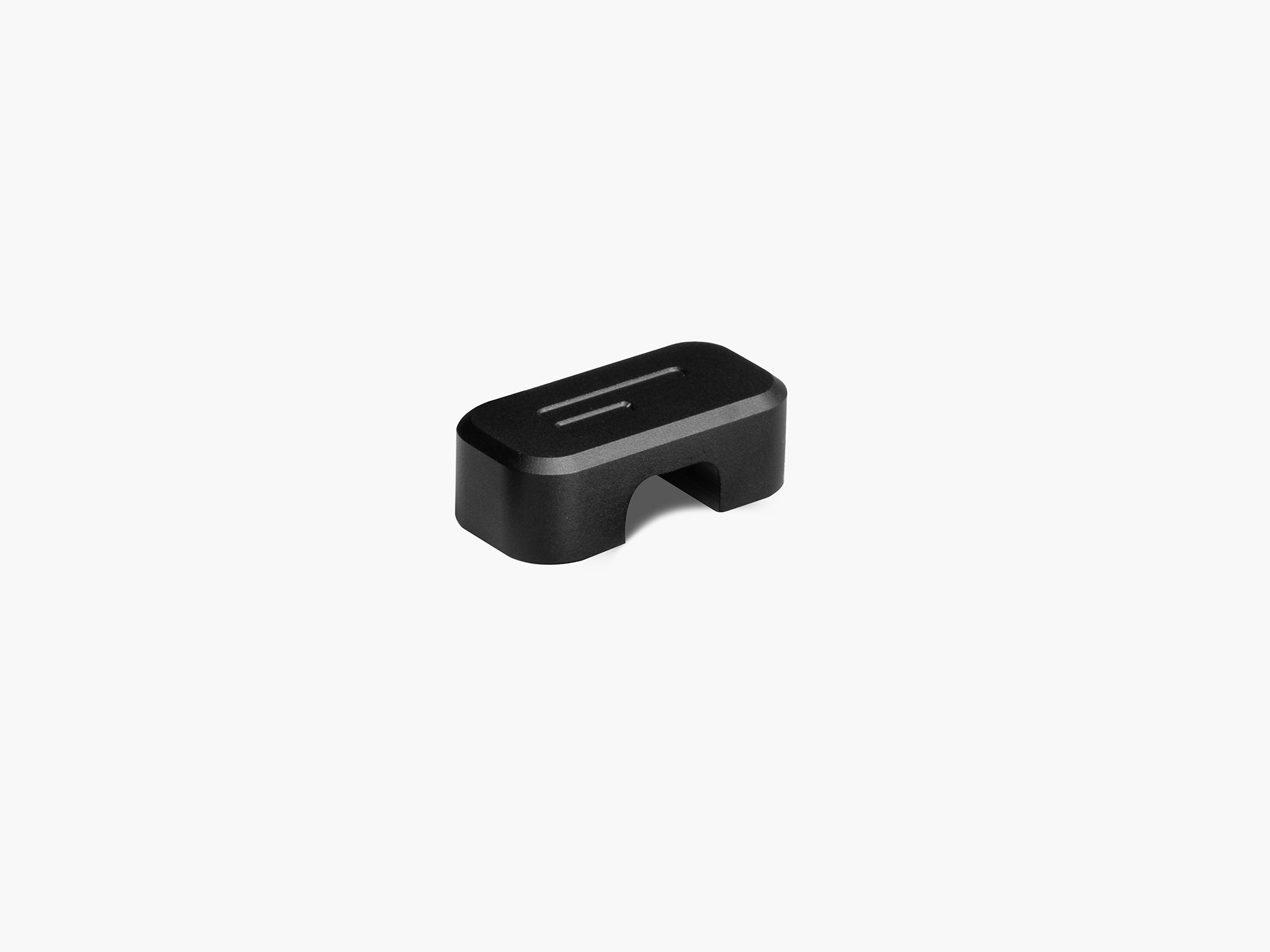
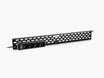
At BALOLO, our modular cable routing for the Setup Cockpit can bundle and conceal multiple cables directly underneath the monitor stand. The current Cable Organizer is designed to guide and hide up to ten cables while remaining accessible when a cable needs to be changed.

This is especially useful in a developer setup because hardware changes are common. You want hidden cables, but you still need a system that can evolve.
Read more in our guide on desk cable management.
6. Give Every Small Accessory a Defined Place
Adapters have an impressive ability to take over a desk.
USB C adapters. SD card readers. Flash drives. Pens. Charging cables. Hardware security keys. External SSDs.
Individually, they are tiny. Together, they create visual noise.
One of the most effective desk organization principles is therefore: do not organize objects by where they happen to fit. Organize them according to how often you use them.
Daily Use — keep these within immediate reach. Examples: keyboard, mouse, headphones, smartphone, one frequently used charging cable.
Weekly Use — store these close by, but not necessarily on the main desk surface. Examples: adapters, external drives, spare cables, cleaning cloth, notebook accessories.
Rare Use — move these into a drawer, cabinet or other storage area. If you use something twice a month, it does not deserve permanent space in your primary working zone.
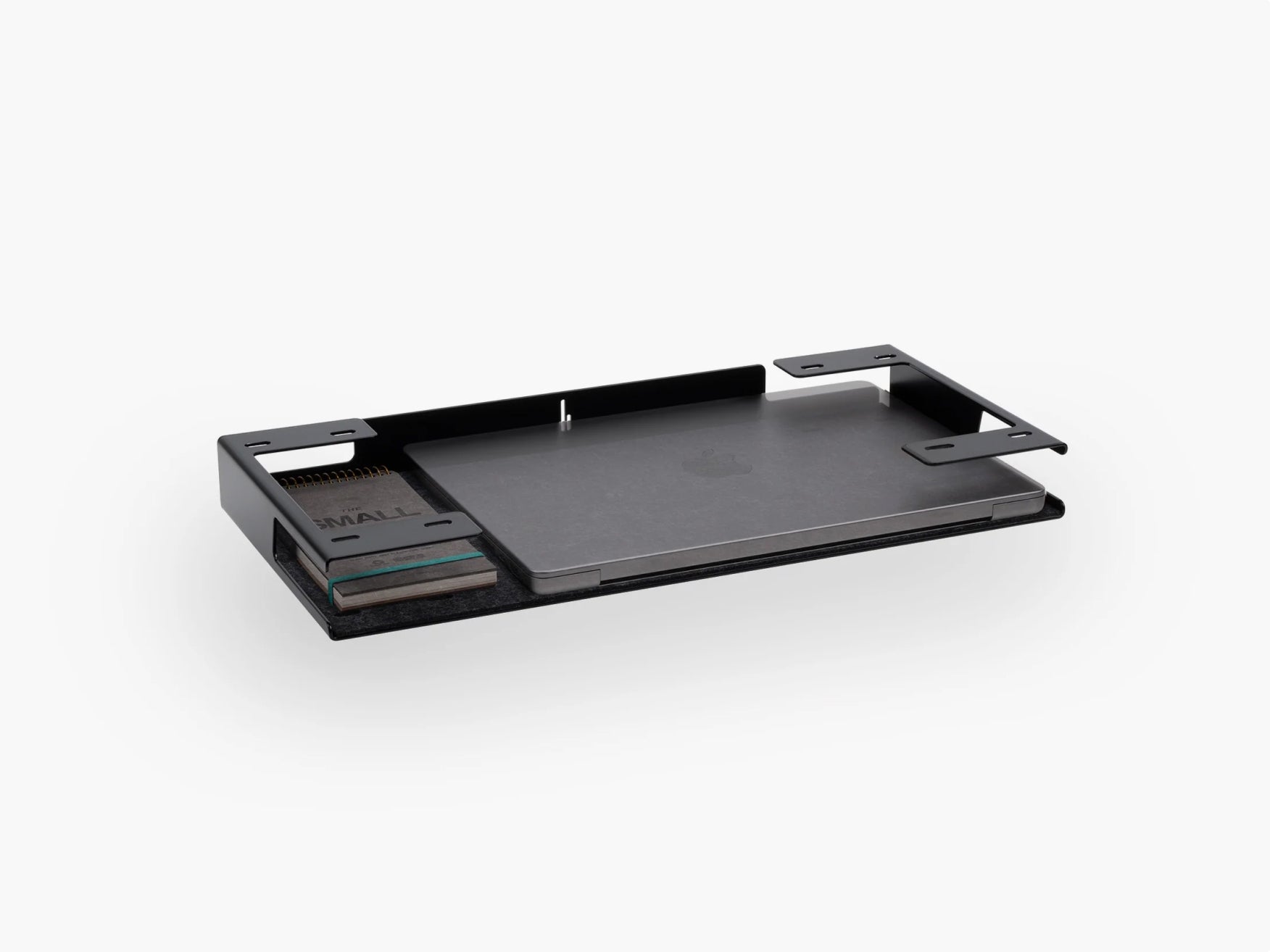
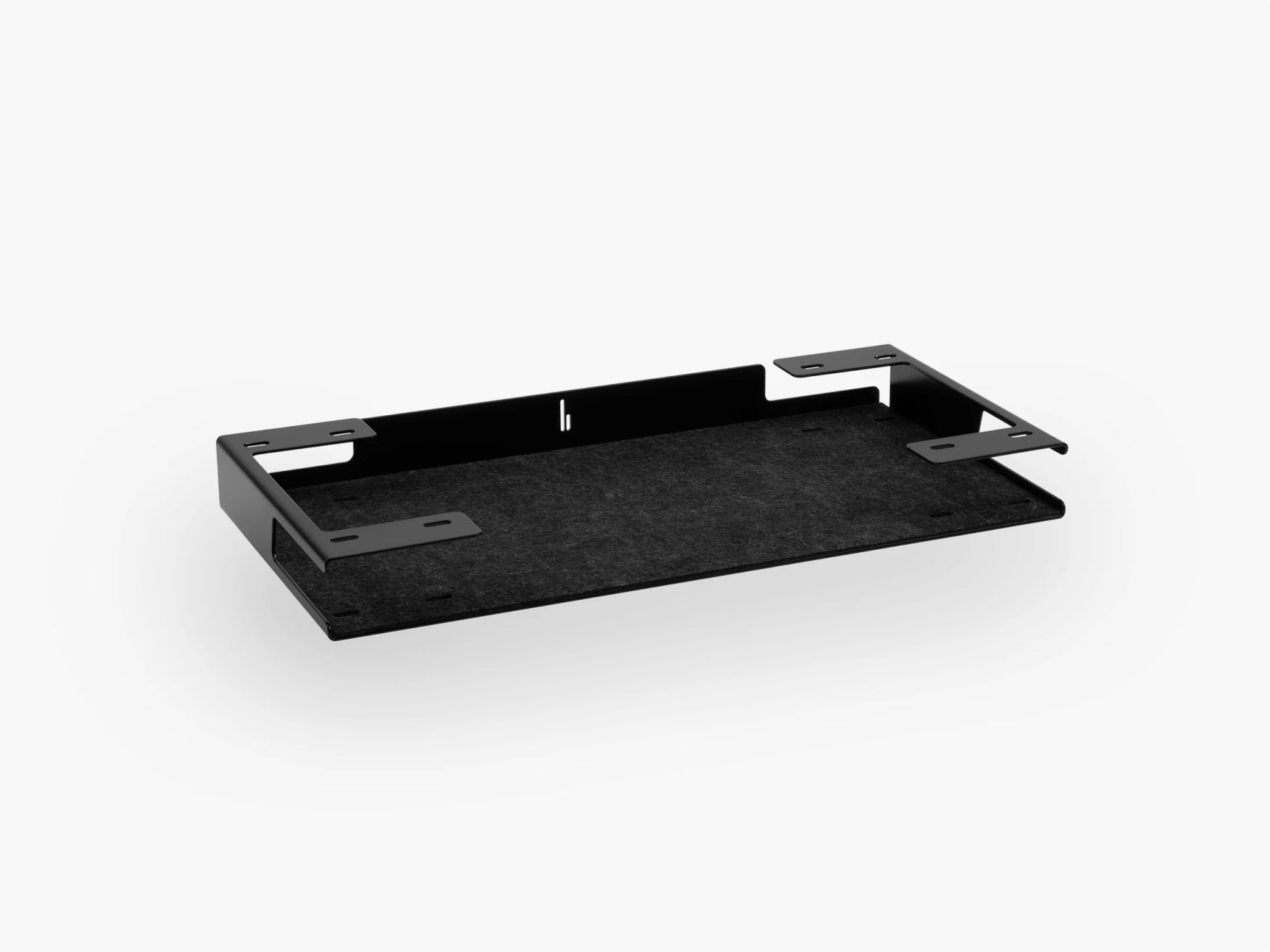
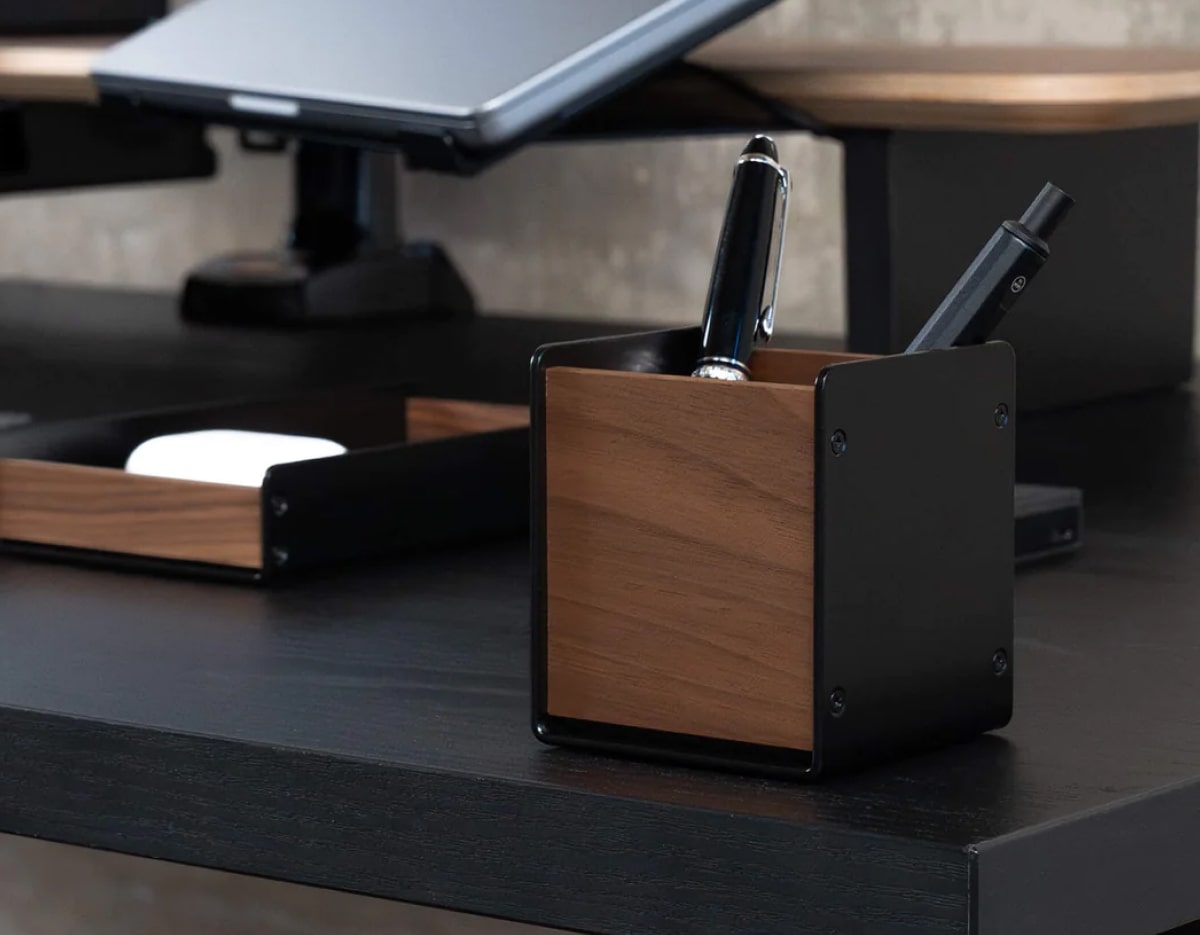
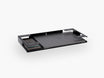
A small tray underneath a monitor shelf can be particularly useful for developer essentials. Our tray for the Setup Cockpit, for example, creates a dedicated location for objects such as adapters, pens, notes and other small tools while keeping the desktop itself free.
Our guide on desk accessories for better organization covers more ways to keep small tools in check.
7. Use Lighting That Supports the Workspace
Lighting affects both the usability and atmosphere of a developer desk setup.
During the day, natural light can make a workspace feel open and comfortable. But reflections directly on the monitor can quickly become distracting.
For evening coding sessions, combine ambient room lighting with a controlled light source near the desk.
The goal is not to make your workspace as bright as possible. You want enough light to comfortably see your keyboard and surroundings without creating an extreme contrast between a bright display and a completely dark room.
What About RGB Lighting?
Use it if you like it.
A developer workspace does not have to look like a server room, and it does not have to look like a Scandinavian interior.
The best aesthetic is one that you enjoy returning to.
If you prefer a more timeless modern desk setup, warm neutral lighting, natural wood, black or white technical elements and a limited color palette are difficult to overload.
8. Build a Minimal Setup Without Making It Empty
Minimalism does not mean owning as few objects as possible.
A minimalist workspace is a workspace where every visible object has a clear purpose.
For developers, that distinction matters. You probably need more technology than someone who works primarily with email and documents. Trying to hide every piece of equipment can make the setup less functional.
Instead, reduce visual complexity. You can do that by:
- Grouping similar objects
- Hiding excess cables
- Keeping surfaces clear
- Using a consistent material palette
- Storing rarely used devices
- Creating fixed positions for daily tools
This philosophy closely reflects how we approach workspace design at BALOLO. Our focus is not organization for its own sake. We design modular workspace systems that combine organization with functionality and visual clarity. Wood, powder coated steel, modular mounting options and Made in Germany production are recurring parts of that design language.

The objective is a workspace that feels calm without becoming sterile.
9. Design Your Setup Around Your Development Workflow
The most important question is not: what should a developer desk look like?
It is: how do you actually work?
Consider what happens during a normal day.
If you spend most of your time writing code, optimize for keyboard access and screen position.
If you constantly test interfaces, give your browser or preview window dedicated screen space.
If you frequently join video meetings, think about camera position, microphone placement, and lighting.
If you switch between a company laptop and a personal computer, make device switching simple with a Laptop Dock.
If you work with hardware, microcontrollers, electronics or testing devices, leave a section of the desk available as a temporary project zone.
Your desk setup layout should follow the workflow, not the other way around. Our guide to desk setups for productive work walks through this in more detail.
10. Avoid the Most Common Developer Desk Setup Mistakes
Too Many Screens — more screen space can be useful. But more screens also mean more information competing for your attention. Add a second or third display because your workflow requires it, not because a development setup is supposed to have one.
Too Many Accessories — a productivity accessory only improves productivity when it solves an actual problem. Before adding something to your desk, ask: what friction does this remove? If there is no clear answer, you may simply be adding clutter.
Ignoring Cable Management Until the End — plan cable routing while building your setup. Doing it after every device has already been installed usually makes the job harder.
Prioritizing Photos Over Comfort — a desk can look perfect on Instagram and still be uncomfortable to use for eight hours. Monitor height, input device placement, chair adjustment and usable desk space should come before decoration.
No Room for Change — developer workflows evolve. You may change laptops, add another monitor, switch keyboards, introduce a microphone or work on a completely different kind of project next year. A modular setup gives you room to adapt instead of starting again from zero.
Developer Desk Setup Checklist
Use this as a quick checklist when building or improving your workspace.
| Area | What to Check |
| Desk | Enough width and depth for your actual workflow |
| Monitor | Directly in front of you and comfortably positioned |
| Keyboard | Easy to reach with relaxed shoulders |
| Mouse | Next to the keyboard without excessive reaching |
| Laptop | Stored efficiently when an external monitor is used |
| Cables | Routed, bundled, and hidden where possible |
| Accessories | Only frequently used tools stay within reach |
| Lighting | Comfortable with minimal screen glare |
| Storage | Small devices and adapters have defined locations |
| Design | Consistent materials and limited visual clutter |
| Flexibility | Setup can adapt when your hardware changes |
A Simple Developer Desk Setup Formula
If you want to keep things straightforward, start with this:
- A sufficiently deep desk
Give yourself enough working room. - One high quality primary monitor
Add more screens only when your workflow benefits from them. - External keyboard and mouse
Especially important when using a laptop as your main computer. - A monitor stand or modular desk shelf
Use vertical space instead of filling the desktop. - Proper cable management
Route cables before adding decorative elements. - Dedicated storage for small tools
Keep adapters and accessories accessible without leaving them scattered around. - Good lighting
Reduce glare and create a comfortable atmosphere. - Space to change things
A developer workspace should evolve as easily as the technology on it.
Build a Workspace That Gets Out of Your Way
The best desk setup for developers is not necessarily the setup with the most monitors, the most expensive keyboard or the largest collection of desk accessories.
It is the one that disappears while you work.
Your monitor sits where you need it. Your keyboard is comfortable. Your cables are under control. Your laptop has a defined place. The tools you use every day are within reach and everything else stays out of the way.
That is when a desk stops feeling like a collection of devices and starts working as a system.
At BALOLO, this is exactly how we think about workspace design. Our modular approach is designed to create structure without sacrificing flexibility, combining functional organization with a calm, considered aesthetic.
Because when your workspace requires less attention, you have more attention left for what actually matters.
The code.
Frequently Asked Questions
What is the best desk setup for developers?
The best desk setup for developers combines a comfortably positioned monitor, an accessible keyboard and mouse, effective cable management, sufficient desk space, good lighting and organized storage. The exact hardware should match your individual development workflow.
Is one or two monitors better for programming?
Both can work well. One large monitor creates a cleaner and simpler workspace, while two monitors can make it easier to keep code and reference material visible simultaneously. Choose based on how often your workflow requires multiple applications at the same time.
How can I make my coding desk less cluttered?
Start by removing rarely used objects, routing cables underneath the desk or monitor area, storing small accessories in dedicated compartments and keeping only daily essentials in your primary work zone.
Is a monitor stand useful for developers?
Yes. A monitor stand can help position a display while creating additional usable space above and below the desk surface. Modular systems can also provide dedicated locations for devices, storage and cable management.
What are the most important desk accessories for developers?
Useful desk setup essentials typically include a suitable keyboard and mouse, monitor support, cable management, laptop storage when required, good lighting and accessible storage for frequently used adapters or devices. Accessories should solve a real workflow problem rather than simply filling the desk.