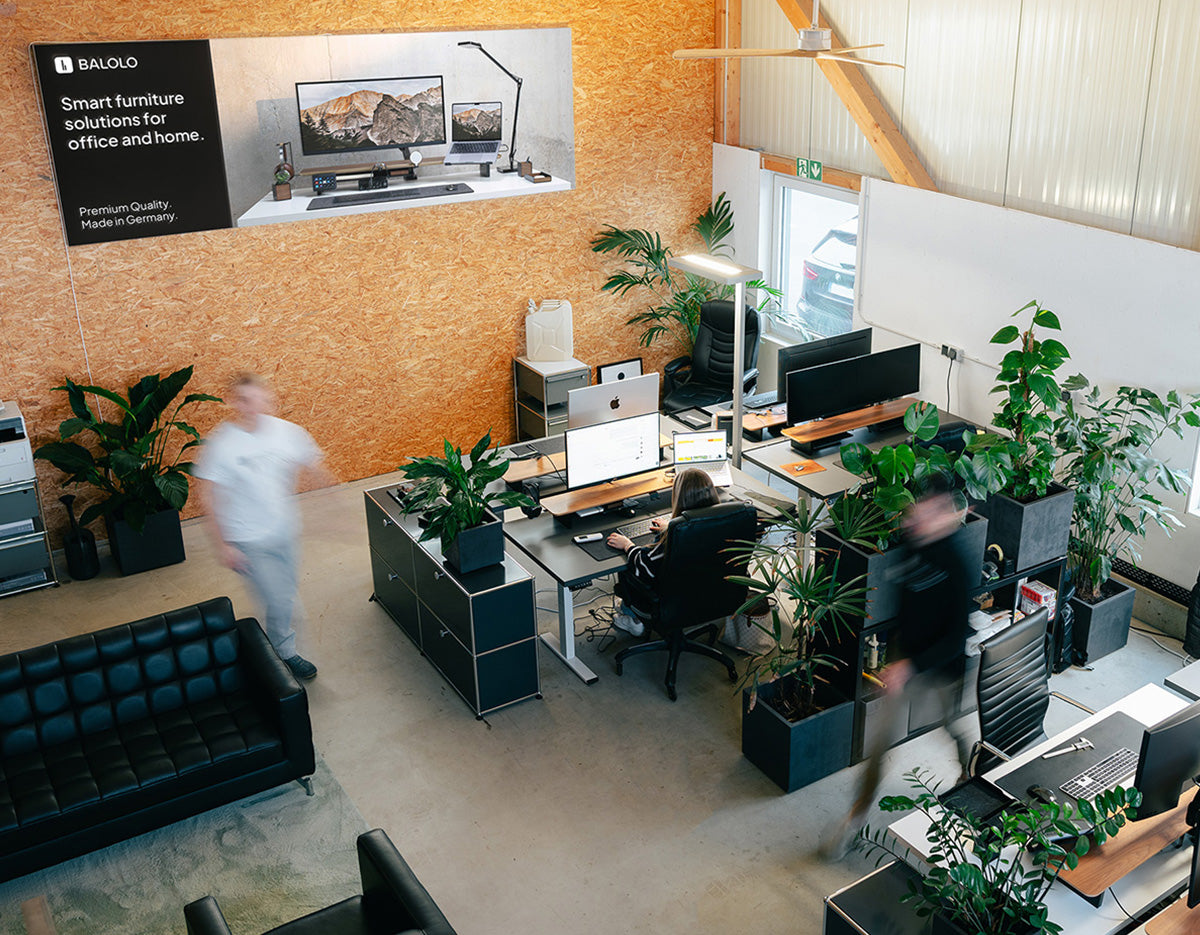

A productive desk setup is a workspace designed around the way you actually work. It keeps essential tools within reach, reduces unnecessary visual distractions, supports a comfortable posture and gives every device and accessory a logical place.
The goal is not to create a perfectly empty desk. It is to build a workspace that helps you begin tasks quickly, maintain focus and reset the space with minimal effort.
In this guide, we'll show you how to create a functional, organized and visually refined desk setup for productive work.

What Makes a Desk Setup Productive?
A productivity desk setup combines four essential qualities:
- Ergonomic comfort: Your monitor, chair, keyboard and mouse support a comfortable working position.
- Clear organization: Frequently used tools are easy to reach, while less important items stay out of the way.
- Efficient workflow: The layout reflects your daily tasks and the devices you use.
- Visual calm: Colors, materials, cables and accessories create a coherent workspace without unnecessary noise.
A productive workspace does not need to be large or filled with expensive equipment. Thoughtful placement usually matters more than the number of accessories on your desk.
1. Design the Setup Around Your Workflow
Before buying new desk accessories, think about what happens at your desk during a normal working day.
Do you spend most of your time writing, editing videos, designing, joining meetings or switching between a laptop and an external monitor?
Your answers determine what deserves space on the desk.
Identify Your Main Tasks
Write down the three activities you perform most often. For example:
- Writing and answering emails
- Working in spreadsheets
- Editing photos or videos
- Taking notes
- Joining video calls
- Reviewing printed documents
Then consider which devices and tools each activity requires.
The best desk setup for work is not the one with the most equipment. It is the one that gives your most important tools a clear and convenient position.
2. Build an Ergonomic Foundation
Productivity becomes difficult when your workspace constantly forces you into uncomfortable positions.
The monitor should sit directly in front of you, with the top of the screen at or slightly below eye level. Your head and neck should remain aligned with your torso, while your shoulders stay relaxed.
Your keyboard and mouse should be positioned so that you can reach them without stretching or bending your wrists unnecessarily.
Ergonomic Check for Your Workspace
| Element | Practical goal | Adjustment |
| Monitor | Comfortable viewing position | Place it in front of you, with the top at or slightly below eye level |
| Chair | Supported sitting position | Support your lower back and keep your feet stable |
| Keyboard | Relaxed shoulders and arms | Position it close enough to avoid reaching |
| Mouse | Neutral hand position | Keep it next to the keyboard |
| Frequently used items | Minimal unnecessary movement | Keep them within easy reach |
Adjust the setup until it feels comfortable and natural throughout the day.
3. Create a Clear Visual Center
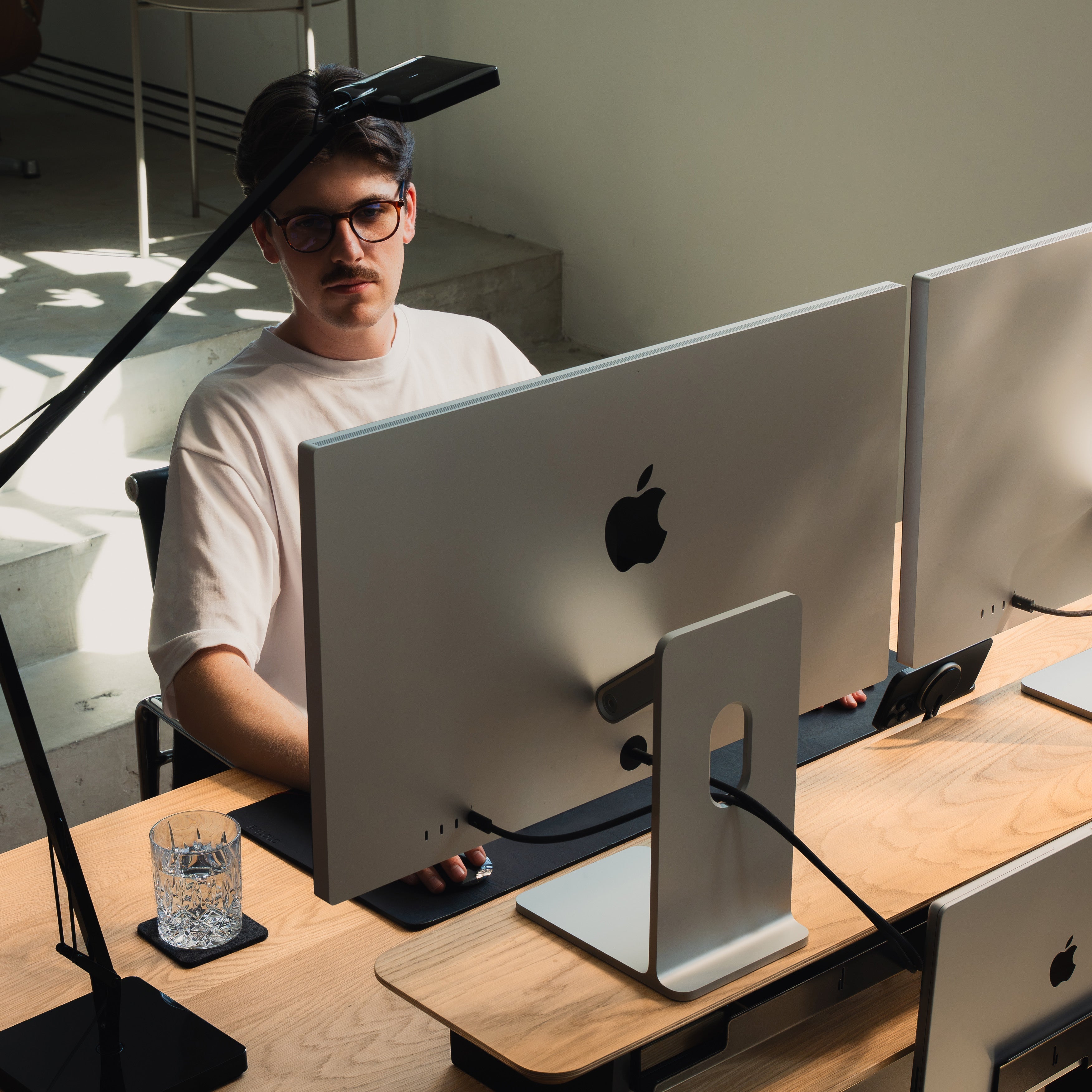
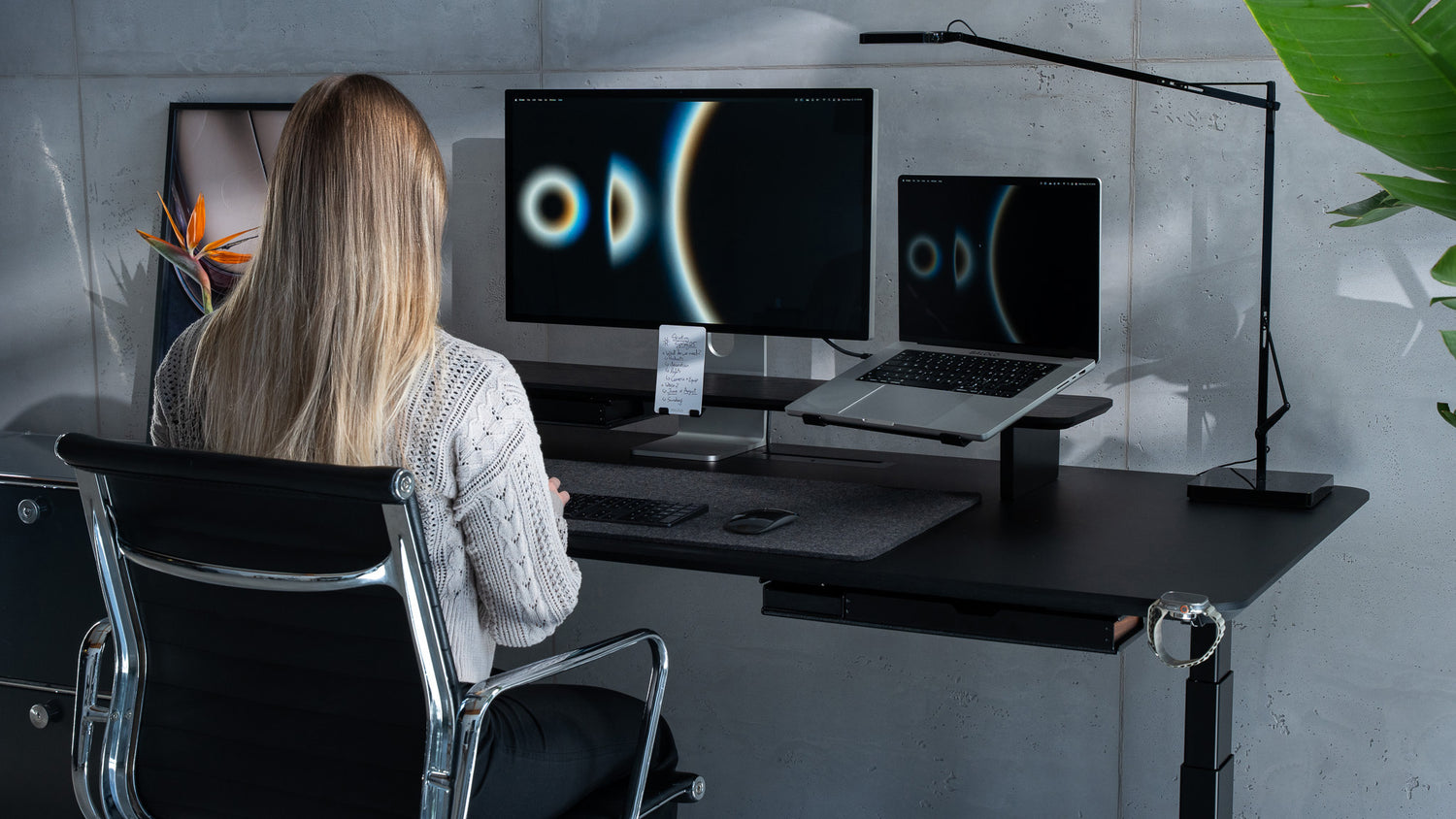
Most productive desk setups have a clear visual center. In many workspaces, this is the primary monitor.
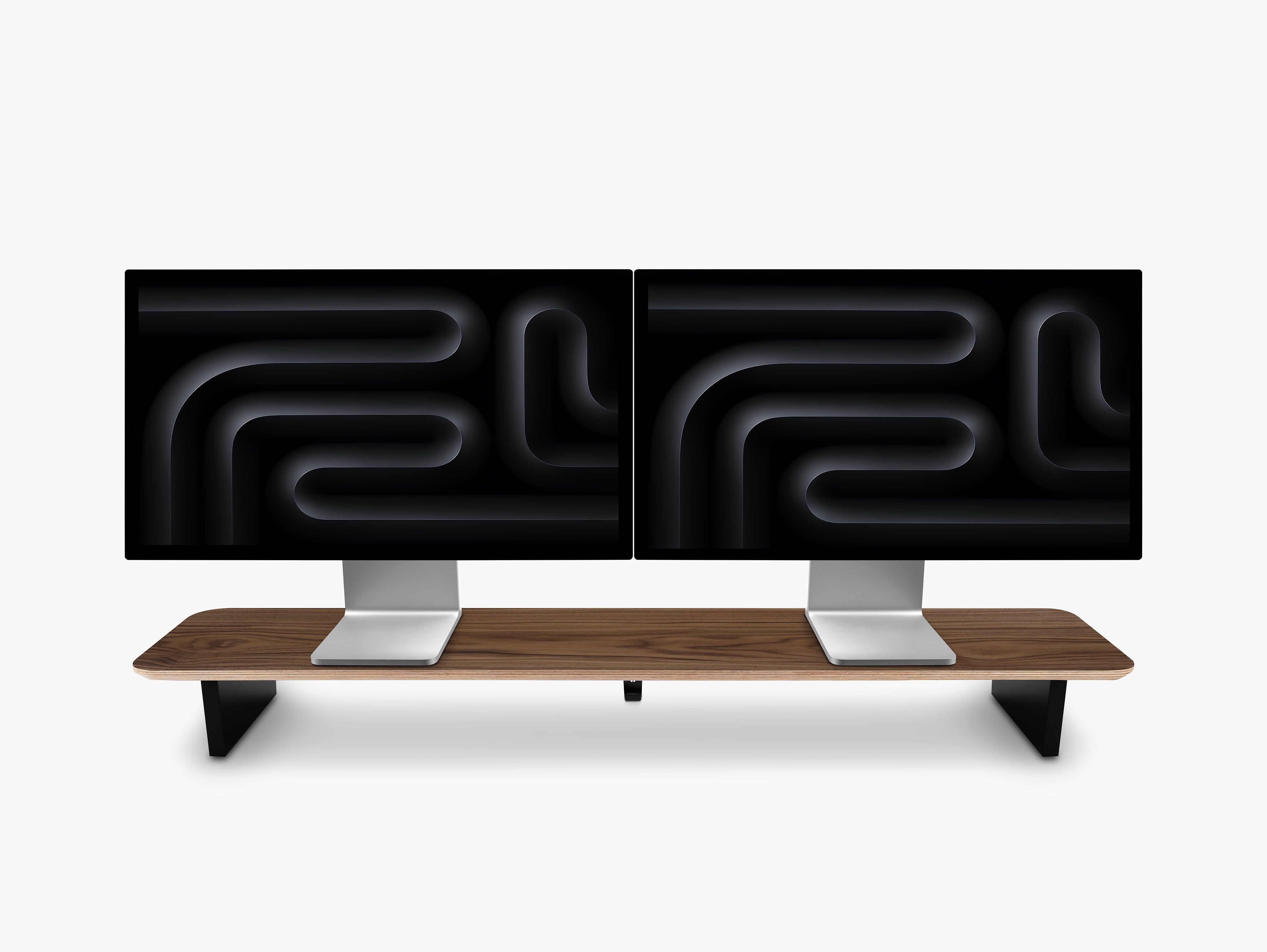
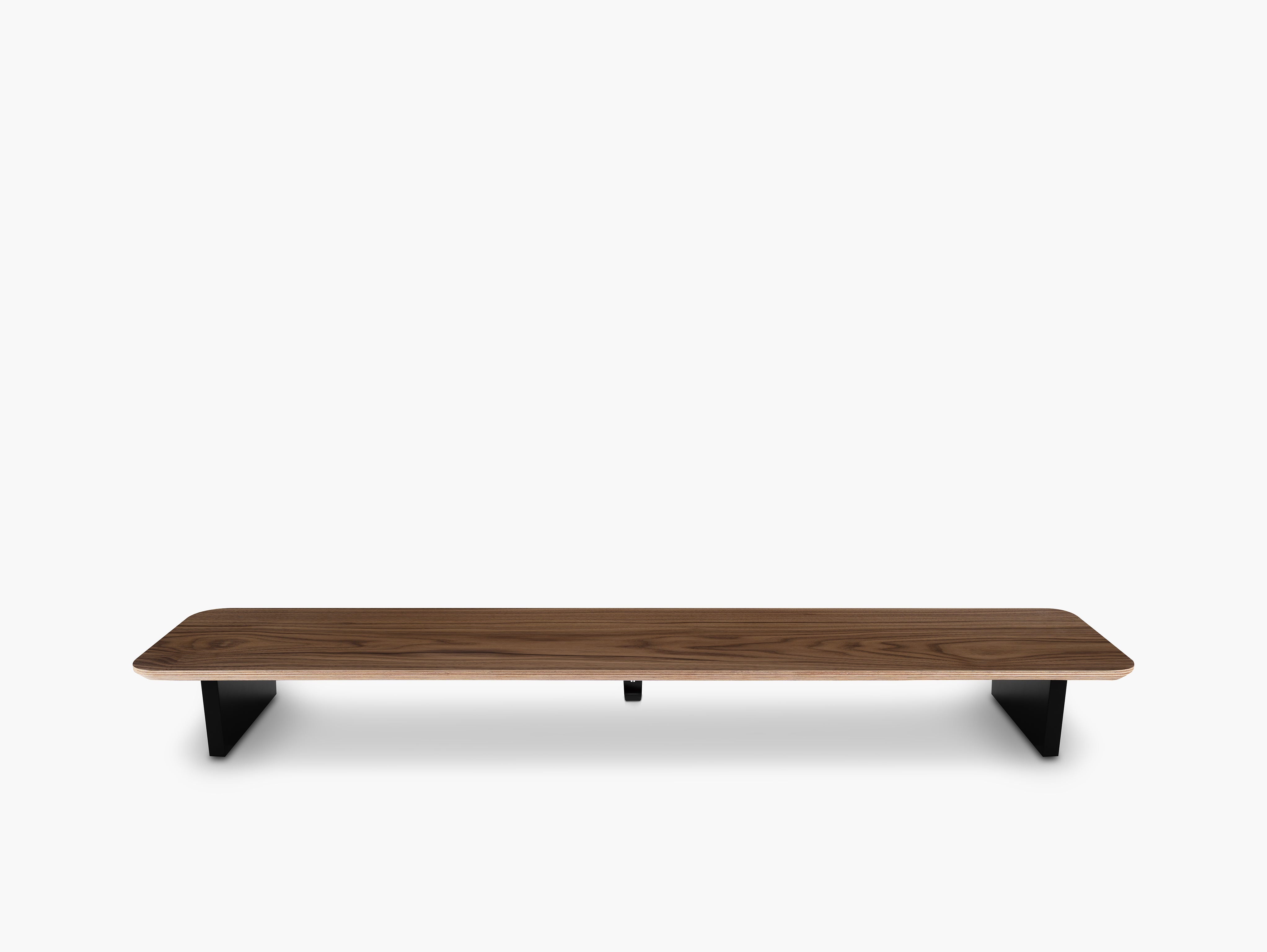
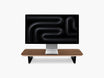
A monitor stand or desk shelf can create structure around that central point. It also opens additional space beneath the display for a keyboard, notebook or smaller accessories.
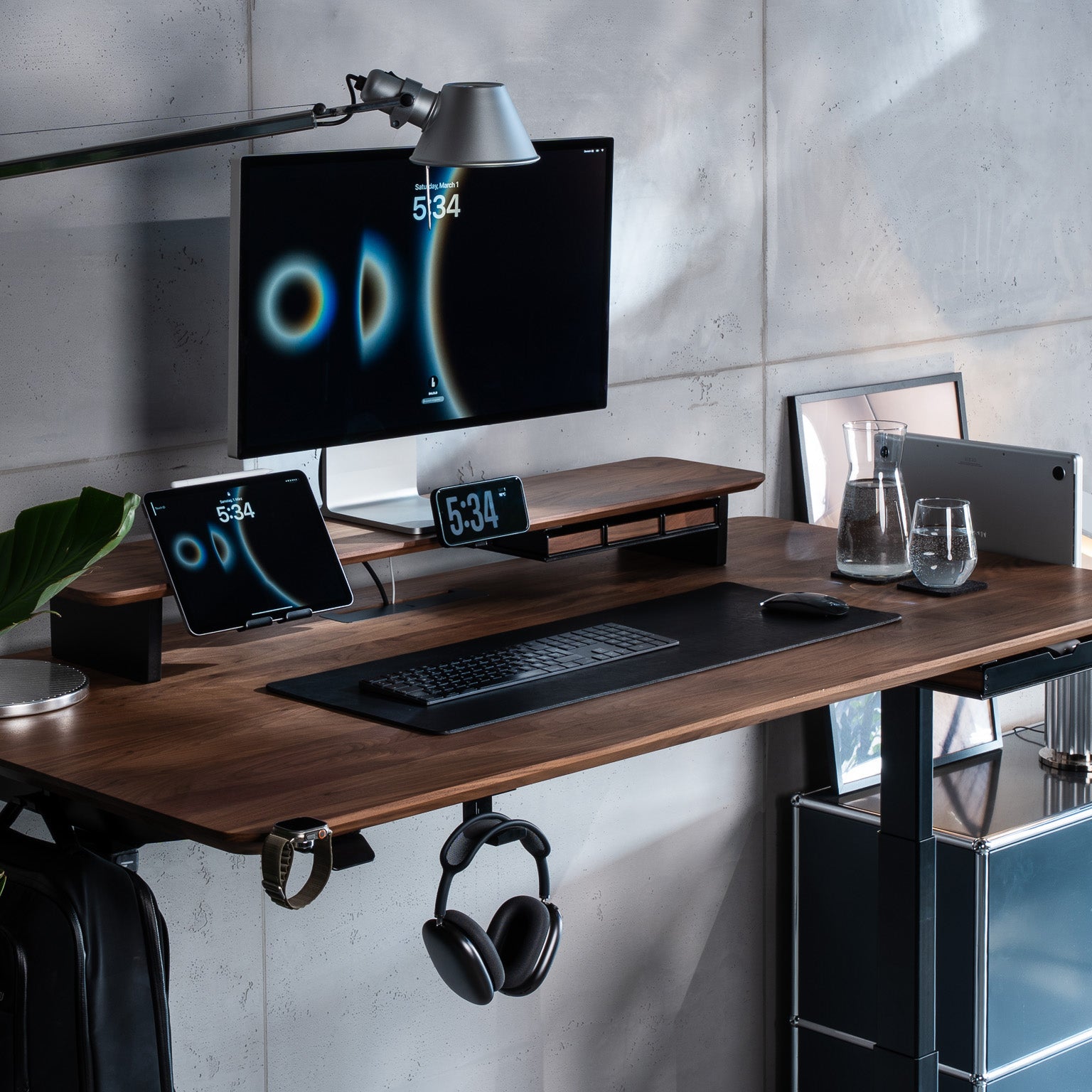
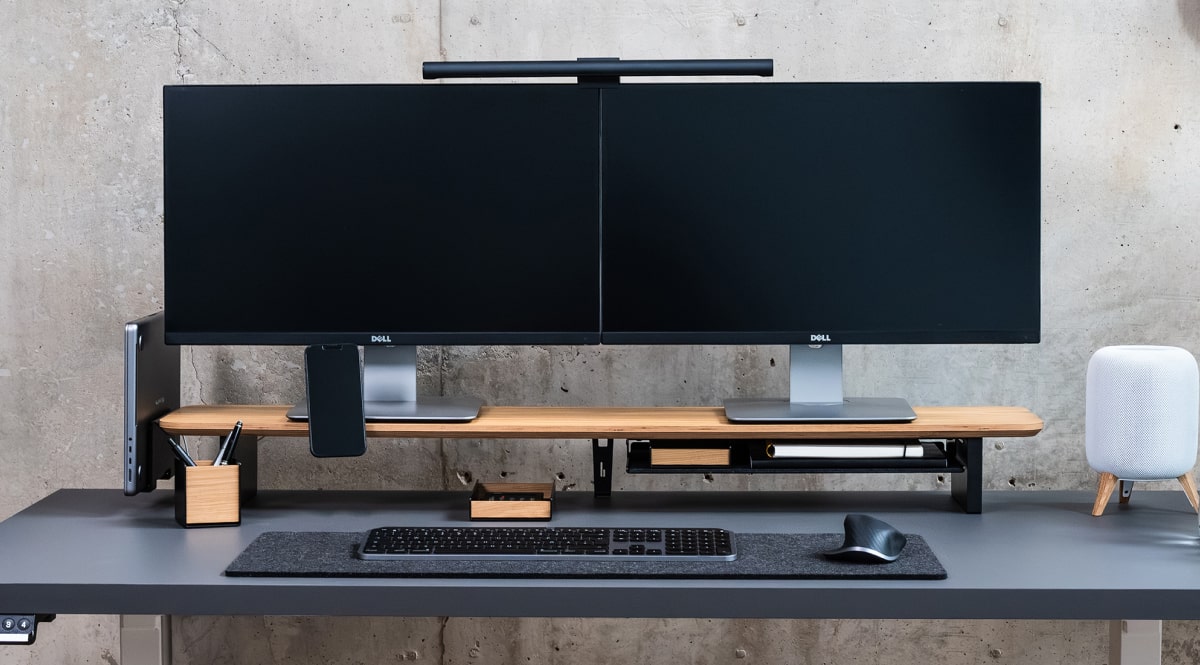
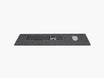
At BALOLO, we designed the Setup Cockpit as more than a simple monitor riser. Its modular mounting grid allows compatible accessories to be mounted underneath the wooden surface, helping move functional objects away from the main desk area.
This creates three functional levels:
- Above the shelf: Monitor, lighting or a few selected decorative elements
- On the shelf: Items that should remain visible and immediately accessible
- Below the shelf: Keyboard storage, notebooks, laptops, cables and modular accessories
Instead of spreading every object across one flat surface, you create a clear hierarchy.

4. Keep the Main Work Surface Clear
Your primary work surface should be reserved for active work.
A simple three-part system helps with the decision:
Keep
These are items you use several times per day, such as:
- Keyboard and mouse
- Notebook and pen
- Headphones
- Phone
- Water bottle
- Current documents
Relocate
These items are useful but do not need to remain in the center of the desk:
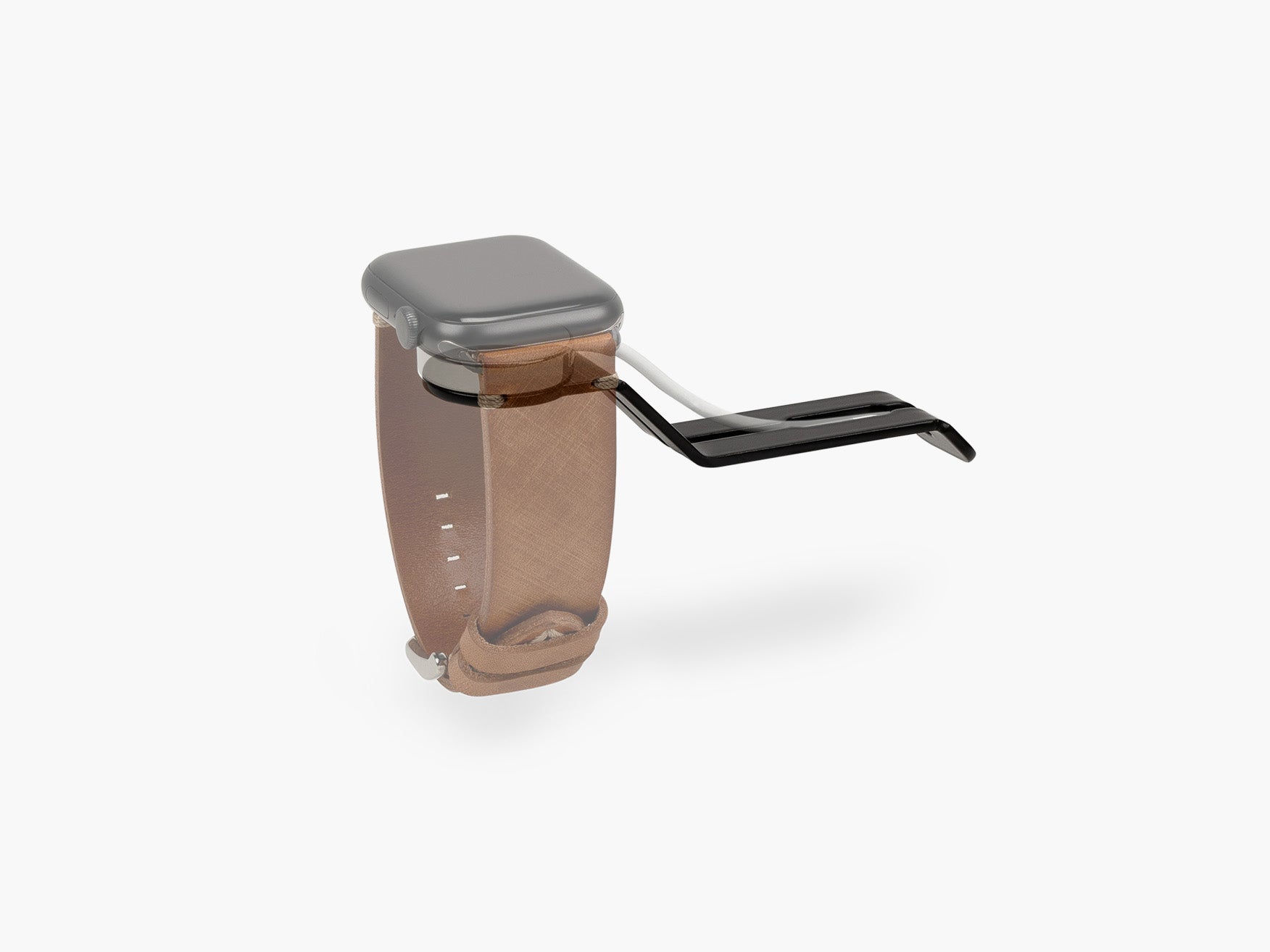
- Charging accessories
- External storage devices
- Spare cables
- Reference books
- Personal devices
- Controllers
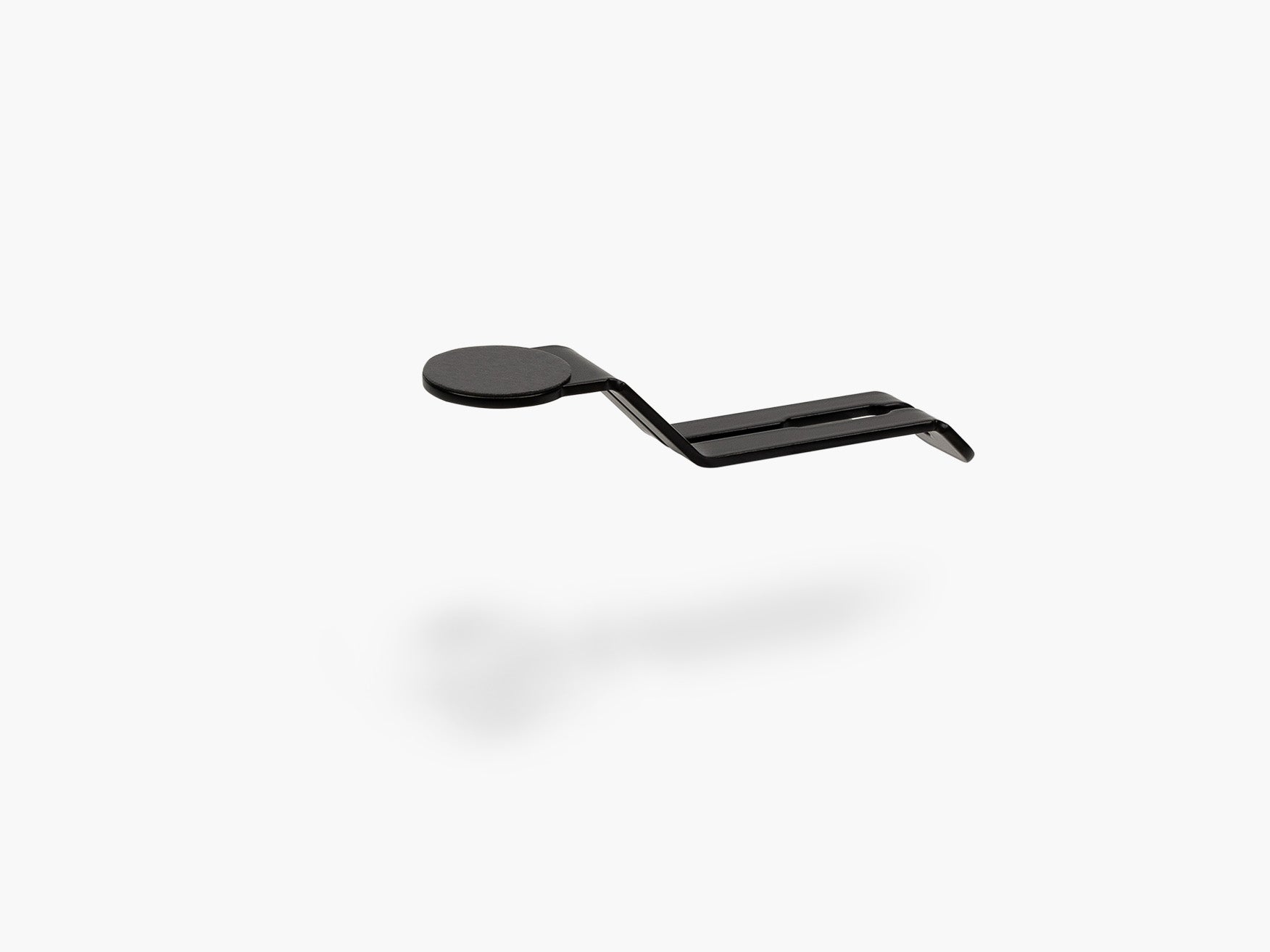
Place them on a shelf, in a drawer, beneath a desk shelf or on a dedicated holder.
Remove
Anything unrelated to your current workflow should leave the desk. The fewer unrelated objects sit on your desk, the easier it becomes to see where your actual work begins.
5. Organize Items by Frequency of Use
A good desk organization system reflects how often you actually use each object.
Daily Items
Keep daily essentials within direct reach: keyboard, mouse, notebook, headphones and phone.
Weekly Items
Store occasionally used tools nearby, but not on the main work surface. A drawer, tray, side shelf or modular tray is usually sufficient.
Rarely Used Items
Move backup equipment, spare cables, packaging and archived documents to a separate storage area.
Function should determine placement. Good design makes that placement feel intentional and coherent.
6. Control Cables Before They Become Clutter
Desk cable management has a significant visual effect on a workspace. Even a carefully selected monitor, keyboard and desk shelf can appear unorganized when charging cables and power cords cross the surface or hang beneath the desk without structure.
A Simple Cable Management Process
- Position your devices in their final locations.
- Group cables that follow the same route.
- Mount the power strip away from the main work surface.
- Guide excess cable length beneath the desk.
- Secure loose sections with reusable ties.
- Leave enough flexibility for devices that need to move.
- Label similar cables when necessary.
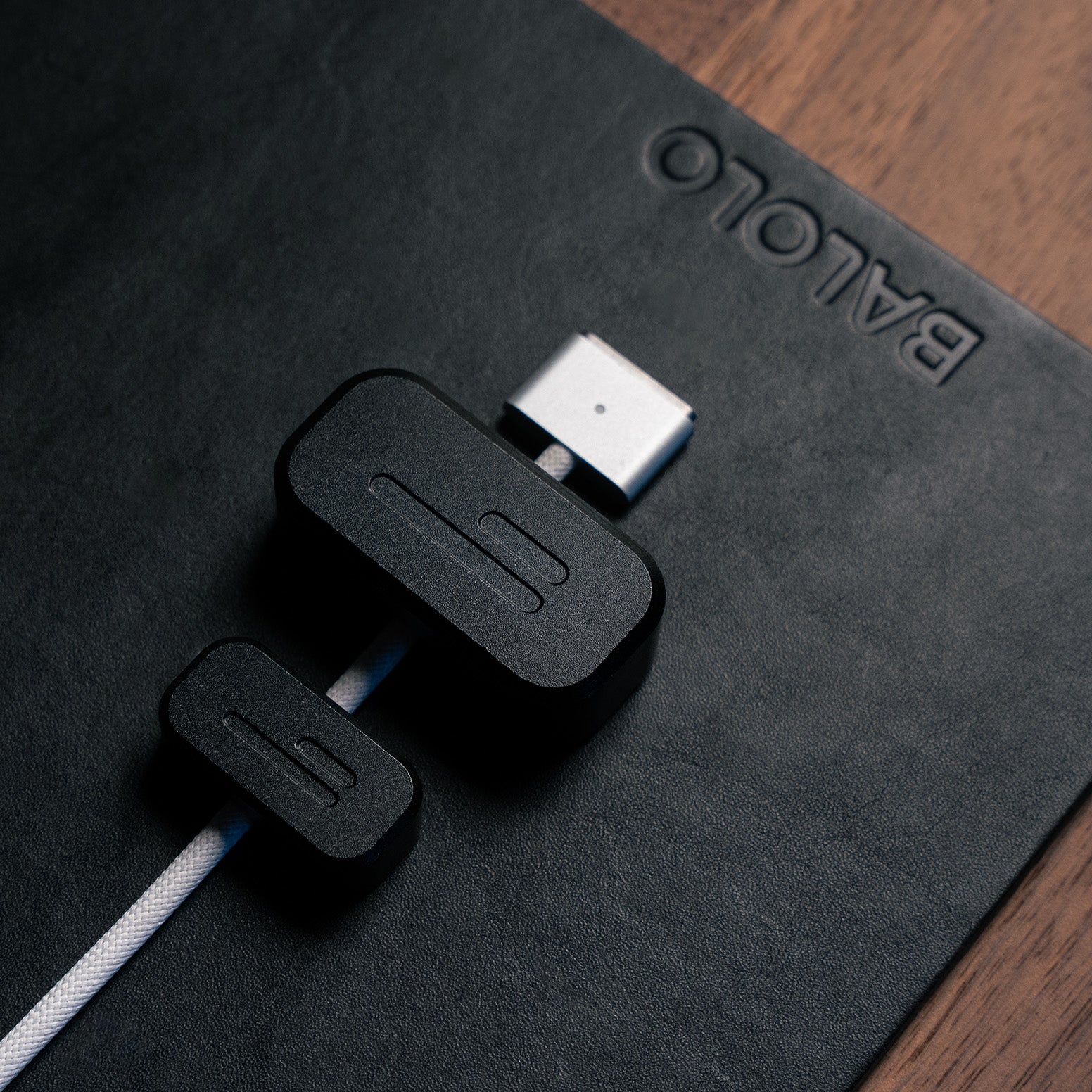
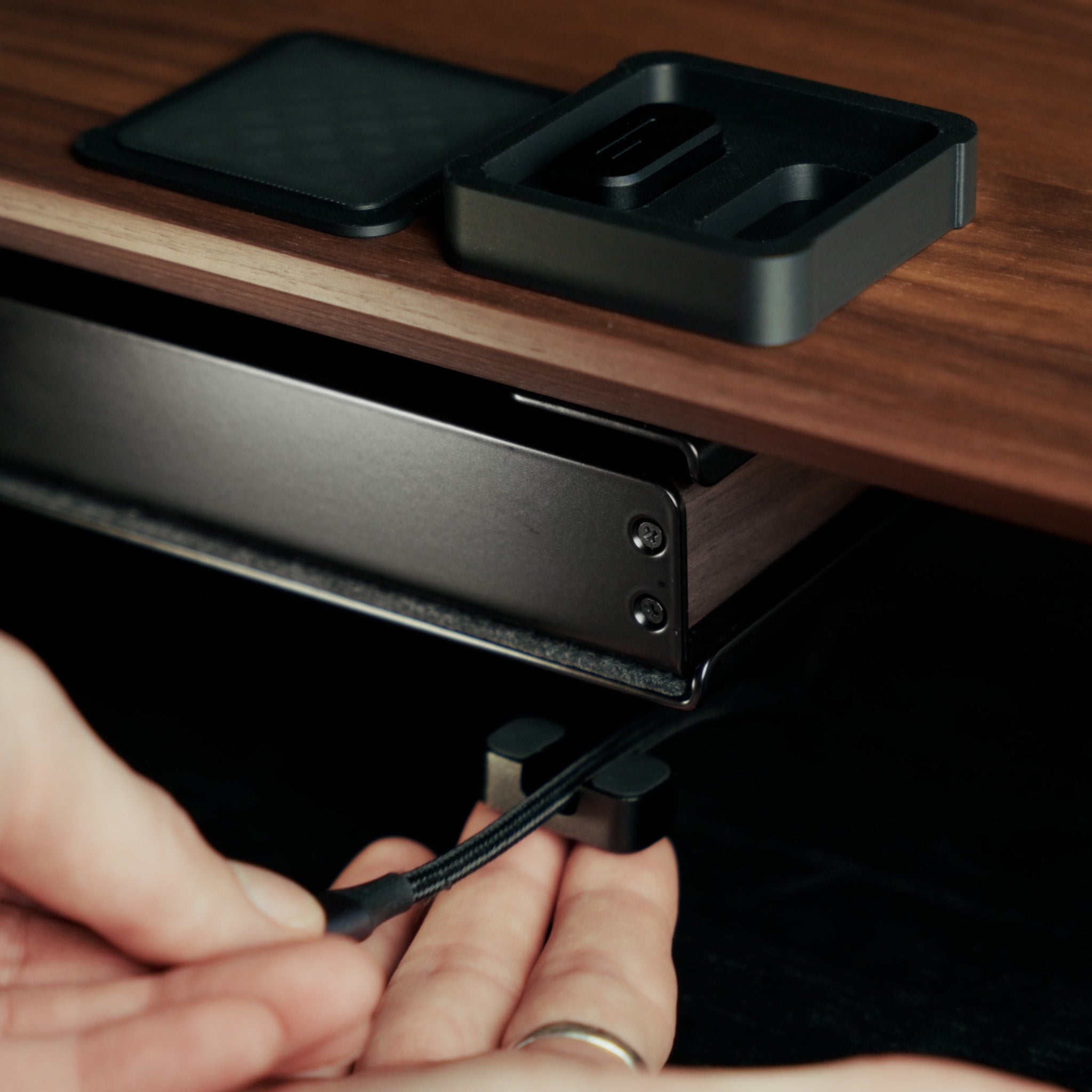
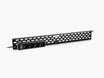
Our Cable Management System is designed to hold cables and power strips beneath the work surface. Our Cable Organizer for the Setup Cockpit can also guide and conceal individual cables around the desk shelf.
The objective is not to make every cable permanently invisible. A good system stays flexible and easy to maintain when you add, replace or remove a device.
Read more in our guide Desk Cable Management: Which Solution Fits Your Setup?

7. Give Every Essential a Dedicated Place
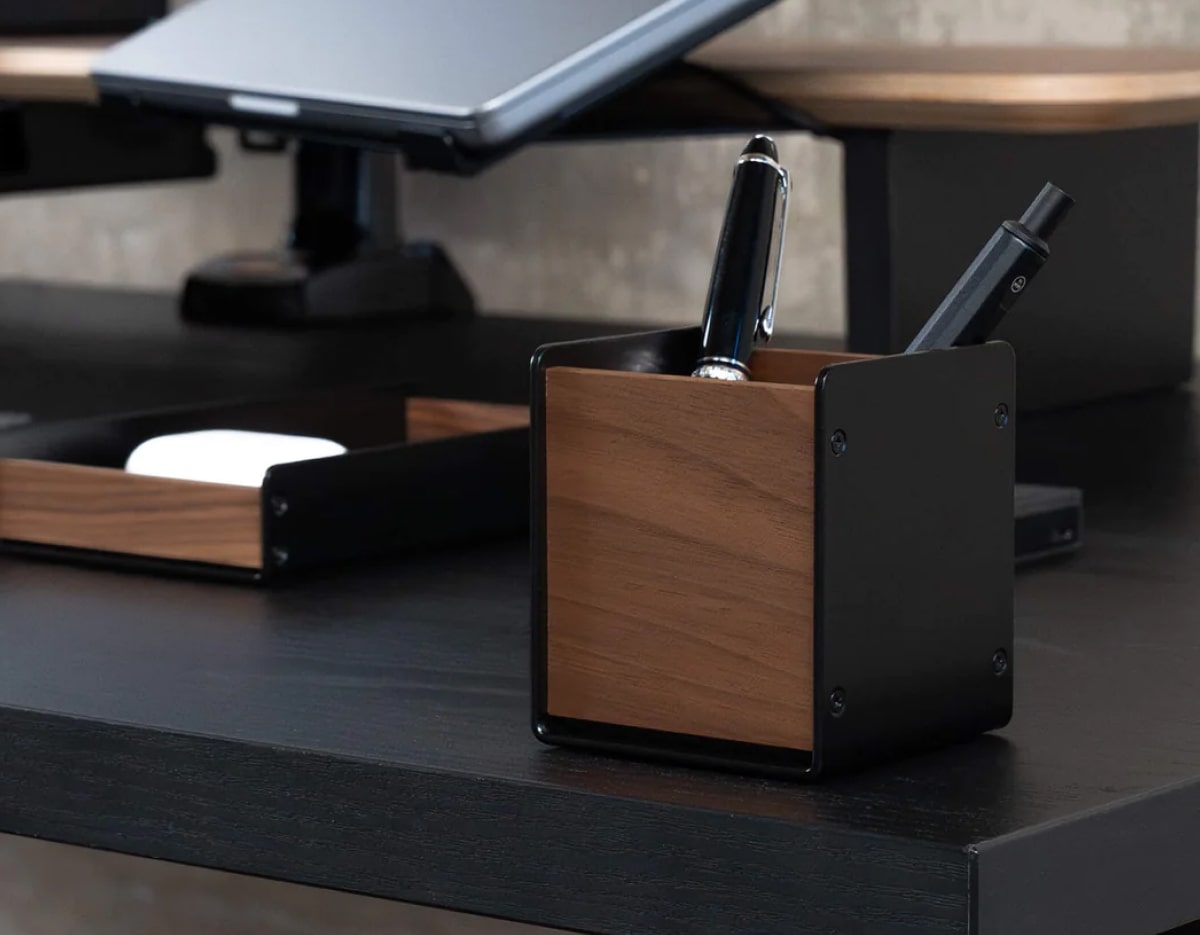
Small objects often create more visual clutter than large devices. Pens, memory cards, adapters, charging cases, notebooks and external drives can quickly spread across the desk when they don't have a permanent location.
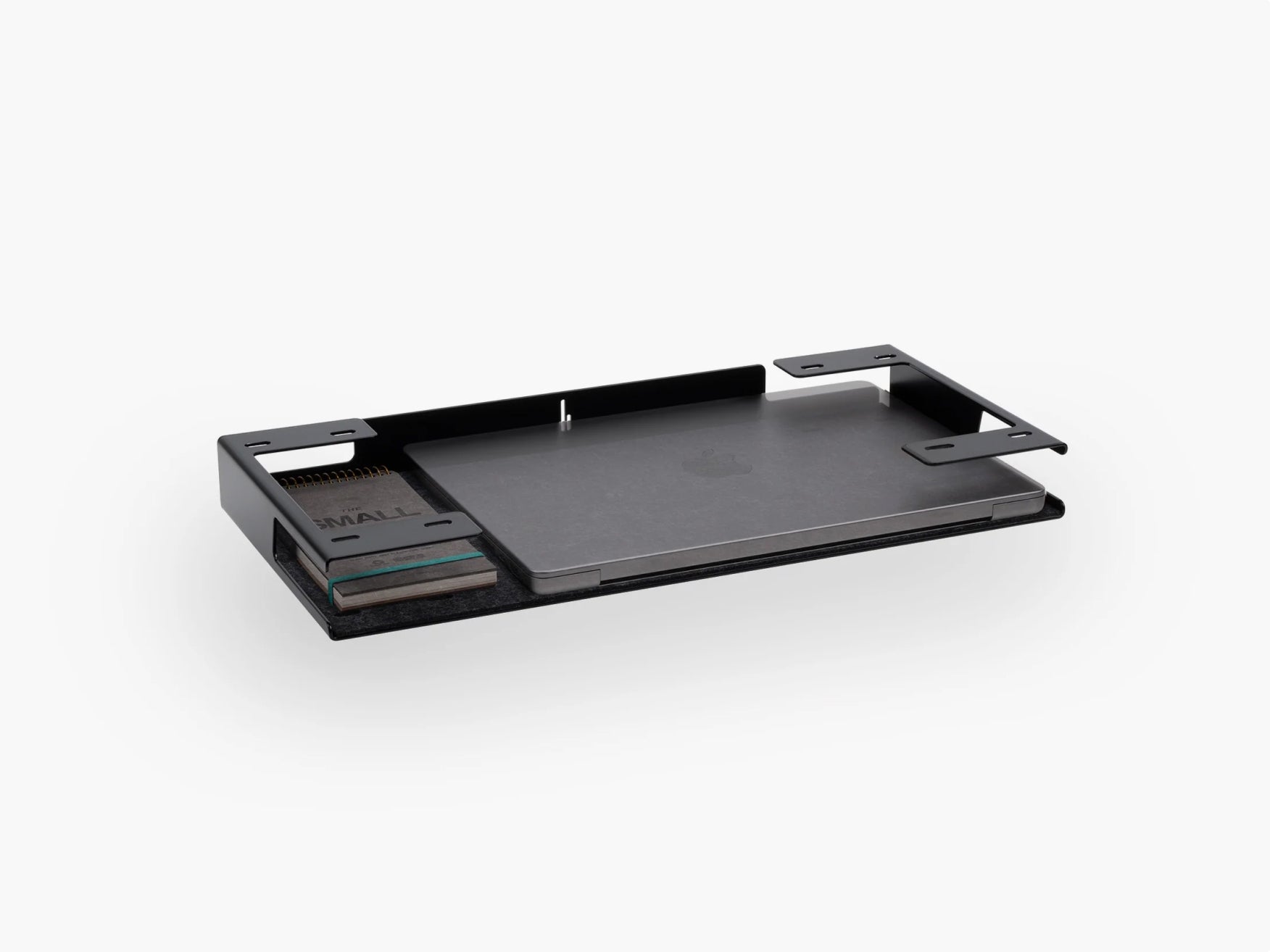
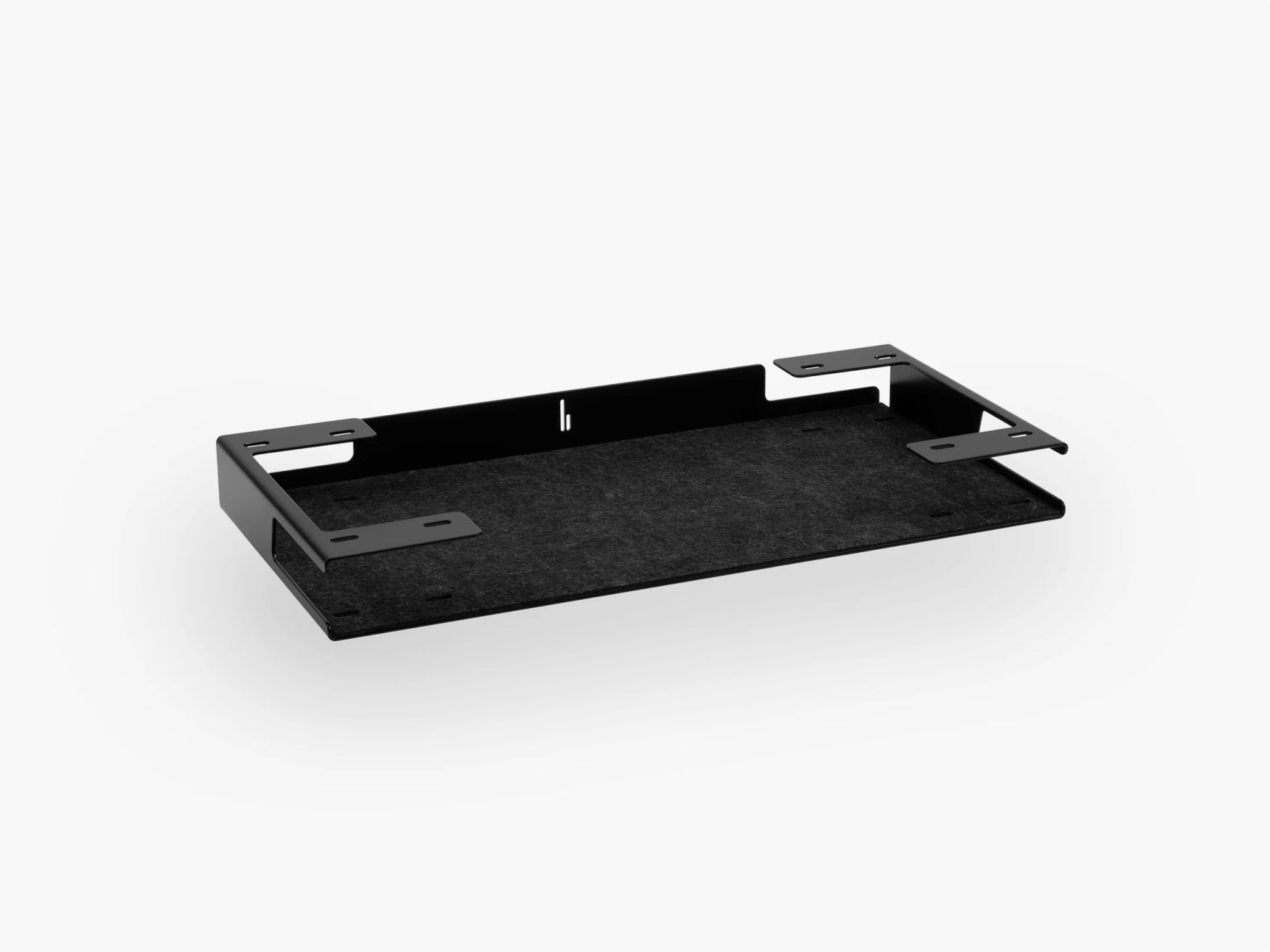
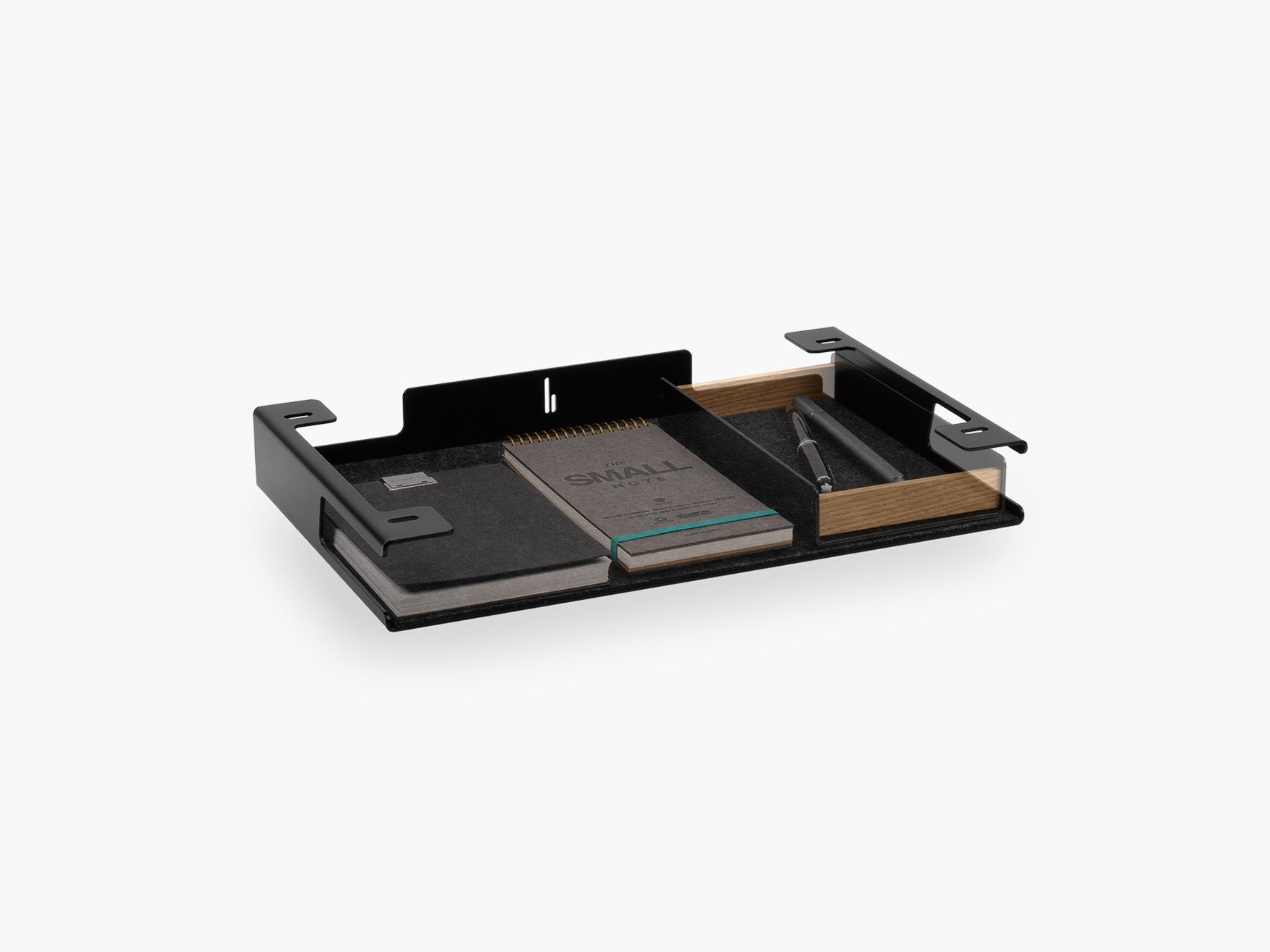
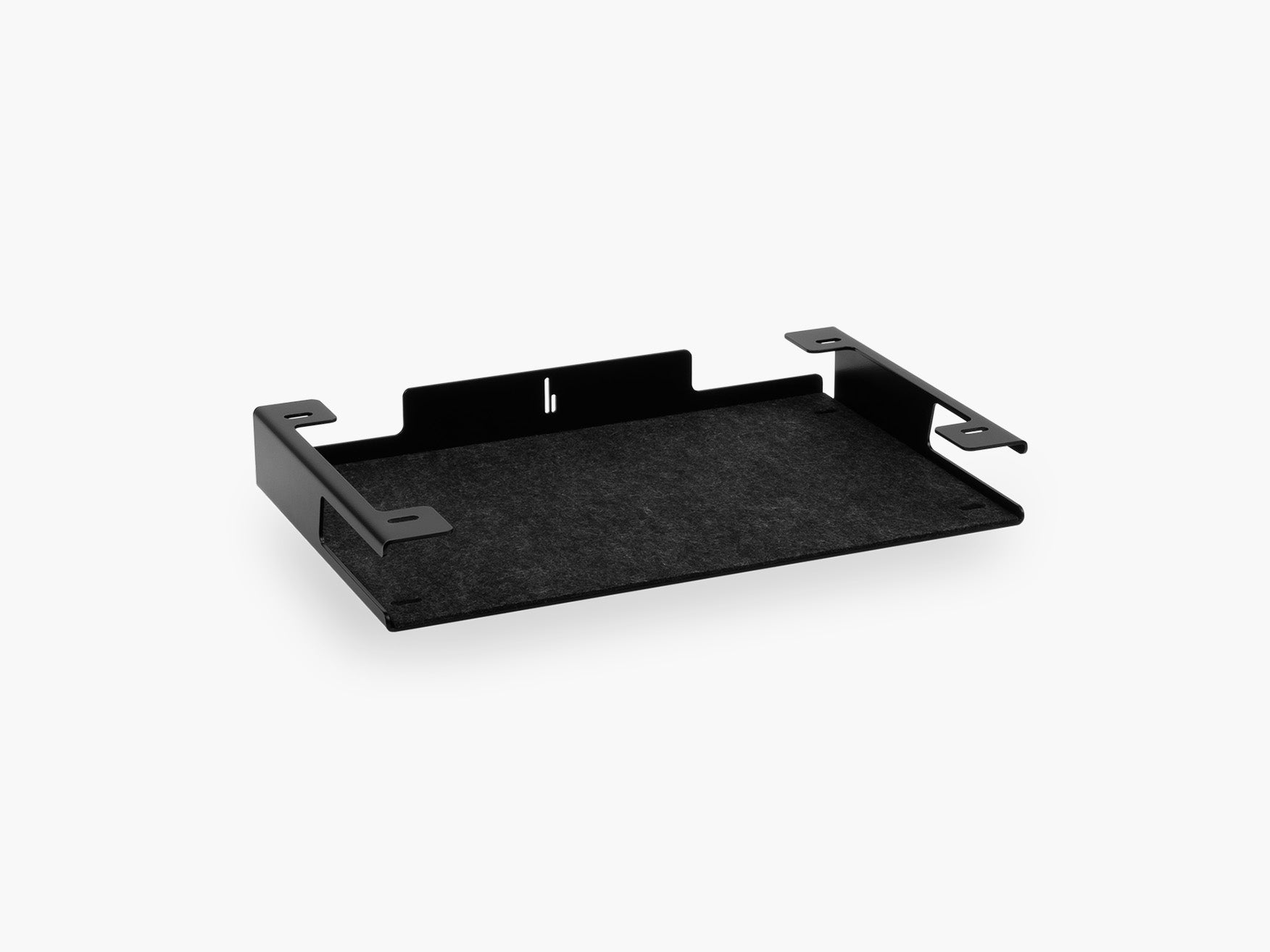
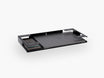
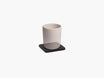
Our Tray for the Setup Cockpit can be mounted in different positions and creates a fixed storage area for everyday work essentials. The Large Tray provides additional space for larger items such as a laptop, tablet or notebook.
The key principle: every object you use regularly should have a clear home. When you finish using it, you shouldn't need to decide where it belongs.
8. Use Lighting for Focus and Atmosphere
A productive workspace usually needs more than one type of light.
General Lighting
This illuminates the room and helps you move through the space comfortably.
Task Lighting
A desk lamp provides focused light for reading, writing, sketching or working with physical objects.
Ambient Lighting
Indirect lighting behind the monitor or around the workspace can create depth and contribute to a calmer atmosphere.
Avoid positioning the display where strong window light creates distracting reflections. Choose a lighting arrangement that supports the work you actually perform.
9. Reduce Digital Distractions Too
An organized desk can still feel distracting when the digital workspace is chaotic. Physical and digital organization should support each other.
These adjustments can help:
- Remove unnecessary applications from your dock or taskbar.
- Turn off non-essential notifications.
- Close tabs that don't relate to the current task.
- Create separate browser profiles for work and personal use.
- Use a simple folder structure for active projects.
- Place distracting personal devices outside your direct field of view.
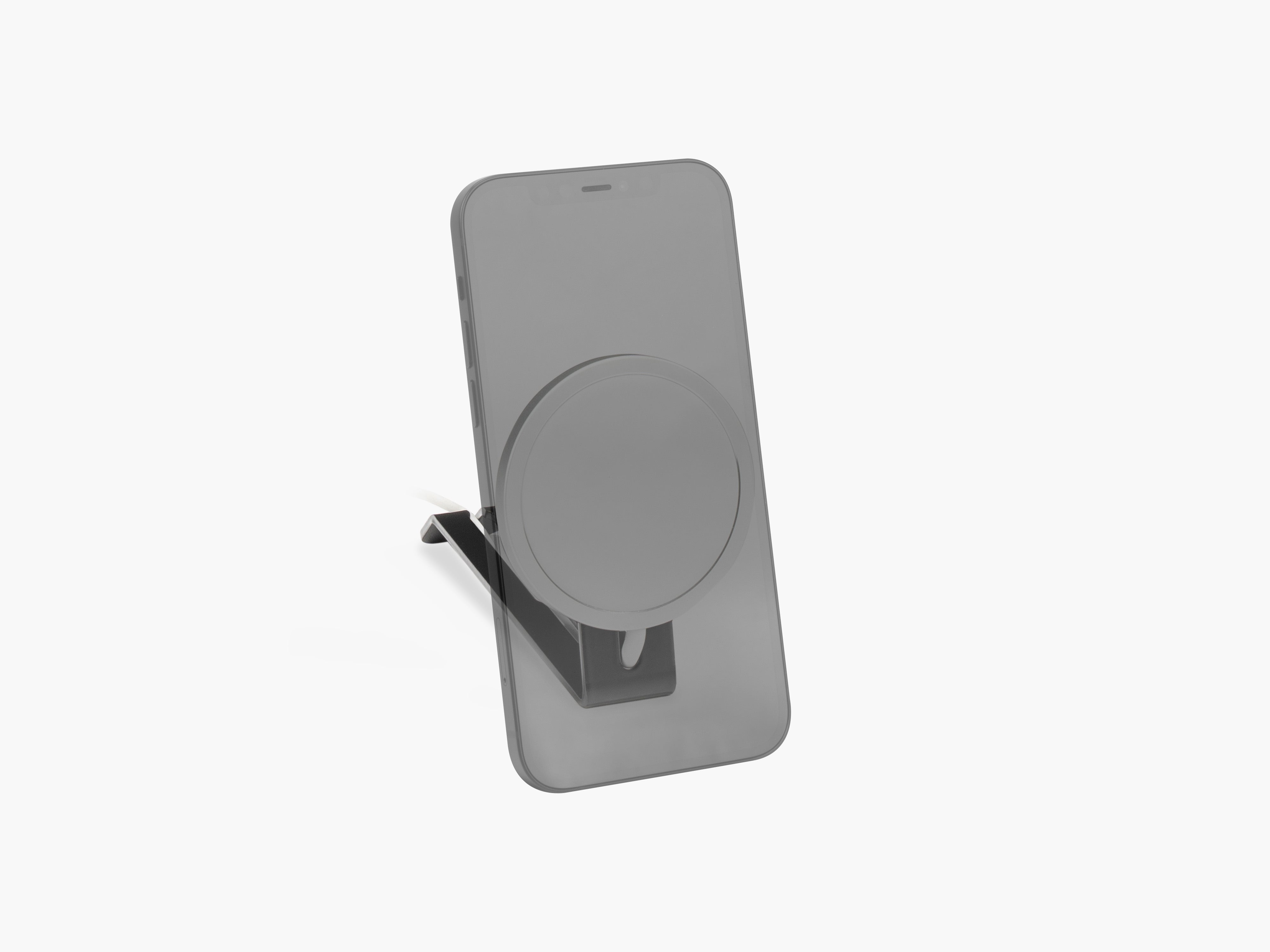
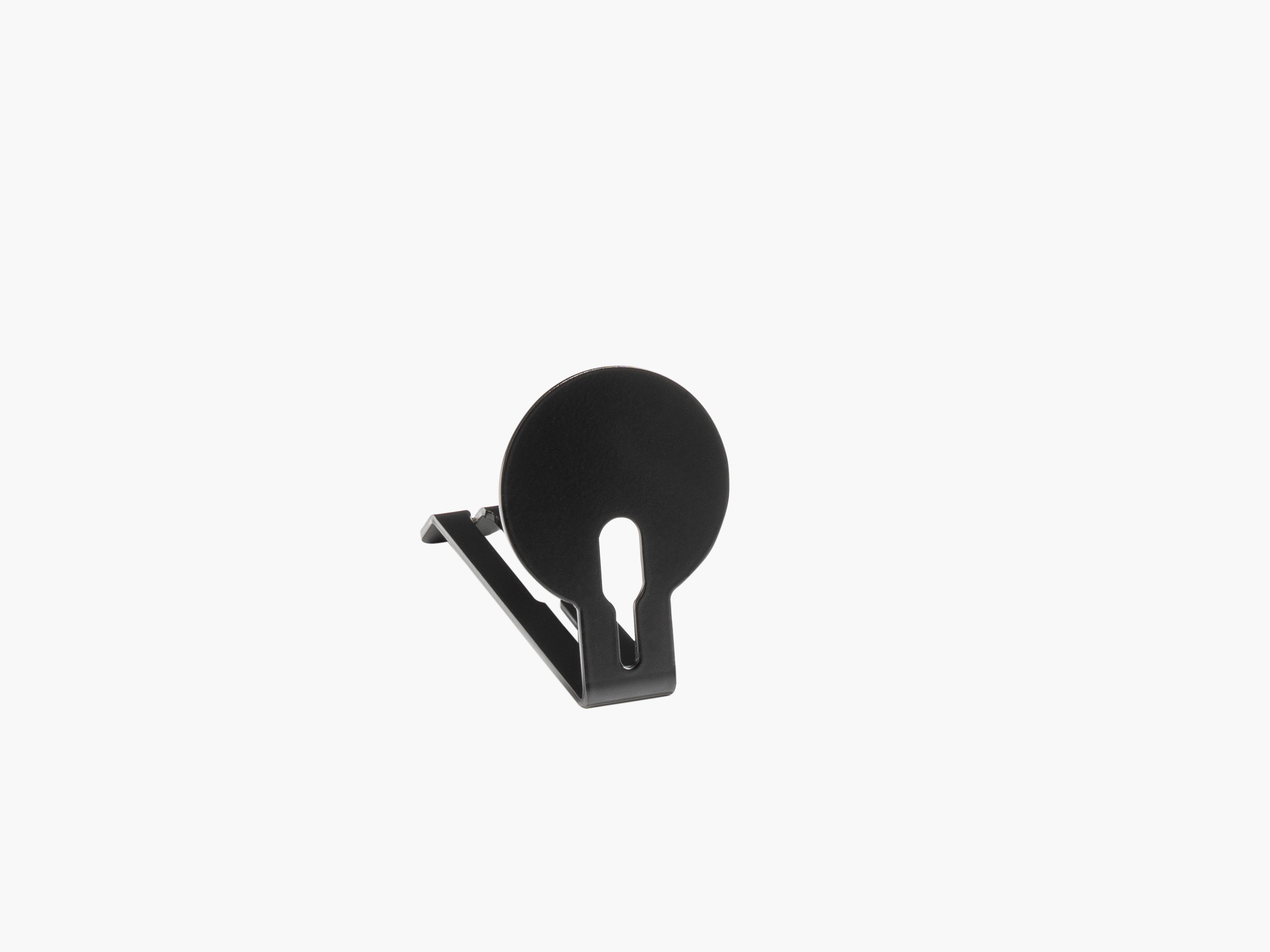
On a dedicated phone holder, your phone stays reachable for calls without sitting directly beside the keyboard as the visual center of attention.
10. Choose Accessories That Support Multiple Functions
A productive desk does not need a separate accessory for every individual problem. Often, one well-designed product can perform several roles at once.
The Setup Cockpit can, for example:
- raise the monitor
- create storage space beneath the screen
- define the visual center of the setup
- support additional accessories
- improve cable routing
- make the daily reset easier
This is exactly why modularity is central to BALOLO. A modular desk shelf can adapt as your devices, tasks or working habits change – you don't have to replace the entire system.

11. Create a Consistent Visual Language
Productivity and aesthetics are not opposites.
Try to limit yourself to:
- two to three main colors
- one dominant wood tone
- one metal finish
- a small number of decorative objects
- materials that repeat across the setup
A dark desk setup often feels focused, high-contrast and atmospheric. A light setup can feel more open, calm and spacious, particularly in smaller rooms with good daylight. Read more in our article Dark vs Light Desk Setup: Which Style Fits You Best?
Personal objects are welcome as part of your workspace. Use them selectively.
Productive Desk Setup Examples
| Working style | Core equipment | Useful additions |
| Remote professional | Monitor, laptop, keyboard, mouse, webcam | Phone holder, notebook tray, cable management |
| Creative professional | Large display, laptop, headphones, external drives | Headphone holder, device tray |
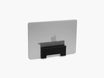
| Compact workspace | Laptop or single monitor, compact keyboard | Vertical laptop storage, monitor shelf, under-desk cable routing |
| Dual-monitor workflow | Two monitors, keyboard, mouse | Large desk shelf, structured cable management |
| Hybrid workspace | Laptop, external display, video-call equipment | Laptop dock, phone holder |
Common Desk Setup Mistakes
Adding Too Many Accessories
A desk accessory is only useful when it solves a recurring problem. Products without a clear function can make the workspace unnecessarily complicated.
Designing Only for Appearance
A setup can look impressive in photos and still feel impractical during an eight-hour workday. Test every position during real work.
Ignoring Cable Routes
Cable management is significantly easier when it's planned before the final setup is assembled.
Storing Everything on the Desk
The work surface shouldn't become permanent storage. Inactive devices and documents belong in drawers, shelves or concealed holders.
Creating a Fixed Layout
Your working style will likely change. A modular desk setup gives you the flexibility to adapt.
Forgetting the Daily Reset
Even the best organization system needs a simple routine.
The five-minute desk reset:
- Return pens, notebooks and accessories to their assigned places.
- Remove cups, packaging and documents you no longer need.
- Connect devices that need to charge.
- Close unnecessary applications and browser tabs.
- Write down the first task for the next working day.
- Return the keyboard, chair and frequently used tools to their starting position.
Productive Desk Setup Checklist
- The primary monitor is directly in front of me.
- My screen height supports a comfortable head position.
- My keyboard and mouse are easy to reach without stretching.
- My chair supports my back and feet.
- Frequently used items have fixed positions.
- The central work surface stays largely clear.
- Cables follow planned routes.
- The power strip is stored away from the main work surface.
- Lighting supports both screen work and paper-based tasks.
- Decoration doesn't interfere with my workflow.
- My setup can adapt to new devices and tasks.
- I can reset the desk in less than five minutes.
Start with the issue that interrupts your workflow most often – whether that's a monitor set too low, missing storage, a messy cable system or a cluttered work surface.
Build a Workspace That Works With You
A productive desk setup isn't defined by how many accessories it contains. What matters is how easily it supports your daily work.
At BALOLO, we believe a modern workspace should combine structure, functionality and visual clarity. Our modular Setup Cockpit system helps you build an organized desk that adapts flexibly to the way you work.
The most effective setup isn't necessarily the most elaborate one. It's the setup that makes productive work feel effortless.
Frequently Asked Questions About Productive Desk Setups
What is the best desk setup for productivity?
The best desk setup is organized around your main tasks. It provides a comfortable position for monitor, keyboard and mouse, keeps frequently used items within reach and leaves enough open space for active work.
Does a clean desk improve productivity?
A clean desk can support focused work because fewer irrelevant objects compete for your attention. It doesn't need to be completely empty – it should hold the tools you need for your current tasks and store everything else sensibly.
What desk accessories are most useful for work?
Useful desk accessories solve specific, recurring problems. Common examples include:
- Monitor stand or desk shelf
- Cable management system
- Tray or storage compartment
- Laptop holder
- Phone holder
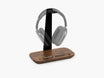
- Headphone holder
How should I organize a small desk setup?
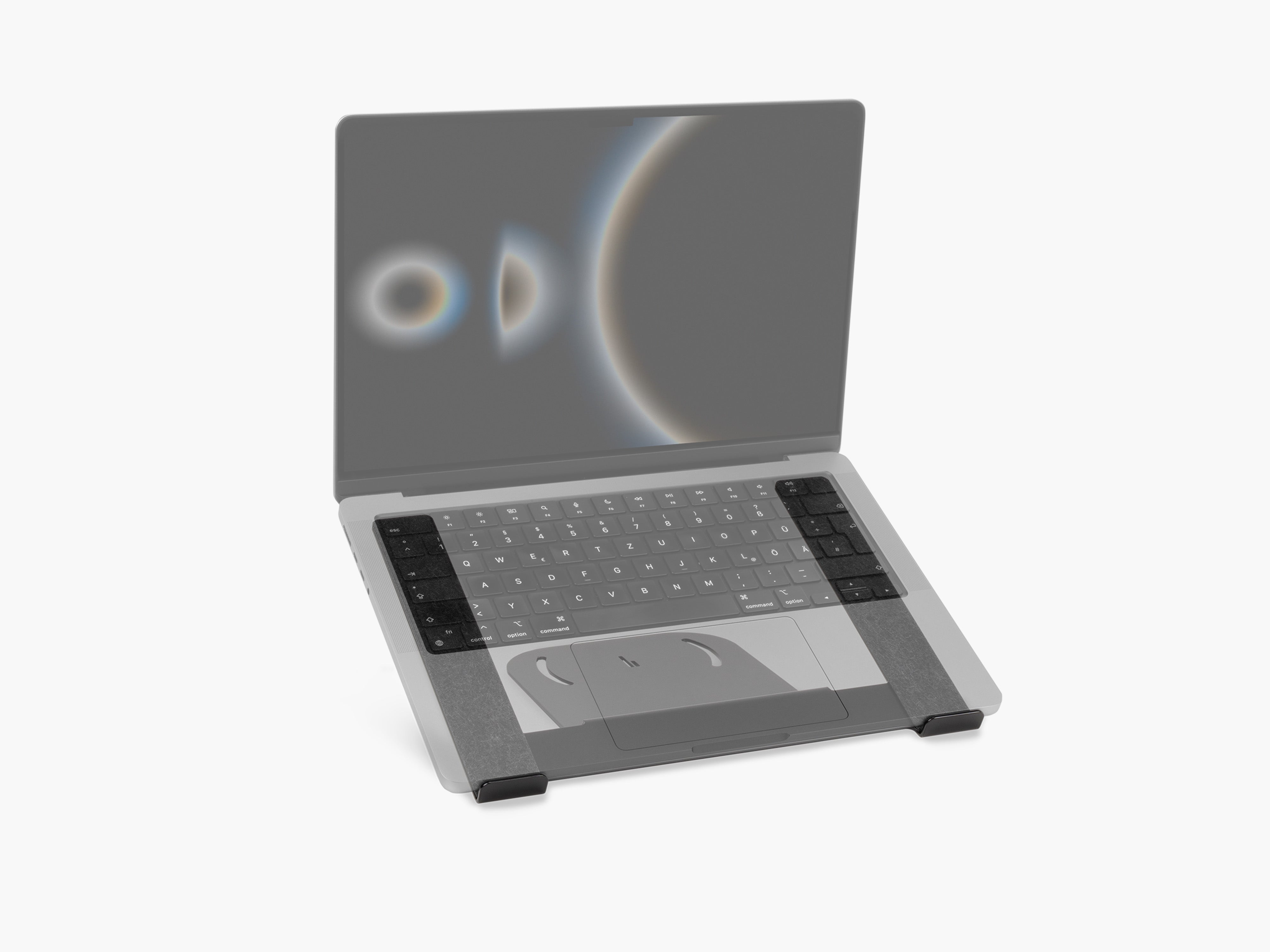
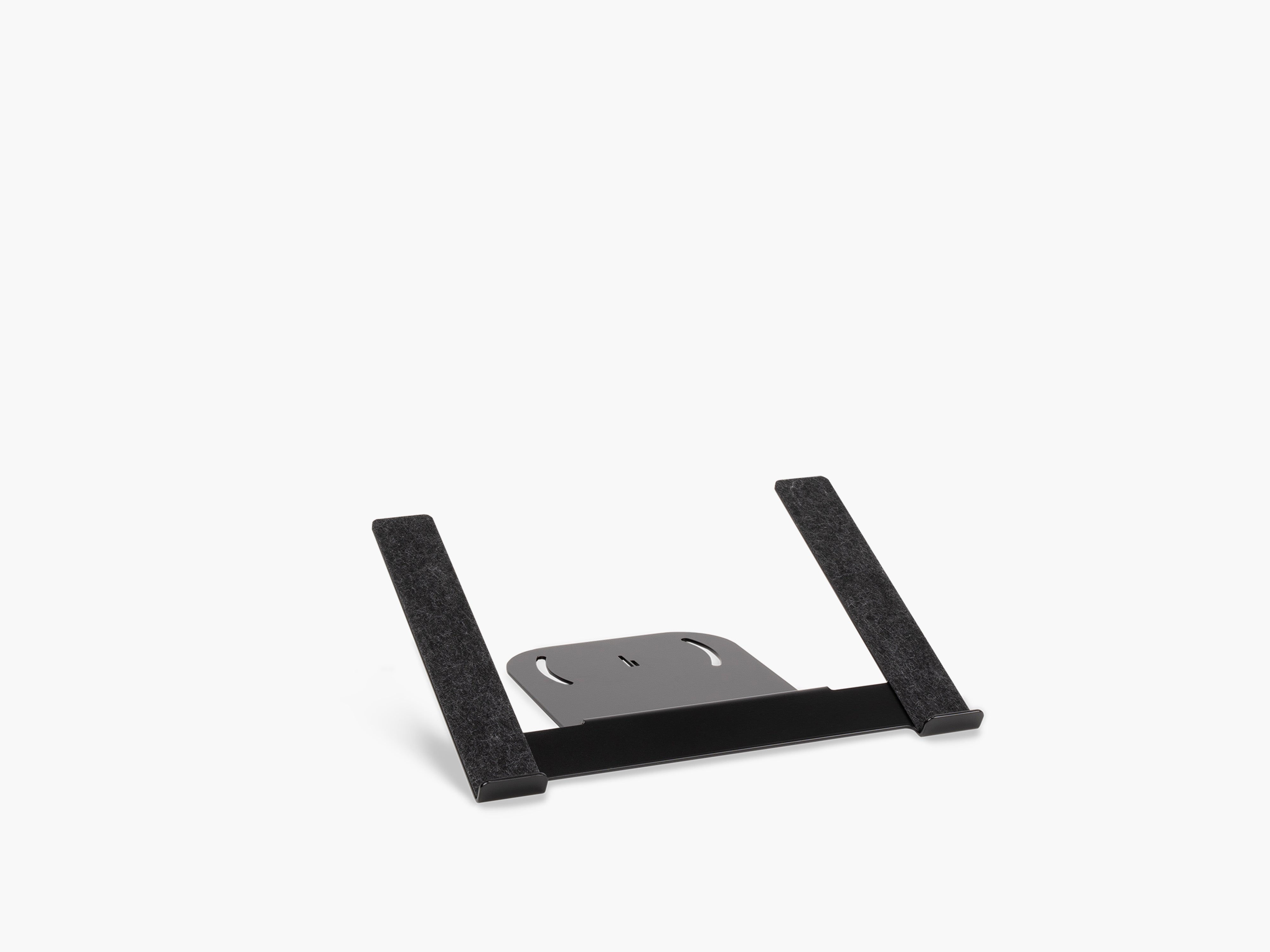
Make use of vertical space where possible. Store an unused laptop upright, route cables beneath the desk and keep only daily essentials on the surface. For more tips, see our article How to Create More Space on Your Desk Without Getting a Bigger Desk.
Is a monitor stand useful for a productive workspace?
A monitor stand can bring the screen to a more comfortable height while creating additional storage space beneath the monitor. A modular model can also support holders, trays and other organization solutions.
How often should I reorganize my desk?
A quick reset at the end of each workday is a good habit. A deeper review makes sense whenever your devices, tasks or working habits change.
How do you keep a desk setup organized long-term?
A desk setup stays organized when every regularly used item has a fixed place and the work surface doesn't serve as permanent storage. A short daily tidy-up routine prevents small items, documents and cables from accumulating over time.